Element Properties - General Tab
Use the General tab to configure the basic settings for an element.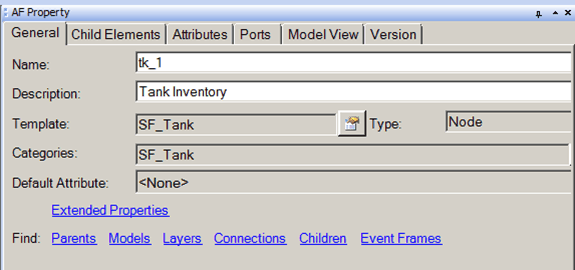
The following table provides descriptions for each of the inputs found under the General tab and what to do with each one.
AF Property Window – General Tab for an Element
| Input Box / Button / Checkbox | Description |
|---|---|
| Name | Assign a Name for the element. |
| Description | (Optional) Enter a Description for the element. |
| Template | Read-only.Shows the template that was chosen when the Element was created, if any.Click the Element Template icon to open the Element Template Properties window. |
| Type | Read-only.AF Element type (determined by the template on which the Element is based): node, measurement, flow, transfer, boundary, and other. |
| Categories | Read-only field displays category in which Model belongs. |
| Default Attribute | Read-only for elements based on templates.The default Attribute is an Attribute that is most representative of the element.For example, if you were to reference a tank, perhaps 'Level' would be the single best Attribute to use. |
| Extended Properties | Click this link to configure one or more optional additional properties for the template. After the Extended Properties window opens, right-click under the Name box and select New Extended Property. Specify a name and value for the property. |
| Parents | Click this link to display all parent elements for this element. |
| Models | Click this link to open the Models window where you can examine all the Models to which the Element is assigned. |
| Layers | Click this link to open the Layer Selection window where you can assign the Element to one or more layers. |
| Connections | Click this link to open the Element Connections window where you can edit the connections to an element. |
| Children | Click this link to view the child elements associated with this element. The Element Search window opens to allow for using additional search criteria. |
| Event Frames | Click this link to view the event frames with which the Element is connected. |