Element Properties - Attributes Tab
Use the Attributes tab to view Attributes for the selected element.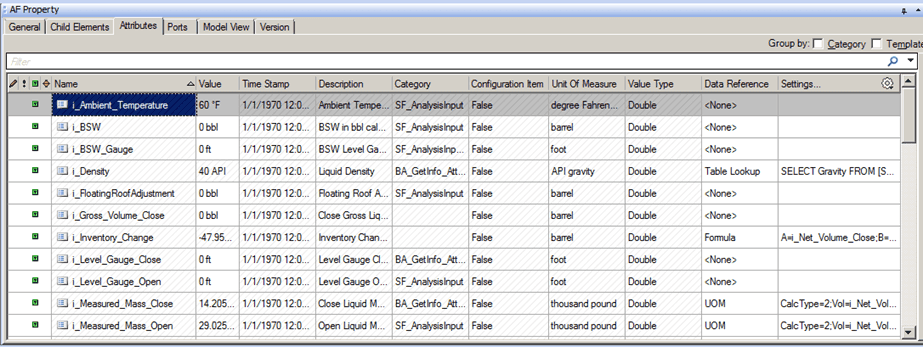
The following table provides descriptions for each of the inputs found under the Attributes tab.
AF Property Window – Attributes Tab for Elements
| Input Box / Button / Checkbox | Description |
|---|---|
| Group by: Category/Template | (Optional) Check the Category checkbox organize Attributes by grouping them into categories.(Optional) Check the Template checkbox to organize Attributes by template names. |
| Name | Read-only.Displays the name of the attribute. |
| Value | Displays the current value of the attribute. |
| Time Stamp | Read-only.Displays the description of the Attribute set at the template level. |
| Description | (Optional) Enter a Description for the element. |
| Category | Read-only.Shows the categories by which the Attributes are grouped. |
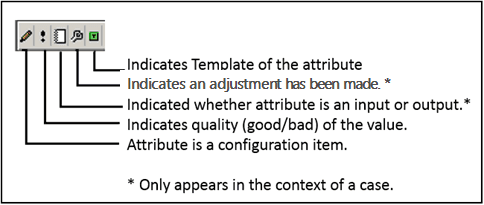
| Configuration Item | Read-only.If set to True for Attributes when a change in value will result in a revision change to the element.If set to False for Attributes with values that will change with the process.The (configure) icon indicates that the Attribute is a configuration item. |
| Unit of Measure | Read-only.Displays the unit of measure for the attribute. |
| Value Type | Read-only.Displays the data type of the attribute. |
| Data Reference | You can select a data reference for determining the value of the attribute. |
| Settings | If you choose a data reference, click Settings to configure the data reference. |
The following diagram provides a description for each of the icons that display in the first column of the Attributes tab table.