AF Browser Search Option
You can perform an Element search using the search bar in AF Browser.
To perform an Element search:
In the Search box, type a word or phrase that applies to your search.
To refine your search click on the Search box down-arrow to view and select the search criteria options.
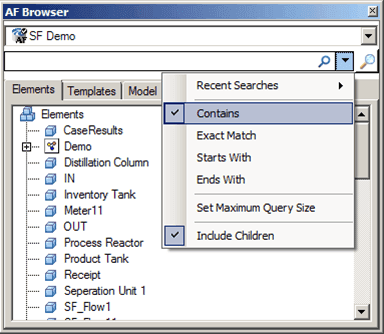
The various search criteria options are described in the following table.
Search Criteria Options
Search Criteria Function Recent Searches Shows the most recent searches for easy access. Contains Searches for all elements which has the text anywhere in the name of element. Exact Match Searches for all elements which has the text exactly as the name of element. Starts With Searches for all elements which has the text that matches the starting of the name of element. Ends With Searches for all elements which has the text that matches the ending of the name of element. Maximum Query Size The search results are restricted to this number. EXAMPLE: Search for 'node' using Contains criteria
When ‘node’ is entered in the search bar and the ‘Contains’ option is selected, all the elements that have ‘node’ in the Element name appear under an ‘Element Quick Search Results’ item, as shown in the following figure.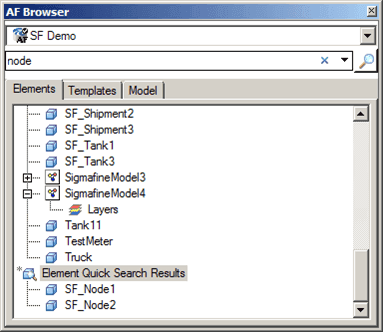
EXAMPLE: Additional search for 'tank'
If we perform another search with ‘tank’ in the Search box, another set of results are displayed under a separate ‘Element Quick Search Results’ item. Multiple searches can be performed in this way.
Deleting the Element Quick Search Results
To delete the 'Element Quick Search Results' list.
Right-click on Element Quick Search Resultsfolder in the tree.
Do not click on an Element when performing this step, as doing so will delete only that element, not the whole search results list.
Select Delete from the menu that appears.
The following confirmation window opens.

Click Yes to confirm the deletion and close the confirmation window.