Removing a Connector
When you remove an existing Connector, it deletes the connection to the associated external system, thereby impeding the connection between the IF Server and the target system. A Connection removal can be done only if all the "belonging" objects (e.g. Datasets inside an Integration Rules) are deleted. Since Connectors are the base blocks for all the Datasets, removing a Connector alters all the objects using that connection and system.
Prior to removing a Connector, we recommend you verify that:
- All Integration Rules using the connector or one of its belonging objects are deleted or edited (by changing the connector/datasets).
- All Integration Rules are stopped, all triggers are disabled, and no integration rules are currently running.
- All "belonging" Datasets and sub-objects are removed (e.g. caches).
IMPORTANT: While we provide the means to remove a connector, we strongly discourage doing so unless the necessity is due to a trivial error in the initial connector step (e.g. just a preliminary test over a similar server).
To remove an existing Connector:
Run the Integration Framework Configurator.
Click on your Windows Start button to display the list of installed software applications.
From the list of software applications, select Integration Framework > Configurator.
The Integration Framework - Configurator window opens.
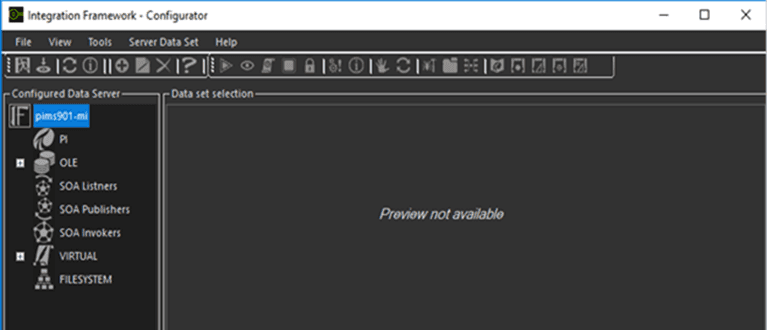
The Configured Data Server list displays all the possible connector types for each server, based on the license stipulations. For example; if you have a license for only OLEDB and Sigmafine, then only OLE and PI/AF connector types are displayed.
From the Configured Data Server list, click on the Channel Object to expand it's list of connectors.
Right-click on the Connector and select Remove.
Click the
 Save icon in the toolbar to save the removal and close the window.