FILE Connector
The FILE Connector supports the most common way to integrating systems: data exchange through files. It is used to work with all kind of files, such as the following:
- Plain text file
- CSV
- Tabbed-text files
- XML files
- Binary files
- Other files…
The connector only connects to files that are located in the file-system of the machine where the Integration Framework Server is installed and running. Therefore, files must be located on the Integration Framework Server machine, in a folder on the local hard-drive. The file proximity helps to in order to avoid any kind of sharing and fixed mappings that could potentially expose the system to security holes. In this respect, should you need to import files from another system or machine, you will need to setup a procedure outside of the Integration Framework.
In order to use FILE Connector, files must be readable, and they must not be locked at the system level by another executable, service or application running over the same or a different machine.
The FILE Connector implements the following:
The connector can connect to one or more files stored in a specific directory.
In this version of IF, there is no recursive search, so the file(s) to be processed must be placed in a unique directory.
Sub-folder navigation is not supported at this time. Therefore, to bypass the sub-folder limit, a new FILE Connector must be created and configured for each folder and sub-folder containing the files to be imported and processed.
The connector has INPUT-only capabilities.
By design, the connector can only read and process files for importing data, as it cannot link the file system in order to create and/or write files.
To access the file system, the FILE Connector uses the log on account configured to run the IF server .
IMPORTANT: When configuring a FILE connector, you must consider the privileges assigned to the files and folders, as well as the security privileges set for the account used to run the IF server. For potential security issues and better security management, we discourage running Integration Framework using a specific user account, and instead recommend relying on the "system" account. This recommendation stems from the rule that the "system" account has read/write privileges to all the files in the local machine file system. Please note though that special file system security configurations can break this rule.
Note: When importing data from files, you must take into consideration the locale ID used for operations. The locale ID used for the operations on files is the LCID of the system account.
Once loaded, the FILE Connector form allows defining all the parameters to connect a specific set of files from a directory of the file system. See for screenshot below:
Defining 'FILE Connector' Parameters
When you add or edit a FILE Connector, a File System DataServer window opens in which you can define the parameters to connect to a specific set of files from a folder in the file system.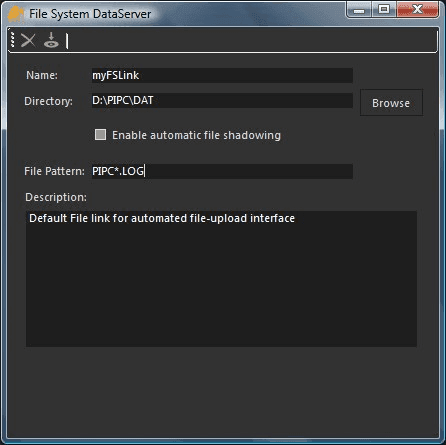
To define the FILE Connector parameters:
Use the following table as a guide in entering the parameters for the FILE Connector.
Integration Framework FILE Connector parameters
Parameter Description and Notes Name (Required) The instance-name of the FILE Connector identifying a specific file-system connection rule. Directory (Required) The directory monitored/processed by the IF FILE Connector. You can enter the full path or click the Browse button on the right side of the edit box. If you enter the path manually, please ensure that you have entered the full, correct path.Note:The Browse button lets you browse the Integration Framework Server file system.If the folder you want does not exist, no files are managed by the FILE Connector. Though, the FILE Connector is still saved without displaying an error. File Pattern (Required) The pattern-search for the files within the specified folder you entered in the 'Directory' box. This is the search mask for the files and it follows the standard windows rules (wildcard included). Examples:.DAT - looks up all files with a "LOG" (.dat) extension. Note that '.dat' is the standard extension for log files.OUT_.ba? - looks up all files with a prefix of "OUT_" and an extension of ".ba..." with the last character being any alphanumeric character. Description (Optional) A short description of what the Connector does (e.g. type of file). Enable automatic file shadowing (Optional) A shadowing option that enables the file shadow cache. File-shadow is a technique used to process the files from a shadow folder (the SHADOWCOPY directory under the Integration Framework Server installation path). This parameter must be used when files are written by the provider of the data and that for a certain period, can be locked. The shadow performs a local copy of the file(s) so the IF server can work over the copy of the file until the source file has been unlocked by the third party system. In the toolbar, click the
 Save icon to save your parameter settings and close the Configure PI window.