Configuring - Density Calculation
Use the Density Calculation to determine the average density for a mixture of known components.
To configure the density calculation with the wizard, select the Component Data Reference (Section Configuring the Components Data Reference), and follow the steps below.
Select the analyzer Element and the density attribute.
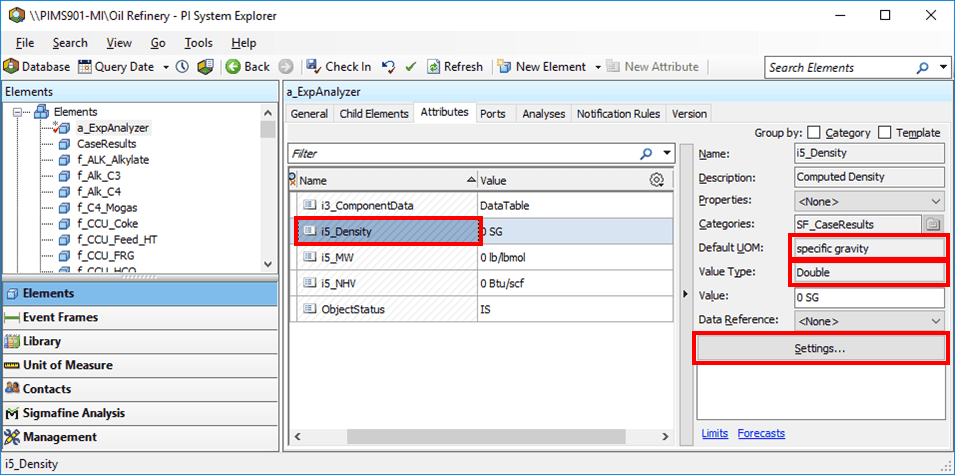
For the attribute’s Data Reference Name, select Density.
The Default UOM value should be either the density or specific density class.
The Value Type should be Double.
Click the Settings button.
The Components Data Reference window opens.
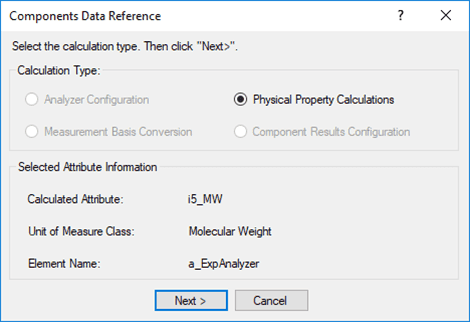
Under Calculation type, select Physical Property Calculations, then click Next.
The Physical Property Calculation window opens.
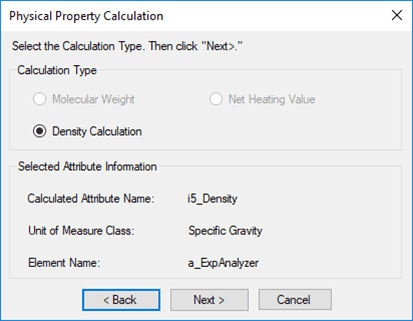
Select Density Calculation (this is the only option available since the UOM for the Attribute is in the density class) and click Next.
The Density Calculation window opens.
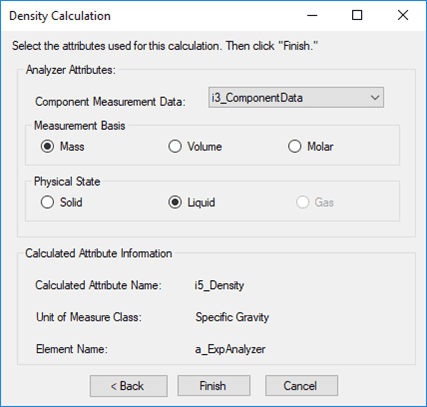
Fill in the Physical Property Calculation window as described in the table below.
Attribute Description Component Measurement Data The Attribute where the component analysis data is entered. Measurement Basis Select the type of analysis entered in the component measurement data attribute. Physical State Determines the calculation to be used. Solid Gases, Liquids or Solids from Mass FractionsLiquid and Solids from Volume Fractions Liquid Gases, Liquids or Solids from Mass FractionsLiquid and Solids from Volume Fractions Gas Not applicable. Note: Configure the component measurement data Attribute before configuring the Density calculation, (see Configuring - Analyzer Configuration).
When done with your configuration settings, click Finish.