Configuring - Component Results Configuration
To configure the Component Results Configuration with the wizard, select the Components Data Reference (Section Configuring the Components Data Reference), and follow the steps below.
Select the Attribute containing the reconciled component results.
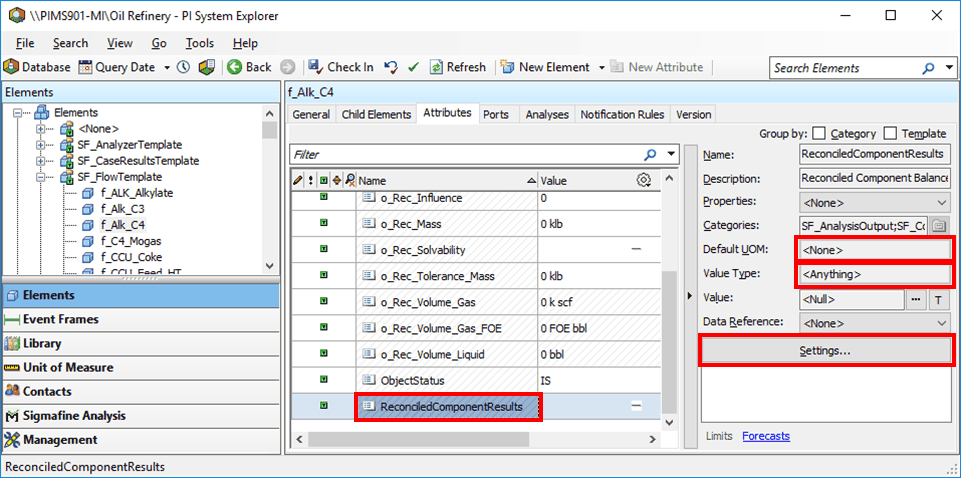
For the attribute’s Data Reference Name, select ReconciledComponentResults.
The Default UOM value should be None.
The Value Type should be Anything.
Click the Settings button.
The Components Data Reference window opens.
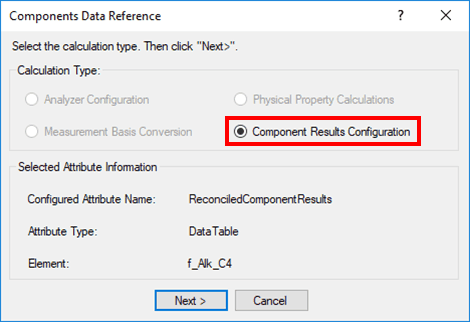
Under Calculation type, select Component Results Configuration, then click Next.
The Component Results Configuration window opens.
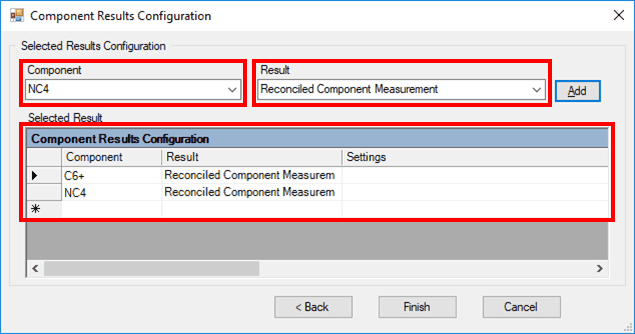
Fill in the window as described in the table below.
Analyzer Configuration Dialog Box
Input Box / Button Description Component Select component. Results Select calculation result. Component Results Configuration In the Settings box for each row, right click to set the PI Point.  EXAMPLE: Component Results Configuration window - filled in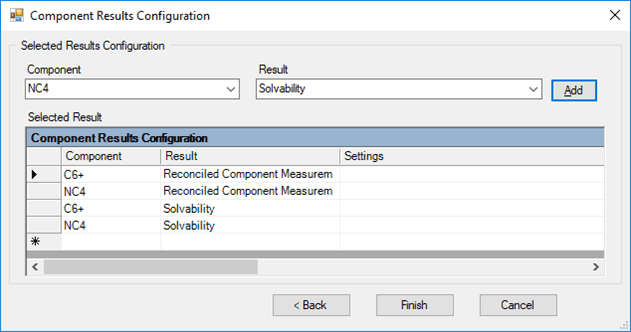
Note: Configure the component results configuration before running the Component Balance Analysis Rule.
When done with your configuration settings, click Finish.