View Notifications
When notifications are received, the Notifications icon changes in appearance, and indicates the number of notifications that have been received along with any previous notifications that have been viewed but not yet "dismissed". Notifications are received for various reasons, most of which are explained in the notification introduction (SFHub Visualizer Notifications).
To view notifications:
Click on the
 Notifications icon, to open
the Notifications panel.
Notifications icon, to open
the Notifications panel.Notifications panel
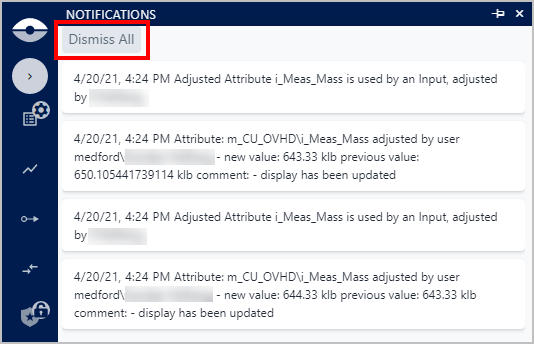
If you wish to clear the notifications list after reviewing your notifications, click the Dismiss All button.
All notifications that were displayed in the list are removed, and the counter on the Notifications icon is reset to 0.
Click on the Notifications icon again to close the Notifications panel.
Alternatively, you can click anywhere outside of the Notifications panel to close it.
Please see Notification Types for information regarding the types of notifications that appear in the Notifications panel.