Read a Message
When a message is received, the Messaging icon displays the green notification marker, and If you have your Message receipt notification sound turned on (this is the default), you also hear a message notification sound. The notification sound can be turned off or on in your user Settings. See Notifications Settings for details.)
In addition to the icon change when a message is received, the Messaging panel automatically opens displaying the green notification marker on top of the initials of the user who sent the message (as shown in the following figure).
Message Received Notification Markers

To read the message:
Click on the
 message icon on the command bar,
to open the messaging panel. If you already have the Messaging panel
open, click on the name of the user that sent a message.
message icon on the command bar,
to open the messaging panel. If you already have the Messaging panel
open, click on the name of the user that sent a message.Users with a green dot by the name (as shown in above Figure) are those who have sent you a new message.
The Chat area opens to display the message the user sent you. If they sent an attachment, SFHub Visualizer displays an image for the file (as shown in the following figure).
Messaging Chat area with received attachment and messages
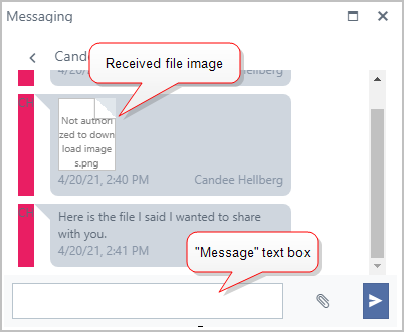
To open an attachment, click on its file image.
The file is downloaded to your computer. you can open the downloaded file using one of the installed applications (refer to your Browser instructions for more information).
To open a downloaded attachment, open it from your "Downloads" folder.
To reply to the message, type your reply in the Message text box and click the
 Send button.
As you communicate with the user through Messaging, the Chat window displays the text (and attachment images) in the Chat area.
NoteIf you wish to save text from a Chat with another user, you will have to take screen shots of the Chat area prior to logging out of SFHub Visualizer. Once you log out, the Chat area is cleared so messages and attachments are no longer visible.