Execution
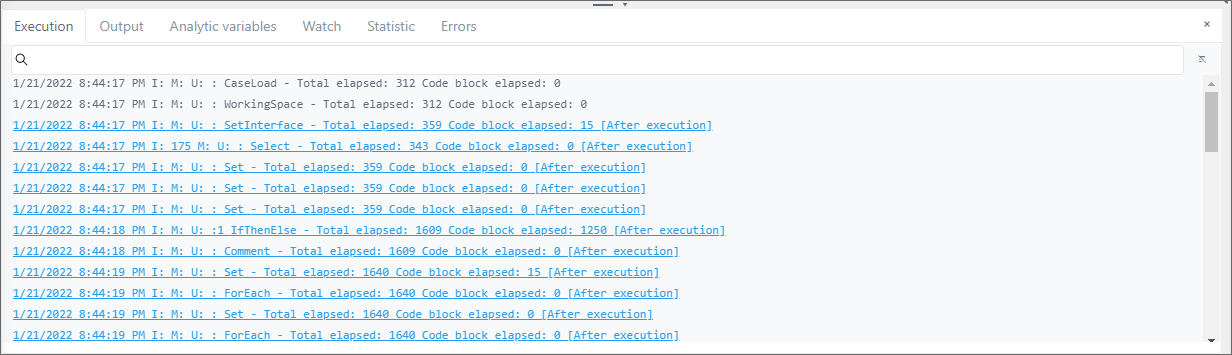
The Execution panel contains log entries that track the overall execution of the analysis. Some entries have a hyperlink that highlights the code block in the analytic web editor panel, that generated the log entry.
Example of the Execution log panel
On the top right-side of the panel, there are some additional features that are outlined here.
Execution Log additional features
| Icon/Button | Action | Description |
|---|---|---|
 | Search | The Search icon displays in the Search box. You can use this feature narrow the scope of the code blocks listed in the log table, or to find a specific element, value, etc. |
 | Clear | The Clear icon allows you to clear the log information in the current panel. |
To work with the Execution panel:
Click the Execution tab, if the panel is not already open.
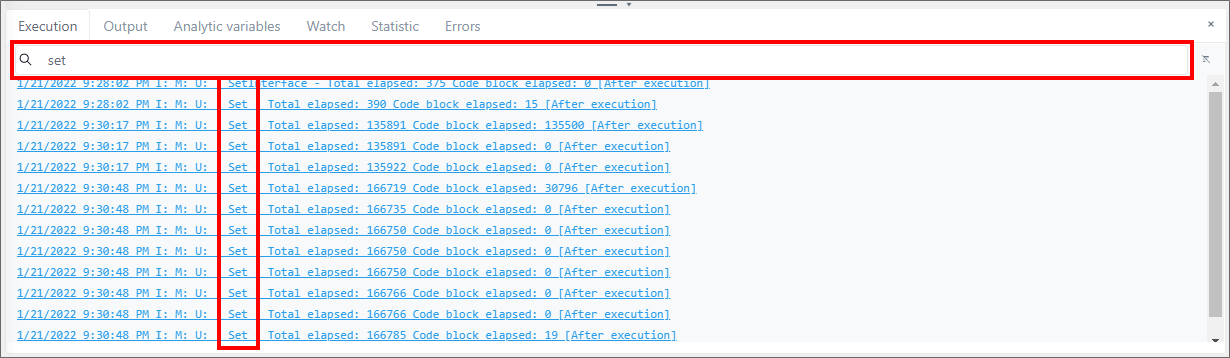
(Optional) Click in the Search box and type part or all of a term, to narrow the scope of the logged code blocks to only those that contain the typed term (as shown in the following figure).
Example Execution log panel Search
Highlight and remove the search term, to reset the log to display all code blocks again.
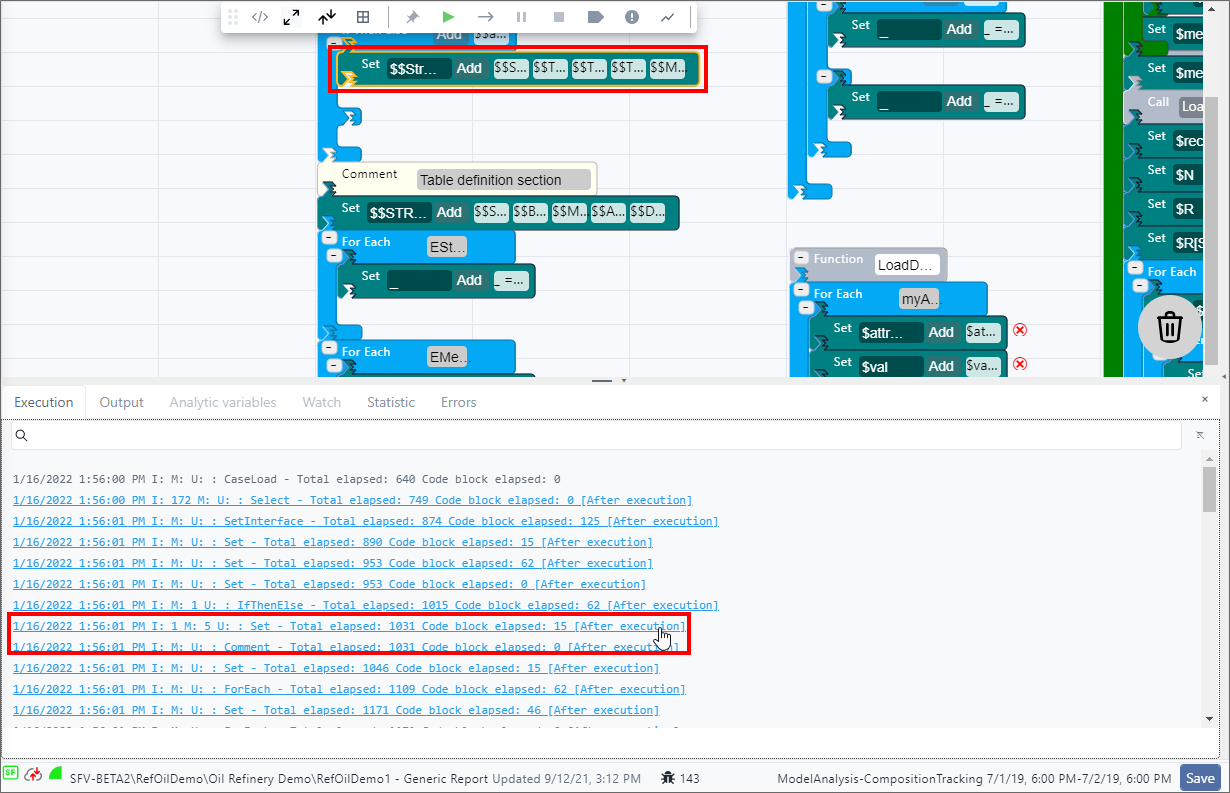
(Optional) Click on a SFCode Block in the log to quickly locate it in the analytic web editor panel, as shown in the following example.
Example of SFCode Block selected from log
(Optional) Click the
Clear icon to the right of the
Search box, to remove all information from the log. Only the log
information in this panel is removed; log entries in all other
panels remain intact.Cleared Execution log panel
