SFCodeBlock Behaviors
SFCodeBlock has several behaviors associated with its different statuses. These behaviors are described in the following table.
SFCode Block Status Behaviors
| Status | Behavior |
|---|---|
| Selected | A dark yellow border appears around a SFCodeBlock when you click on it (as shown in the following image). Selected indicator on a SFCodeBlock  When a code block is selected, you can drag to it to detach it from the original sequence along with the subsequent code blocks, or you can copy and paste the selected code block along with the subsequent attached code blocks someplace else in the same analytic or in another analytic. |
| Drag | A cross-hatch icon appears when you focus your mouse over a code block, indicating that it can be selected or dragged and dropped (as shown in the following image). Drag icon on a SFCodeBlock  |
| Break point | A red bar of the left border of a code block indicates that a break point has been set on this code block. Break point - red bar indicator  A Break Point pauses the execution of an analytic at the code block with the indicator, so that you can check the status of the analytic variables, as well as the element variables and attribute. Break points are only active when running the analytic in Debug mode. If running a regular analytic execution, any break points set in the analytic will be ignored by the execution process. |
| Port connection | The connection port mimics the Sigma symbol (Σ) A port connector at the top of a code block indicates that the code block can be attached to the bottom of an existing code block. Code blocks without a top port connector are those that can only be used as the first code block of a sequence (e.g., Main or Function). A port connector at the bottom of a code block indicates that another code lock can be attached to it. Code blocks without a bottom port connector are those that can only be used as the last code block of a sequence (e.g., End, Return or Break). |
| Execution | An arrow to the left of a code block indicates that the code block is currently being executed. The arrow appears in both the analytic execution and Debug modes.: Code block execution arrow indicator  |
The following sections topics provide some basic steps for working with SFCode Blocks.
- Add a SFCode Block
- Remove a SFCode Block
- Copy/Paste SFCode Blocks
- SFCode Block Property Panel
- SFCode Block Property Help
Add a SFCode Block
SFCode Blocks can be used to start and end an analytic as well as perform all other processes within the analytic. The Shapes panel provides all available SFCode Blocks based on their type of function. For example, the Programming code blocks are usually used to start and end an analytic function and call other functions, whereas the Logic code blocks are used to create what happens when each analytic function runs.
To add a SFCode Block:
Locate the SFCode Block you need, in the Shapes panel.
Drag the code block to where you want you place it in the Editor panel.
Drag code block to the Editor panel
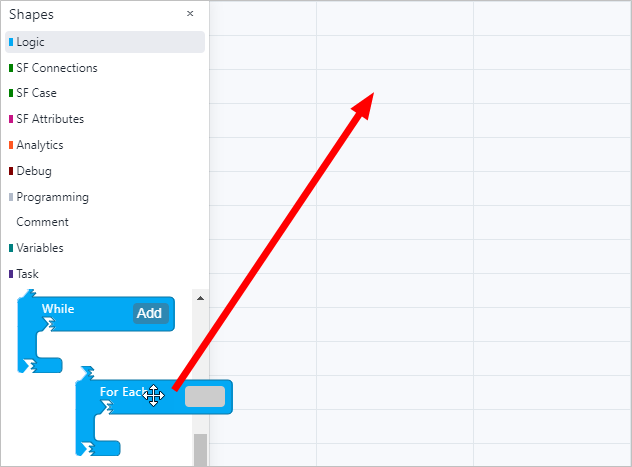
Drop the code block in the Editor.
To attach a SFCode Block to an existing one
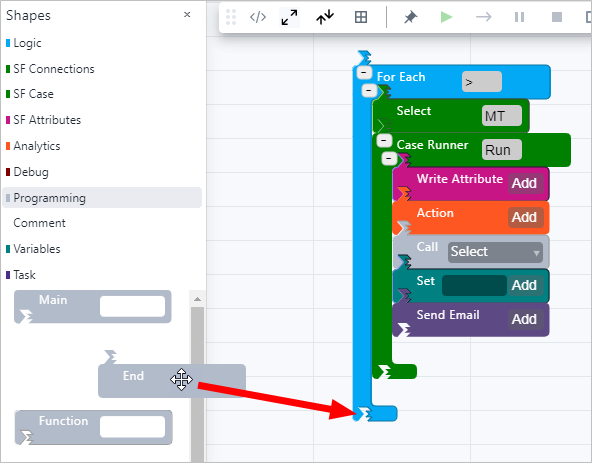
Drag the SFCode Block to the existing one.
Drop its connector on the existing connection port.
Drag SFCode Block and drop on connection port
 note
noteThe added code block can be anchored to an existing one according to where it falls in the execution sequence.
The connection port mimics the Sigma symbol (Σ).
To attached a SFCode Block in the middle of a sequence (between two existing ones)
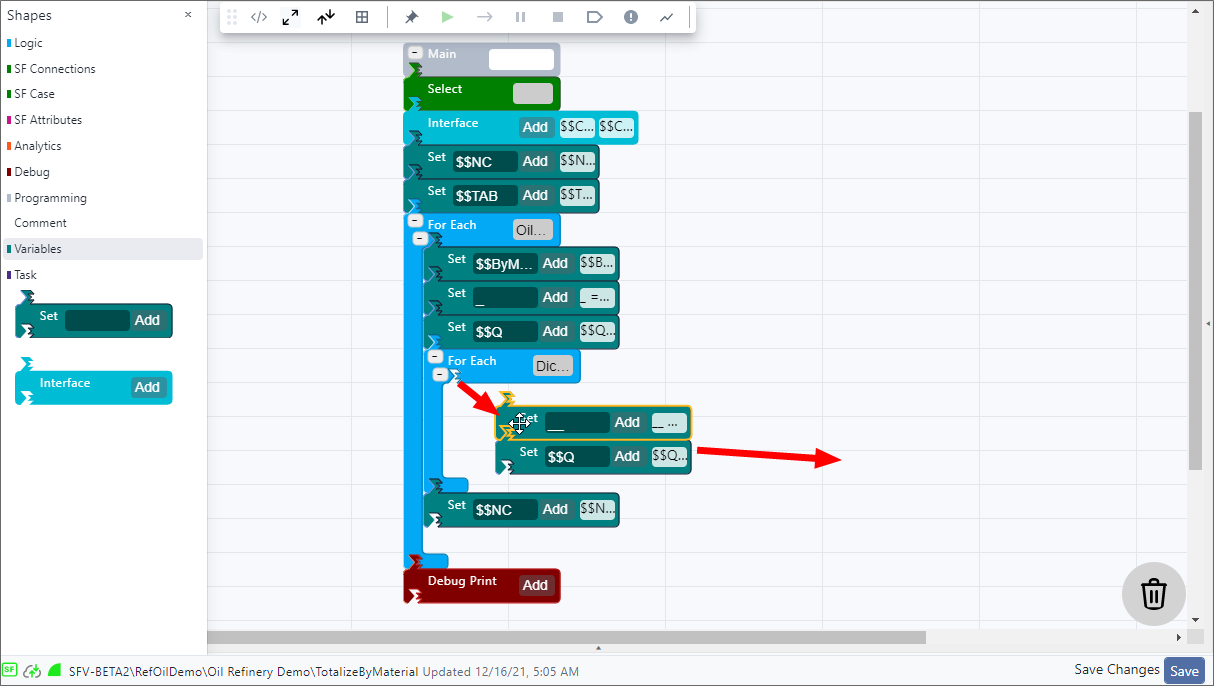
Detach the existing SFCode Block at the point where you would like to insert the new one, and temporarily drop it elsewhere in the Editor panel.
Detached SFCode Block
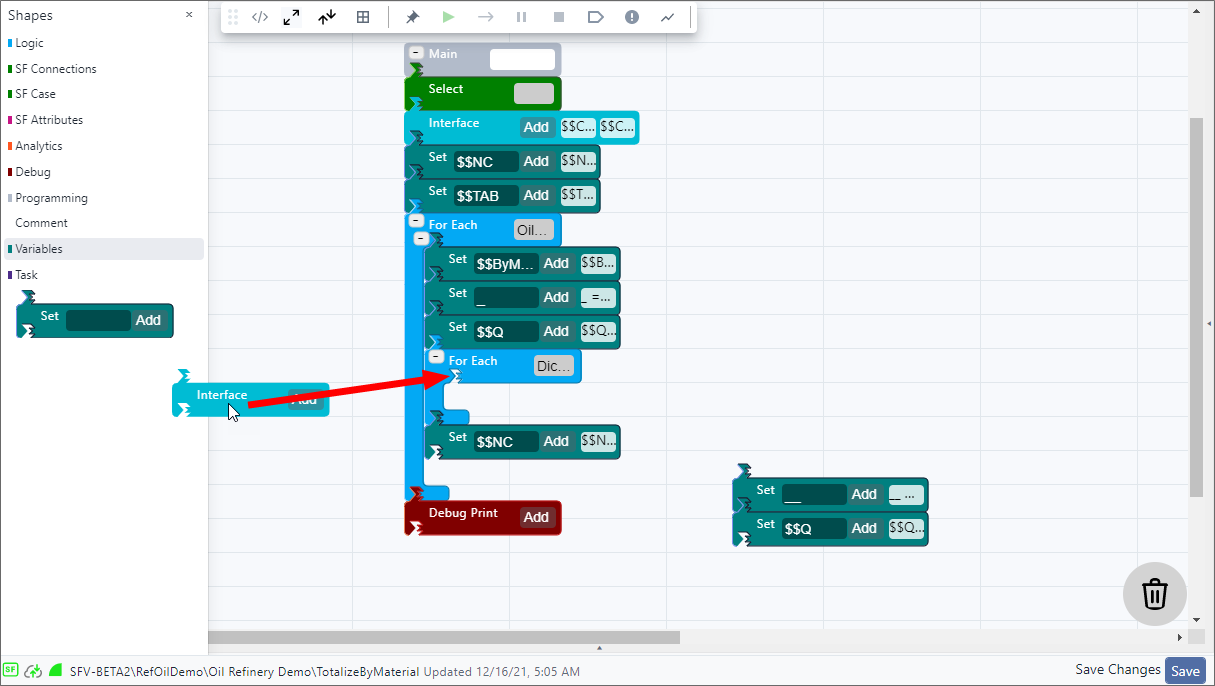
Drag the new SFCode Block and drop it at the bottom connection port of the first existing SFCode Block.
Drag new SFCode Block and connect it
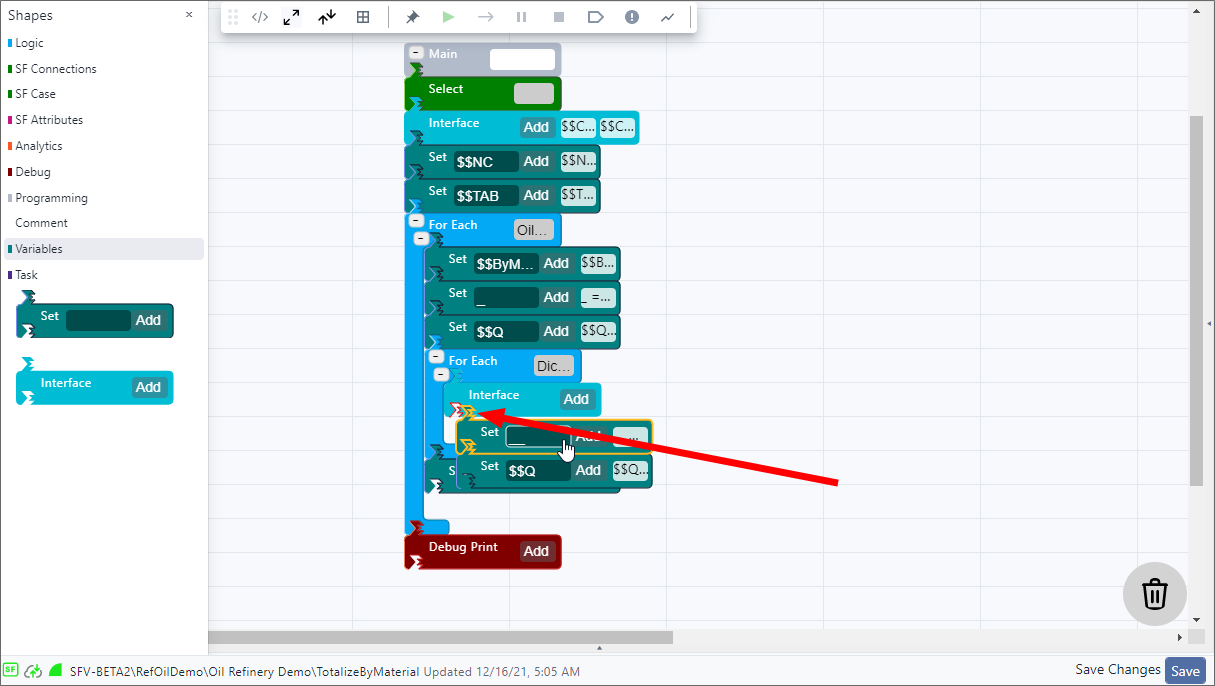
Reattach the existing SFCode Block to the connection port of the SFCode Block.
Reattached existing SFCode Blocks
Remove a SFCode Block
When you remove a SFCode Block, all code blocks connected to that code block are removed as well. This helps to prevent extraneous code blocks from causing the analytic to fail during an execution.
Drag the SFCode Block from the Editor panel to the
 trash can in the bottom right
area of the editor panel.
trash can in the bottom right
area of the editor panel.Drag SFCode Block to trash
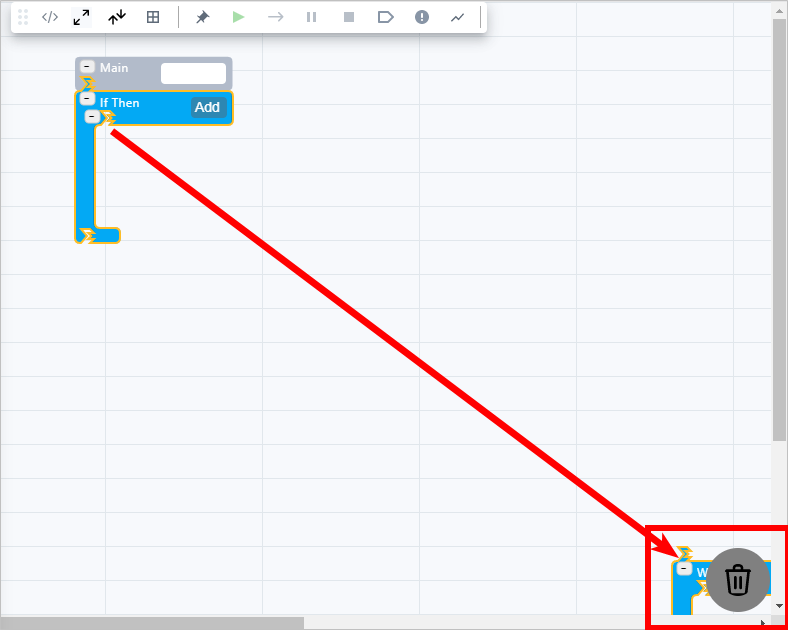
Drop the code block when you see the trash can icon turn darker.
As you release your mouse button, the SFCode Block is removed and disappears from the Editor panel.
To remove a sequenced SFCode Block
a. Detach the existing SFCode Block that you want to remove, from the TOP and BOTTOM connection ports of the two other SFCode Blocks it is sequenced between.
Detached SFCode Block from TOP and BOTTOM connection ports
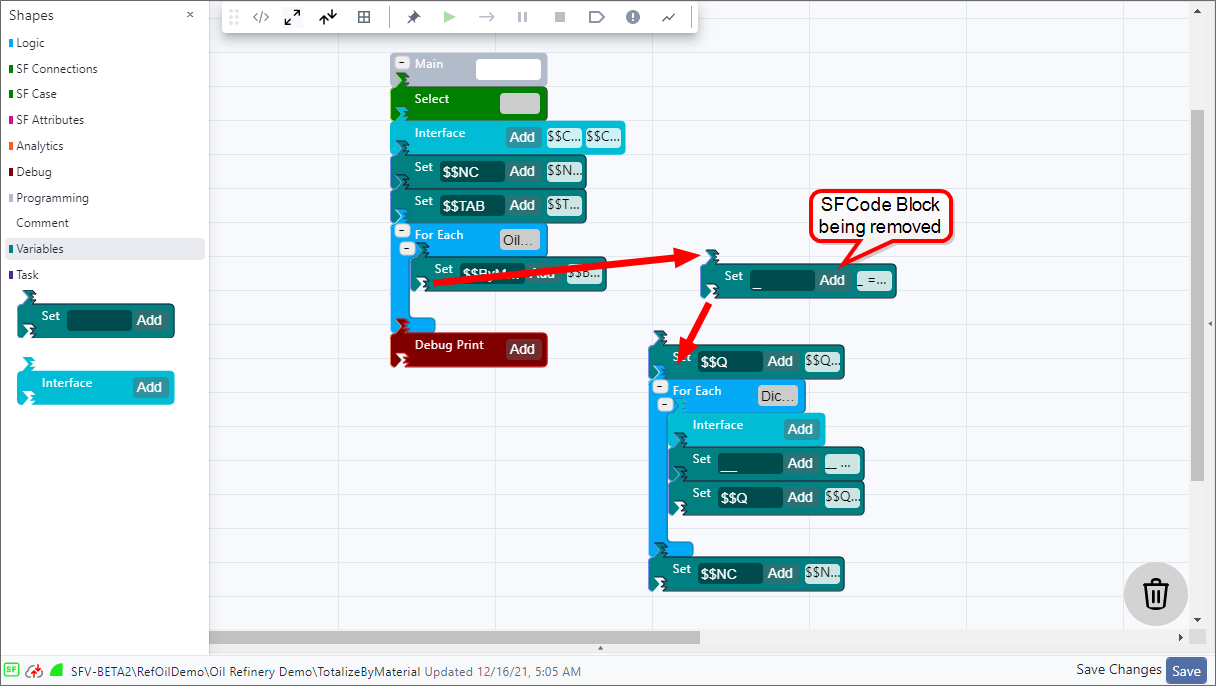
b. Drag the SFCode Block from the Editor panel to the
trash can in the bottom
right area of the editor panel.Drag new SFCode Block and connect it
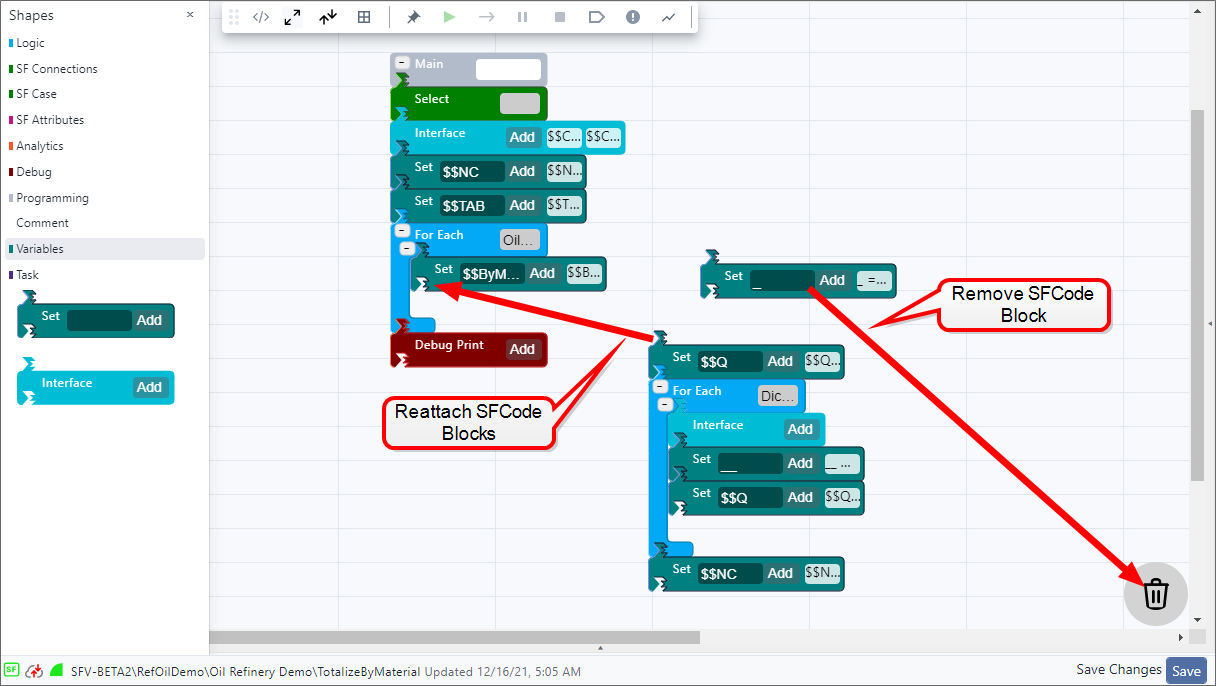
c. Drop the code block when you see the trash can icon turn darker.
d. Reattach the existing SFCode Blocks to the connection port of the SFCode Blocks, as shown in Figure 5.
Copy/Paste SFCode Blocks
You can reuse SFCode Blocks or SFCode Block sequences (a code block with multiple code blocks attached or nested within a single code block) by using the standard (CTRL-C and CTRL-V). Code blocks can be copied and pasted within the same Analytic or from one Analytic to another Analytic (or multiple Analytics).
When a SFCode Block is selected, the copy function copies all current selections together with all the code blocks attached. This capability allows you to easily copy large portions of code blocks from one section to another in the same analytic or to a different analytic.
Copy and Paste in the Same Analytic
To copy and paste within the same analytic:
Open the Analytic in which you want to copy and paste a SFCode Block in.
Click on the SFCode Block that you wish to copy and press CTRL + C.
A Copy Successful message appears in the right corner of the Editor panel.
Click on the area where you want to paste the code block and press CTRL + V.
A Paste Successful message appears in the right corner of the Editor panel.
noteYou can paste (CTRL + V) the copied code block to the connection port of an existing SFCode Block or to an empty area of the Editor panel. From the empty area, you can then drag the code block to where you want to place it.
(Optional) Make whatever changes are needed in the pasted code block.
Copy and Paste to a Different Analytic
To copy from one analytic and paste to another:
Create two browser instances of SFHub Analytics.
One for opening the Analytic you want to copy from and the other for opening the Analytic you want to paste to.
noteYou can create another browser instance by right-clicking on the tab in which SFHub is currently running, and choosing Duplicate from the menu.
In the first browser instance, open the Analytic you want to copy from.
Click on the SFCode Block(s) you want to copy and press CTRL + C.
A Copy Successful message appears in the right corner of the Editor panel.
In the second browser instance, Open the Analytic that you want to paste to.
Click on the area where you want to paste the code block(s) and press CTRL + V to paste.
noteYou can paste (CTRL + V) the copied code block to the connection port of an existing SFCode Block or to an empty area of the Editor panel. From the empty area, you can then drag the code block to where you want to place it.
(Optional) Make whatever changes are needed in the pasted code block(s).
SFCode Block Property Panel
The SFCode Blocks Property panel is found on the right side of the Web Editor panel. It is used to configure the information and/or logic of a code block.
Each Code Block has a property panel that is used to configure the required parameters specific to it. The parameters within each property panel differ, based on the type of code block it is, and the information required for the Analytic you are configuring.
To open a code block property panel:
In the Editor panel, click on the Code Block that you want to open the property panel for.
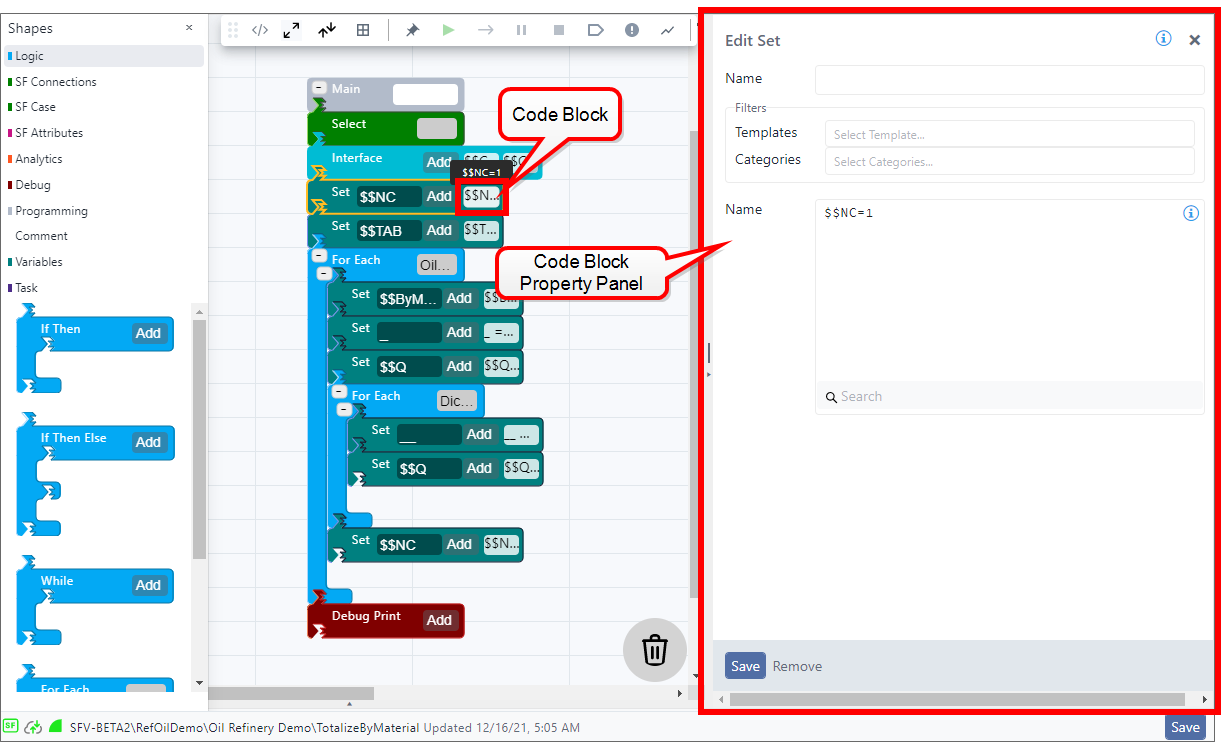
The code block's property panel opens on the right side of the Web Editor panel, as shown in Figure 1.
Though property panels differ from code block to code block, some items are the same across all. Those items are described in the following table.
SFCode Block Property Panel
Icon/Button/Label Description 
Information icon opens a floating panel that provides specific information on the parameter value in question. Search The Search bar lets you quickly find a specific item (function, attribute, keyword, etc.) by opening a help panel containing a full list of keywords you can use to configure/specialize the SFHub Code Block.
- Functions
- (Element) Attributes
- Special Keywords
- SFHub Keys
- Analyses
- TemplatesProperty panel Search bar 
Save The Save button saves whatever parameter values you have selected or entered for the code block. Remove The Remove button deletes the code block from the selected SFCode Block. x The Close icon closes the property panel. (Optional) Click on an Information icon to learn more about a specific value.
(Optional) Click in the Search box to access the specific property panel's help.
Please see SFCode Block Property Help for details about the Help panel.
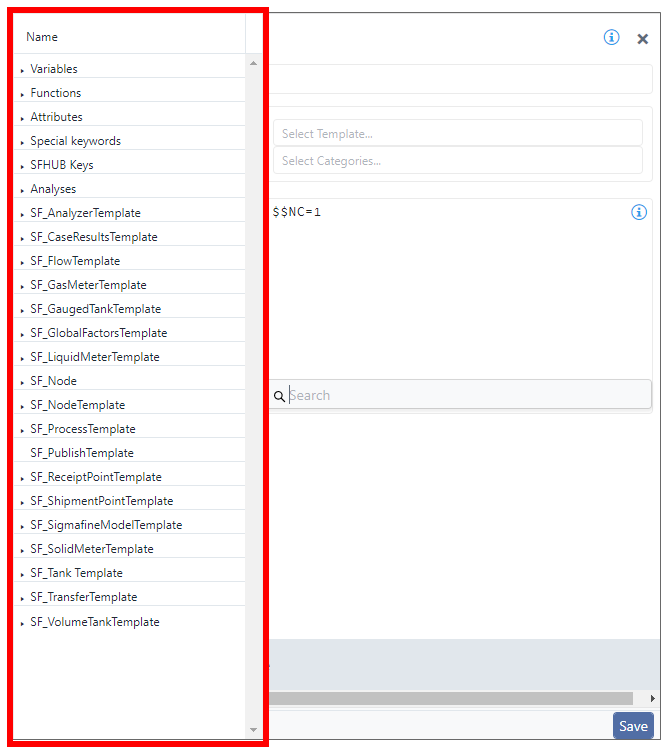
A Help panel opens on the left or right side of the Property panel.
Property Panel - Help displayed, example
Enter or change the values for the selected code block.
Click Save in the Property Panel, to save your changes to the SFCode Block.
tipYou must also save the entire Analytic in order for any changes you make, to be saved to the Analytic itself.
SFCode Block Property Help
When a SFCode Block Property panel is open, it also provides property help through a search icon. The help provide a full list of keywords you can use to configure or define the SFHub Code block, The actual keywords fall under these main categories:
- Variables
- Functions
- Attributes (Element attributes)
- Special keywords
- [All other categories] specific to the project, analytic and SFCode Block selected
To open the SFCode Block Property panel help:
Click on the Search bar (see Figure 1).
Code Block Property panel - Search bar

A panel opens on the left side of the Property panel containing categories with associated keywords that are specific to the project, analytic and SFCode Block you are working with.
Property panel - Help categories displayed
Click on the left arrow of a category in the Help panel to expand its list of keywords, as shown in Figure 3.
Expanded category list of keywords
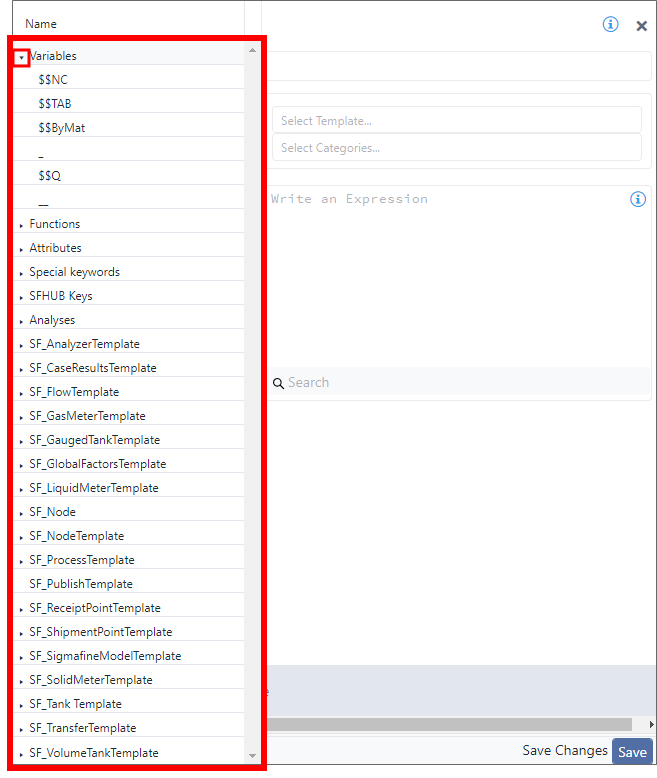
Click on a keyword to automatically add it to the expression area of the property panel, as shown in Figure 4.
Locate and select keyword in help list
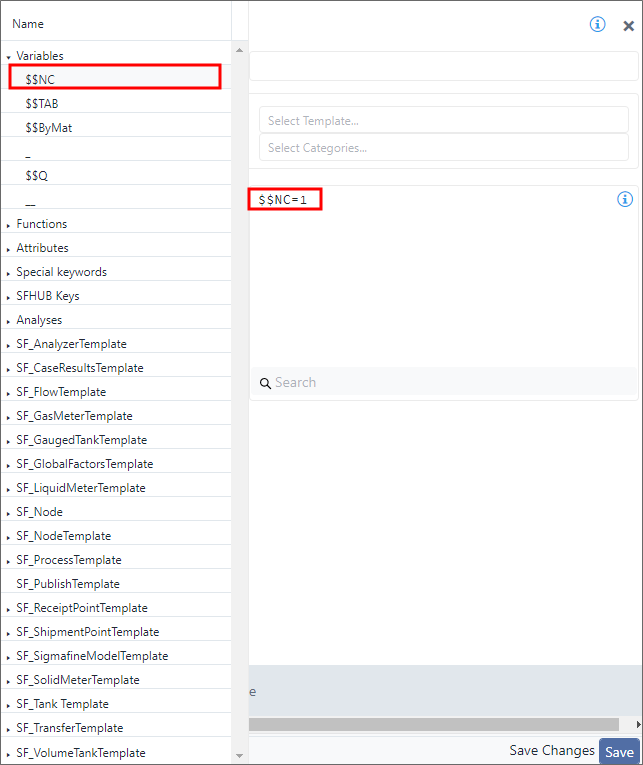
Type any other code you need to include with the selected keyword.
In our example, we have added
=1to our $$NC keyword making the string$$NC=1.Repeat steps 2 - 4 for each keyword you want to add to your expression.
tipTo create a new line in the Name (expression) box, press Shift + Enter.
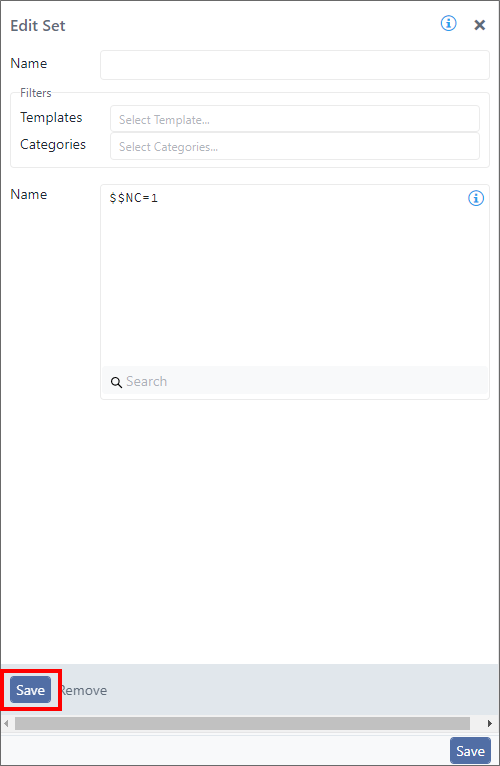
Click the Save button at the bottom left side of the Property panel, to save the expression to the code block (see Figure 5).
Property panel - Save button