Modify the IMM Website Parameters
Once an IMM Website has been setup, you need to ensure that the parameters are accurate for your installation. This is done by selecting the new website in the Windows IIS Manager and then using the Advance Settings to view and modify the parameters as necessary. Note that these same steps can be used to modify an existing IMM Website's parameters.
To modify the parameters of the IMM Website:
In the IIS Manager window, select the IMM website.
Open the Windows Control Panel.
Go to Administrative Tools > IIS Manager.
From the 'Connections' pane, select the IMM website.
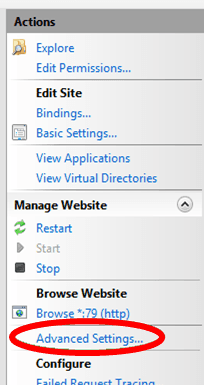
From the 'Actions' pane, click on the IMM website's Advanced Settings, as shown in the following figure.
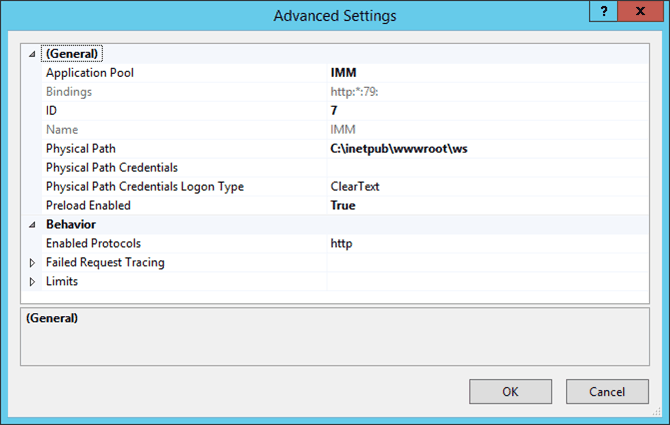
The Advanced Settings window opens.
Do one of the following:
If you are setting up the initial IMM Website:
Ensure that all the settings are correct.
Click OK to close the window.
You are returned to the IIS Manager window.
If you need to modify an existing parameter:
Highlight the current setting and type the correct setting in its place.
Click OK to save your change and close the window.:
You are returned to the IIS Manager window.
In the 'Connections' pane, under Sites, click on the IMM website.
Select the Globalization .NET options for the Website based on language, as shown in the following figure.
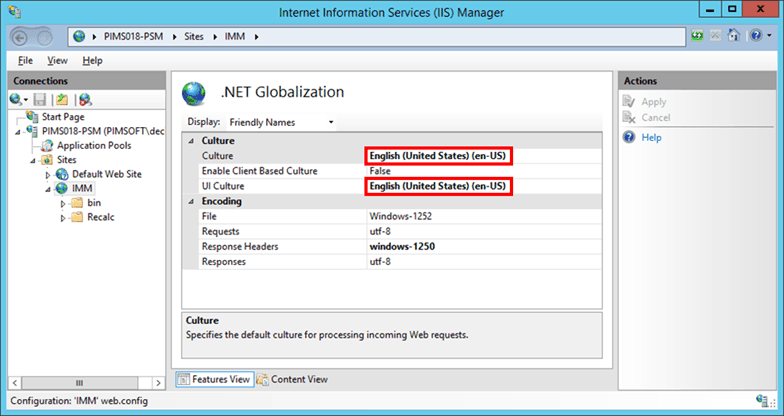
Set the Culture to the appropriate language for the website.
Set the UI Culture to the appropriate language for the interface of the website.
Select the Windows Authentication option.
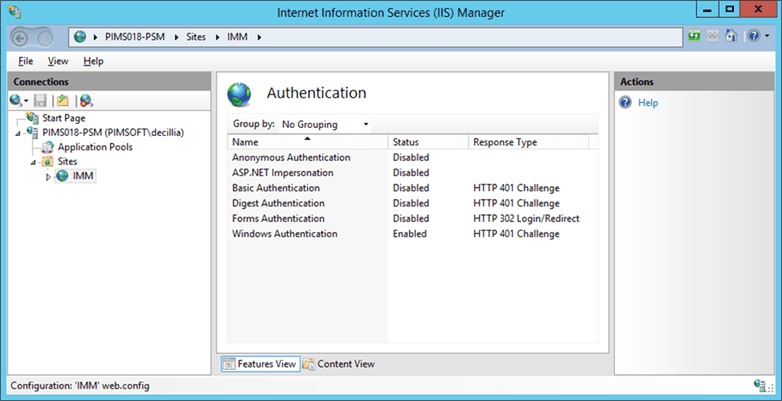
Click on the Providers link to open the Providers window.

Click on the Available Providers down-arrow and select NTLM.
Do not add any other providers.
Click the Add button to add your selection to the Enabled Providers list.
Click OK to save your selection and close the window.
You are returned to the IIS Manager window.
Verify that a database with an IMM Model and analysis is available.
 To open Windows IIS Manager
You are now ready to edit the IMM Website configuration file.