Modify the IMM Application Pool Parameters
Once you have created the IMM Application Pool, the next step in the process is entering the required parameters. This is done by selecting the new application pool and modifying it's parameters in the Advanced Settings window of the IIS Manager. Note that the same process can be used to view and modify an existing IMM application pool should it not be working properly.
To modify the parameters for the IMM application pool:
In the IIS Manager window, select the application pool to modify.
If you are doing the initial setup of IMM, select the Application Pool you just created.
Open the Windows Control Panel.
Go to Administrative Tools > IIS Manager.
From the 'Connections' pane, select the IMM application pool.
From the 'Actions' pane, click on the new application pool's Advanced Settings to open the Advanced Settings window.
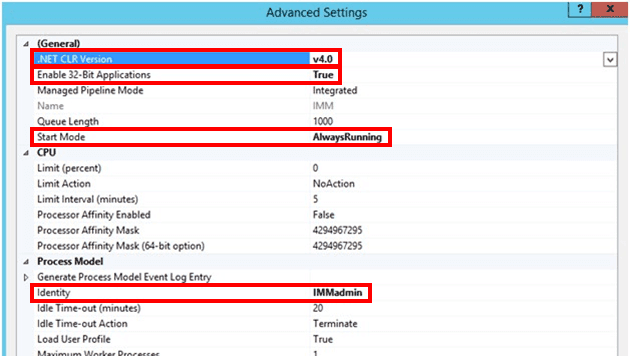
Edit the following settings:
 To open Windows IIS Manager
- For .NET CLR Version enter v4.0.
- For Enable 32-bit Applications enter True.
- For Start Modeenter AlwaysRunning (or True).
- For Identity enter the new user account you setup under Install the IMM Web Service (starting at step 5).
- Save your changes.
You are ready to create the new IMM Website to which you can associate the pool you just created and modified.