Add Your Domain User Name to the IMM_Policy Table
When you setup an IMM Website, you need to associate your domain user name with the IMM_Policy and grant the account administrative permissions. This task is done using System Explorer to access the policy and add the user name that you used to log into Windows when you created the IMM Website.
To add your IMM domain user name and permissions:
Open System Explorer.
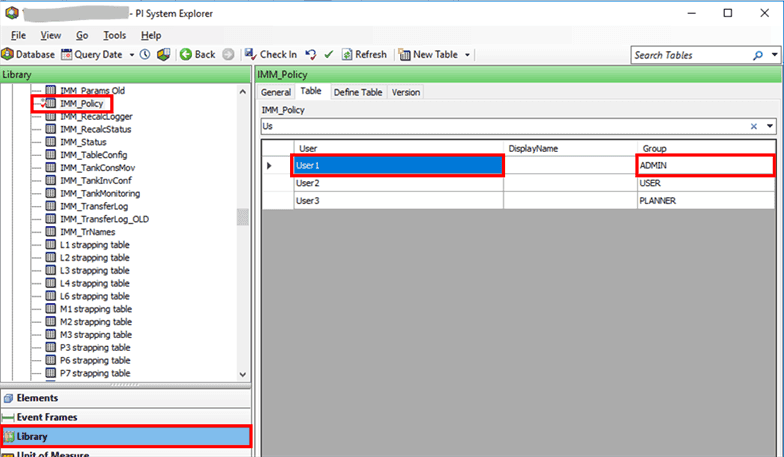
Click on Library to open the Library tree view, as shown in Figure 1558.
Locate and select the IMM_Policy table, as shown in the Figure 1558.
In the User column, add your IMM domain user name.
Note: The IMM domain user name is the same as the user name you used to log into Windows when you created the IMM Website.
In the Group column, add the ADMIN role for your domain user name.
Click the
 Check In button to save your modifications to the IMM_Policy table.
In order for the IMM_Policy table modification to be implemented, you have to reset IIS and then wait for the service to stop and then restart. \Go to Reset Windows IIS for further instructions.