IMM_TableConfig Table
The IMM_TableConfigAF table contains the settings for the grid of the data results in the IMM dockable window.
 EXAMPLE: IMM TableConfig table structure under Define Table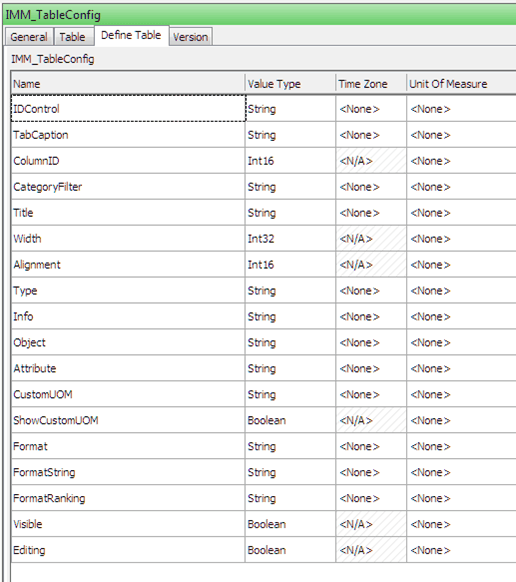
The Table tab allows you to access the configuration data.
EXAMPLE: Table tab displaying the table configuration data
Figure 1653: IMM_TableConfig 'Table' tab example
Click on image to view larger
The following table lists the table structure of the 'IMM_TableConfig' table with explanations and settings for column heading.
IMM_TableConfig Attributes
| Column Heading Name | Description | Setting |
|---|---|---|
| IDControl | Name ID Control specifies if the Attribute belongs to the transfer or tag tab. | Table Transfer : Pimsoft.Sigmafine.Controls.MovementTracking Table Tank: Pimsoft.Sigmafine.Addin.MovementTracking |
| TabCaption | Tab Name based on AF categories. | Localized String |
| ColumnID | The Attribute specifies the order of the columns in the IMM tree list of the transfers or tanks. | Integer number. Please be aware that the number must start with 0 and must be progressive. |
| CategoryFilter | The AF category is one of the filter parameters to populate the table. | AF Categories list: SF_Transfer or SF_Tank |
| Title | Column Caption | Localized String |
| Width | Column width | Integer |
| Alignment | Alignment type in the column. | 0-Left, 1-Right, 2-Center |
| Type | Specify if the column is a property or an Attribute of the AF object. | P=AFProperty, A=AFAttribute |
| Info | Information used by the application to identify the AF Property / AF Attribute used to read the value (Tree list internal field name). | String (usually the same as 'Attribute' column) |
| Object | Object template | Element (for the tank) or Transfer (for the transfer) |
| Attribute | Referring to AF Property or AF Attribute. | Name of property/Attribute as in the AF Element or transfer |
| CustomUOM | Units of Measure if different from the measured value. | Example: t |
| ShowCustomUOM | Enable/disable showing the custom UOM. | True/False |
| Format | The Type of the column attribute. | S=String, N=Number, D=DateTime |
| FormatString | .The specific format for numbers and date|time. | Example: 0.00, M/d/yyyy h:mm:ss tt |
| FormatRanking | Conditional formatting for adding background color to the number cells in a different range of values. Is it also possible to change the icon in the tree list rows meeting certain conditions. | See next explanation |
| Visible | Sets the column to be visible or not visible. | True/ False |
| Editing | Not used | Internal |
Note: Any changes to a command requires a reset before the changes can take place. IISRESET must be run on the server from a DOS prompt to perform the reset.
Be Aware that the following columns are mandatory for IMM to start up:
Mandatory Rows in the IMM_TableConfig File
| 'Info' Column Attribute Name | Attribute |
|---|---|
| TransferNameInfo | Name |
| Source | Source |
| Destination | Destination |
| StartTime | StartTime |
| EndTime | EndTime |
| PlannedStartTime | PlannedStartTime |
| PlannedEndTime | PlannedEndTime |
| TransferStatus | Status |
| ValidityIndex | ValidityIndex |
| Path | Path |
| ParentID | ParentID |
| Material | Material |
| MaterialGroup | MaterialGroup |
| MovementType | Movement_Type |
| LastModify | LastModify |
| InitialStartDate | InitialStartDate |
| FinalEndDate | FinalEndDate |
| InitiSource | InitiSource |
| FinalDest | FinalDest |
| PlannedMass | PlannedMass |
| MeasuredMass | MeasuredMass |
The cells in the table of the dockable window have a different format, depending on the values and rules applied. Different font and different background colors are symptoms of this behavior, as explained before (editing value, adjusted value). Also, symbols in the ProcessBook display can change color according to the same setting.
In the configuration table, this cell contains the information about color setting / bitmap and it uses a specific syntax, (a) for color setting and (b) for bitmap:
(a) [\<MinVal> , \<MaxVal> , \<Color>]
(b) [\<MinVal> , \<MaxVal> , \<Icon=Bitmap Name>]
The application tests the condition and applies the color/ bitmap if the condition is true in this way:
(a) If(Value >= MinVal) and (Value < MaxVal) then Set Color
(b) If(Value >= MinVal) and (Value < MaxVal) then Set Icon
- [0,30,Red] ® the cell is Red if value is between 0 and 29.
- [50,100,Icon=Alarm.bmp] ® the cell contains the icon Alarm.bmp if value is between 50 and 99.
- [True,True,LimeGreen] ® the cell is LimeGreen if value = True
- [NR,NR,White] ® the cell is White if value = “NR”
It is also possible to omit minimum or maximum using the following syntax:
(a) [\<MinVal>,,\<Color>]
(b) [\<MinVal>,,\<Icon=Bitmap Name>]
or:
(a) [,\<MaxVal>,\<Color>]
(b) [,\<Max>,\<Icon=Bitmap Name>]
The application tests the condition and sets the color/ bitmap if it is true:
If(Value ≥ MinVal) then Set Color
If(Value ≥ MinVal) then Set Icon
or:
If(Value < MaxVal) then Set Color
If (Value < MaxVal) then Set Icon
- [,-10,Red] ® the cell is Red if Val< -10.
- [10,,Red] ] ® the cells is Red if Val≥ 10.
It is also possible to set multiple conditions; the first true condition will be applied.
(a) [\<MinVal>, ,\<Color1>][\<MinVal\>,\<MaxVal\>,\<Color2\>] [ ,\<MaxVal,<Color3>]
(b) [\<MinVal>,,\<Icon=Bitmap1>][\<MinVal\>,\<MaxVal\>,\< Icon=Bitmap2\>] [,\<MaxVal>,\<Icon=Bitmap3>]
[,-10,Red][-10,-2,Yellow][-2,2,LimeGreen][2,10,Yellow][10,,Red]
- Val < -10 ® Red
- -10 ≤ Val < -2 ® Yellow
- -2 ≤ Val < 2 ® LimeGreen
- 2 ≤ Val < 10 ® Yellow
- Val ≥ 10 ® Red