Adding Sigmafine Material Summaries to a Spreadsheet
For Sigmafine models, the Material Summary option retrieves summary values for materials and add them to the spreadsheet.
In Excel, select the cell into which you want the information to be brought.
From the SF tab Get Summary section, select Material Summary.

The Get Material Summary window opens.
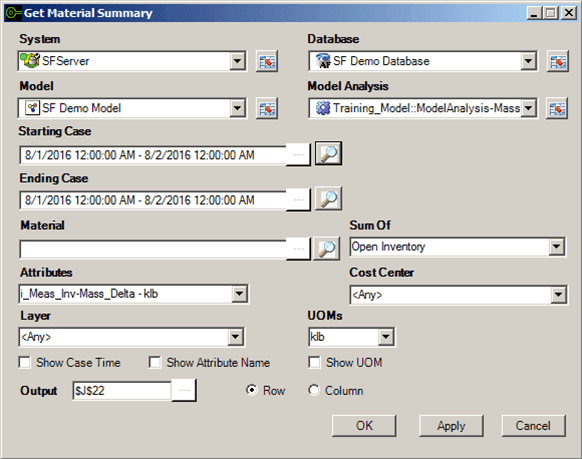
Click the System down-arrow and select the system where the Sigmafine Server is running.
Click the Database down-arrow and select the database.
This selection is dependent on the Sigmafine Server selection.
Click the Model down-arrow and select the model.
This selection is dependent on the Database selection.
Click the Model Analysis down-arrow and select the Model analysis.
This selection is dependent on the Model selection.
Note: For System, Database, Model and Model Analysis, you can click the
 Cell Reference button to select from a list of cells referencing the selected item.
In the Starting Case box, type the Case you want to use for the beginning of the search period.
Alternatively you can click the
 Search button to search for and select the Case from the Case Search window. See Get List of Case Times to Use for more details.
In the Ending Case box, type the Case you want to use for the ending of the search period.
Alternatively you can click the
Search button to search for and select the Case from the Case Search window. See Get List of Case Times to Use for more details.In the Material box, type the name of the material you want to use, or click the
 ellipsis button and select the name of the element.
Alternatively you can use one of the following:
- Position the cursor in the Element field in the window and then click the cell in the spreadsheet containing the names of the elements.
- Click the Search button to open the Element Search window in which you can search for and select the element. See Get Names of Elements for more details.
- Click the Sum Of down-arrow and select either Open Inventory, Closing Inventory, Receipts, or Shipments.
- Opening Inventory: Includes elements that are in the Element category 'SF_Tank'.
- Closing Inventory: Includes elements that are in the Element category 'SF_Tank'.
- Receipts: Includes elements that are in the category 'SF_Transfer' or 'SF_Flow' and are connected from an Element of that are in the category 'SF_ReceiptPoint'.
- Shipments: Includes elements that are in the category 'SF_Transfer' or 'SF_Flow' and are connected to an Element that are in the category 'SF_ShipmentPoint'.
Click the Attributes down-arrow and select the Attribute name of the specified element.
The default unit of measure for the Attribute appears in the 'UOMs' box.
Click the Cost Center down-arrow and select the value of the Attribute named "Cost Center" in the elements.
The Cost Center selections are from the table 'SF_CostCenter'.
Note: The Cost Center setting must match the value in the Attribute named 'Cost Center' in the elements.
Click the Layer down-arrow and select one or more layers.
The Material Summary option applies only to active layers. For example, a tank on a non-active layer is not included. The Layer setting is not available if you have selected 'Receipts' or 'Shipments' for the Sum Of setting.
Click the UOMs down-arrow and select (or change the current value of) the unit of measure for the Attribute listed in the 'Attribute' box.
Check all checkboxes that are applicable to your search.
- Show Case Time: When checked, the Case times are displayed in the spreadsheet.
- Show Attribute Name: When checked, the name of the Attribute is displayed in the spreadsheet.
- Show UOM: When checked, the unit of measure is displayed in the spreadsheet.
In the Output box, type the reference of the cell in which the information is to start appearing in the spreadsheet, or click the
ellipsis button to select the cell from another window.Select whether to add elements to the spreadsheet in rows (Row) or columns (Column).
Click OK to add the returned information to the spreadsheet and close the window.
Click the Apply button if you want add the returned information to the spreadsheet but keep the window open.
Click the Cancel button if you want to close the window without adding the returned information to the spreadsheet.