Get List of Case Times to Use
To select data, the context of the data (specific Model and times) must be known. The Cases option allows you to select multiple Cases at once to add to the spreadsheet. This information provides the context for the other SF Add-In functions on the spreadsheet when referenced within those functions.
To get a list of Case times to use:
In Excel, select the cell into which you want the information to be brought.
From the SF tab Find Data section, select Cases.

The Case Search window opens.
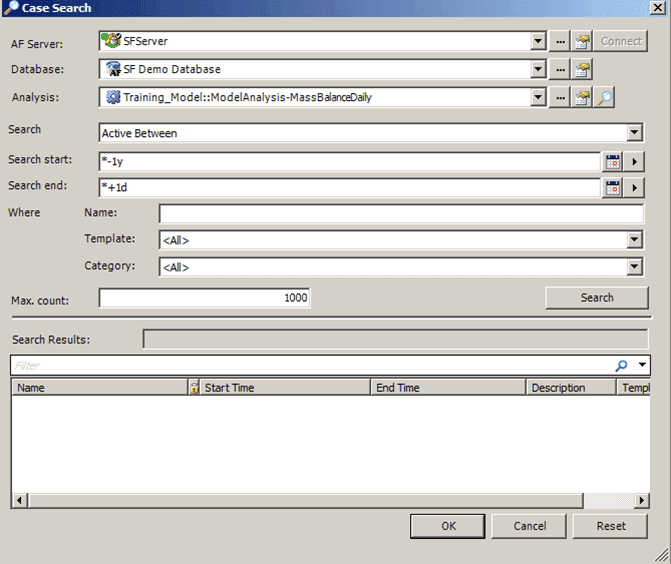
Click the AF Server down-arrow and select the system where the Sigmafine Server is running.
Click the Database down-arrow and select the database.
This selection is dependent on th Sigmafine Server selection.
Click the Analysis down-arrow and select the Model analysis.
This selection is dependent on th Database selection.
Click the Search down-arrow and select the option to use for specifying the search start and end.
In the Search start box, type the start Case range by entering a time stamp or logical expression.
Alternatively you can click the
 Calendar button to open a Calendar window in which you can select the time.
In the Search end box, type the end Case range by entering a time stamp or logical expression.
Alternatively you can click the
Calendar button to open a Calendar window in which you can select the time.In the Name box, type the name of the case, or part of the name with the wildcard *.
Click the Template down-arrow and select a Case template.
This selection is dependent on the Database selection.
Click the Category down-arrow and select a Case category.
This selection is dependent on the Database selection.
In the Max count box, type a number to limit the number of Cases returned in the list.
Click the Search button to retrieve the Cases that meet the search criteria.
The Search Results box displays the number of Cases that meet the search criteria. It also shows a message if the process encounters an error.
Cases meeting the criteria appear in the blank space at the bottom of the window.
Click OK to add the returned information to the spreadsheet.
Should you want to perform another Case search without first adding the current search results to the spreadsheet, click the Reset button. This action clears the entry boxes of the previous search parameters.
Should you not want to add the information to the spreadsheet and instead just exit the Case Search window, click Cancel.