Adding Element Properties to a Spreadsheet
The Element Properties option adds a formula that retrieves the properties of an Element to the spreadsheet. Element properties include the Element description, Element category, Element template, and Element type.
To add Element properties to a spreadsheet:
In Excel, select the cell into which you want the information to be brought.
From the SF tab Get Data section, select Element Properties.

The Get Connections window opens.
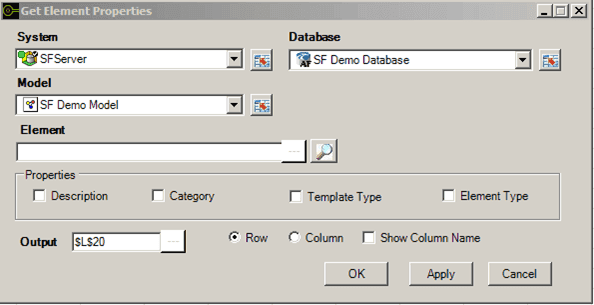
Click the System down-arrow and select the system where the Sigmafine Server is running.
Click the Database down-arrow and select the database.
This selection is dependent on the Sigmafine Server selection.
Click the Model down-arrow and select the Model to be examined.
This selection is dependent on the Database selection.
In the Element box, type the Element name, or click the
 ellipsis button to select the name from a list.
Alternatively you can click the
 Search button to search for and select the Element from the Element Search window.
Check the Properties you want included.
Description: When checked, Element descriptions are added to the spreadsheet.
Category: When checked, Element categories are added to the spreadsheet.
Template Type: When checked, the type of template is added to the spreadsheet.
Element Type: When checked, the Element types are added to the spreadsheet.
Each checked checkbox ads an additional row/column to the spreadsheet.
In the Output box, type the reference of the cell in which the information is to start appearing in the spreadsheet, or click the
ellipsis button to select the cell from another window.Select whether to add the information to the spreadsheet in rows (Row) or columns (Column).
To display the column name in the spreadsheet, check the Show Column Name checkbox.
Click OK to add the returned information to the spreadsheet and close the window.
Click the Apply button if you want add the returned information to the spreadsheet but keep the window open.
Click the Cancel button if you want to close the window without adding the returned information to the spreadsheet.