Run a Case Defined for an Analysis Rule
The Run Analysis option executes various tasks on analysis rules. Although the results are not written to the spreadsheet, you can view them after executing the analysis rule. The following tasks can be performed:
- View the log file from an existing Case of an existing Model analysis.
- Run a Case analysis.
To run an tasks on an analysis rule:
In Excel, open the spreadsheet you which you want to run.
From the SF tab Tools section, select Run Analysis.

The Run Analysis Rule window opens.
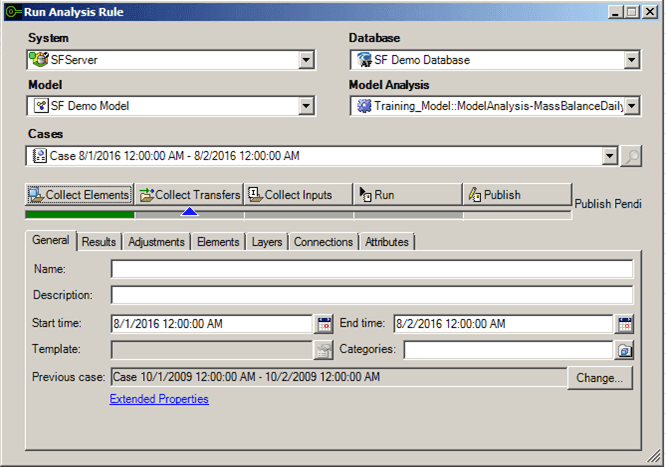
Click the System down-arrow and select the system where the Sigmafine Server is running.
Click the Database down-arrow and select the database.
This selection is dependent on the Sigmafine Server selection.
Click the Model down-arrow and select the model.
This selection is dependent on the Database selection.
Click the Model Analysis down-arrow and select the Model analysis.
This selection is dependent on the Model selection.
Click the Cases down-arrow and select a start and end Case range by entering a time stamp or referencing a cell containing that information.
Alternatively, you can click the
 Search to choose a Case from the Case Search window. Only the time for the ending Case of the range is displayed.
This selection is dependent on the Model Analysis selection.
Use the Case Runner button to perform the various tasks of the analysis rule.
Case Runner Buttons
Button Description Collect Elements: Collects all Model elements to include in the analysis. Collect Transfers: Collects all material transfers that occurred within the Case period. Collect Inputs: Gathers data inputs for all the elements. Run: Runs the specified case. Publish: Writes results for Attributes defined as output attributes. Auto-Run Check Box: Each button has an auto-run checkbox that allows the step to be run when you click the button for the subsequent step. See Using the auto-run feature of the Case runner buttons. Status bar: Each button has a status of success (green) or failure (yellow). Move the mouse over the status bar to see more information or see the 'General' tab of the Case properties for a summary. The tabs along the bottom half of the window are described in the following table.
Run Analysis Rule Tabs
Tab Description General General information about the case. Results Maintains the result values for a Case run. Adjustment Maintains a record of all the changes to Attribute values used during an analysis. Layers Displays the available list of layers within the Model for this case. You can activate and deactivate layers on a case-by-Case basis. Elements Shows a collection of elements (including transfers) that are active for a case. The activation of layers for the Case controls which elements are part of the case. Connections Displays a collection of connections between elements that are active for a case. Attributes Displays the Attributes of the elements.