Clearing the Registry
Issue
In the process of upgrading to a new version of the Sigmafine Excel Add-In, if you do not have the install kit that was used to install the previous version, you could possibly run into an issue with the registry keys. The issue causes the 'SF tab' and/or the 'SFAutomation.SFFuncttions' math library to remain present when you open Microsoft Excel due to a failed attempt to unregister their keys in the Microsoft Registry.
Resolution
To resolve the above issue, you need to clear the registry of the keys that relate to the Sigmafine Excel Add-In.
To clear the registry of the Sigmafine Excel Add-In keys:
Using Windows Explorer, first verify that the old version of the Sigmafine Excel Add-In is uninstalled.
Once this is done, you can start the process to delete the keys from your Microsoft Registry.
Search for and run the Microsoft regedit.exe application as an administrator.
The Registry Editor window opens.

From the Registry Editor menu, select Edit > Find.
A Find window opens.

In the Find what box type sfaddin.
Ensure that the Keys, Values and Data checkboxes are all checked, to ensure that the search checks all areas of the Registry for the 'sfaddin' key.
Click the Find Next button to find the first instance of the 'sfaddin' key.
The search displays the first instance of the 'sfaddin' key it finds.
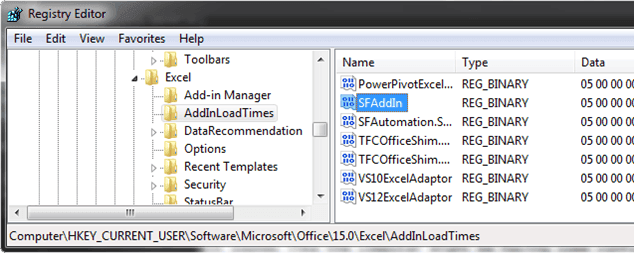
Right-click on the key name and select Delete.
If asked, confirm the deletion.
Click the Find Next button again and then repeat steps 6 through 8.
Repeat step 9 until all instance of the 'SFAddIn' key have been deleted from the registry.
Do another find, but this time type sfautomation as the key in the Find what box.
Find and delete all instances of the 'sfautomation' key by repeating the same steps you followed to delete all instances of the 'sfaddin' key.
When all instances of both keys have been deleted, open Excel.
Verify that the SF tab and/or the 'SFAutomation.SFFunctions' math library no longer exist.
If either still exists, it indicates that some of the keys are still present in the registry. Should this happen, repeat steps 2 through 13 again to ensure you delete the remaining keys from the registry.
Once all keys are delete, you have a clean Microsoft Excel environment in which to install the new version of the Sigmafine Excel Add-In.