Get Values from SF Tables
The Table Values option retrieves table values from an SF database table that match a specific query.
To get values from an SF table to add to the spreadsheet:
In Excel, select the cell into which you want the information to be brought.
From the SF tab Find Data section, select Table Values.

The Table Value Search window opens.
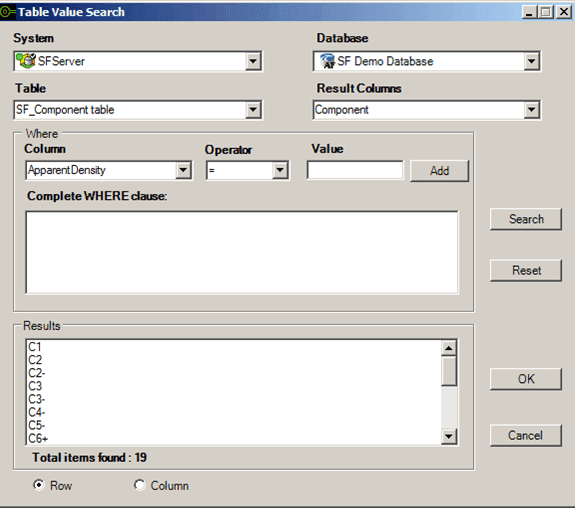
Click the System down-arrow and select the system where the Sigmafine Server is running.
Click the Database down-arrow and select the database.
This selection is dependent on the Sigmafine Server selection.
Click the Table down-arrow and select the table you want.
This selection is dependent on the Database selection. Once the table is selected, the list of available result columns and query columns of that table are filled in.
Click the Result Columns down-arrow and select a column for the result of the query.
To limit the results from the table, set up a constraint in the Where Column, Operator and Value boxes. Set the column to have a specific relation to a value by using the Operators.
Available operators are:
Operators
Operator Description = Equal to <> Not equal to > Greater than >= Greater than or equal to < Less than <= Less than or equal to LIKE Compares the string value. You can use * and ? as wildcard characters. Click the Add button to add the constraint to the Complete WHERE clause box.
As you add the constraint, the result is appended to the contents in the Complete WHERE clause box.
Repeat steps 7 and 8 for each additional constraint you want to use.
If you have configured multiple constraints, they are appended with the AND operator. You can change this to an OR operator by typing in the text box.
Click the Search button to execute the query.
Items found during the search are displayed in the Results box.
To cancel the search and reconfigure a new query, click the Abort button.
Select whether to add the information to the spreadsheet in rows (Row) or columns (Column).
Click OK to add the returned information to the spreadsheet.
Should you want to perform another 'table values' search without first adding the current results to the spreadsheet, click the Reset button. This action clears the entry boxes of the previous table values search parameters.
Should you not want to add the information to the spreadsheet and instead just exit the Table Value Search window, click Cancel.