Adding AF Table Values to a Spreadsheet
The Table Data option retrieves table data related to an item in an AF database table column.
To get add table data to a spreadsheet:
In Excel, select the cell into which you want the information to be brought.
From the SF tab Get Data section, select Table Data.

The Get Table Data window opens.
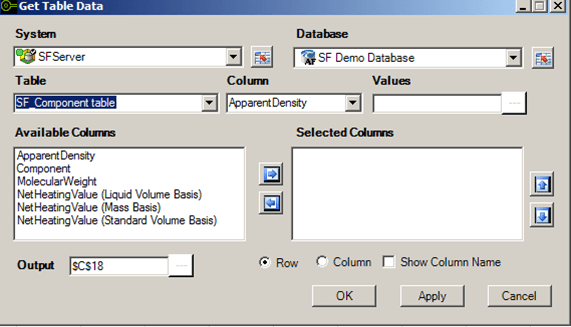
Click the System down-arrow and select the system where the Sigmafine Server is running.
Click the Database down-arrow and select the database.
This selection is dependent on the Sigmafine Server selection.
Note: For System and Database, you can click the
 Cell Reference button to select from a list of cells referencing the selected item.
Click the Table down-arrow and select the table to use.
After selecting a table, the Columns list is populated with the columns in the selected table.
Click the Column down-arrow and select a column on which you want to query.
This selection is dependent on the Table selection.
In the Value box, type an existing value from the spreadsheet that you want to use for getting data, or click the
 ellipsis button to select it from a list.
Enter the value for which data is needed. Note that you can obtain values by using the Find Table Values option.
Using the Available Columnsand Selected Columns list boxes, select each Attribute that you want to appear in the spreadsheet. Ensure that only those Attributes that you want to appear are in the 'Selected Columns' list.
Attributes will appear in the spreadsheet in the order in which they appear in the Selected Columns list box.
In the Available Columns list box, select the attribute.
Click the right-arrow to move it to the Selected Columns list.
 To remove an Attribute from the 'Selected Attributes and UOMs' list
In the Selected Columns list box, select the attribute.
Click the left-arrow to move it to the Available Columns list.
Attributes appear in the spreadsheet in the order in which they appear in the 'Selected Columns' list box. If you want to rearrange the order, use the following applicable steps.
To move an Attribute up one place in the Selected Columns listIn the Selected Columns list box, select the attribute.
Click the up-arrow.
To move an Attribute down one place in the Selected Columns listIn the Selected Columns list box, select the attribute.
Click the down-arrow.
In the Output box, type the reference of the cell in which the information is to start appearing in the spreadsheet, or click the
ellipsis button to select the cell from another window.Select whether to add the information to the spreadsheet in rows (Row) or columns (Column).
To display the column name in the spreadsheet, check the Show Column Name checkbox.
Click OK to add the returned information to the spreadsheet and close the window.
Click the Apply button if you want add the returned information to the spreadsheet but keep the window open.
Click the Cancel button if you want to close the window without adding the returned information to the spreadsheet.