Updating a Spreadsheet
Values resulting from 'Get' commands automatically update when a cell reference, that the command uses, changes. However, if a cell reference does not change, or if there are no cell references in the formula, use the following method for updating the formula.
To update a spreadsheet SF formula:
Right-click on the spreadsheet cell.
A menu appears.
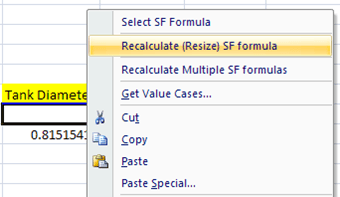
Use one of the following to update the formula:
Select SF Formula
This option resizes the formula array to accommodate more or fewer resulting values. It also forces a recalculation of the array.
{Function Name} - displays the dialog box populated with the function arguments for configuring the selected formula. Click OK to recreate the array.
Note: All SF formulas, starting from the selected cell to the last entry in the worksheet, are recalculated and re-sized.
Recalculate (Resize) SF formula
This option lets you highlight the entire array formula for copying or deleting the array.
Recalculate (Multiple) SF formulas
This option recalculates and resizes all SG formulas, starting from the clicked cell to the last entry in the worksheet.
Note: The right-click menu is often applicable to a smaller function array then the one created by the menu because most menu items create multiple function arrays.