Style the Report Table
The second step is to change some style properties of the report Table in order to improve its aspect and the readability.
Open the Report.
a. Go to or reopen SFHub Studio.
b. Select the Project that contains your report.
c. Click the Report block in the Studio Project [project name] dashboard, to open the report in the design area. We opened the new report we created; Material Inventory Report.
Change the Table columns caption.
a. Move your mouse over the Table visual object.
b. Click on the
 Edit icon, to open the Table visual object's configuration
panel.
Edit icon, to open the Table visual object's configuration
panel.c. Click the Data Source tab, if the panel is not already open.
Table Visual Object Configuration Panel
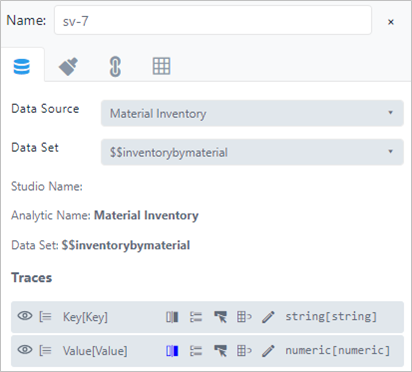
d. Click on the Column title of one of the columns listed in the Traces section.
Traces - Column Titles

A formatting toolbar opens.
Traces Formatting Toolbar

The formatting toolbar displays the name of the column selected for formatting.e. Modify whatever you want to change for the column title. The Table visual in the design area immediately shows the new title.
Table Visual Title Updated
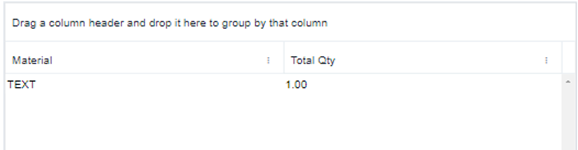
f. Repeat steps 5 & 6 for each column listed in the Traces list of the configuration panel.
Change the colors on the first column (using the configuration panel).
a. Click the Format icon for a column in your report that you want to change alignment for. In our example, we have are choosing to align the second column.
Configuration panel - Column Format Icon
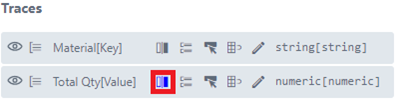
The format toolbar opens, from which you can choose the alignment of the data to be shown in the column.
Format Toolbar - Alignment Options

The Table immediately updates to display the new alignment.
Table Column Alignment Updated

In our example, we have chosen right alignment.