Filter Project List to Narrow Scope
SFHub Studio provides a filter feature that allows you to temporarily filter on server, database, model and/or analysis, in order to narrow the scope of projects that display on your Studio Projects dashboard list. Whatever filters you choose, they only affect your personal view on the current dashboard, and only until you move away from the dashboard. Once you move away to another dashboard or panel, when you return to the dashboard, none of the filters are applied or displayed.
You can combine the Search and Filter features to help minimize the number of projects that appear in your dashboard list.
To use filters:
Click
 to open the Filter panel.
The Filter can be found on the right side of your Studio Project dashboard, directly under the Search box.
EXAMPLE: Filter icon on Studio Project dashboard
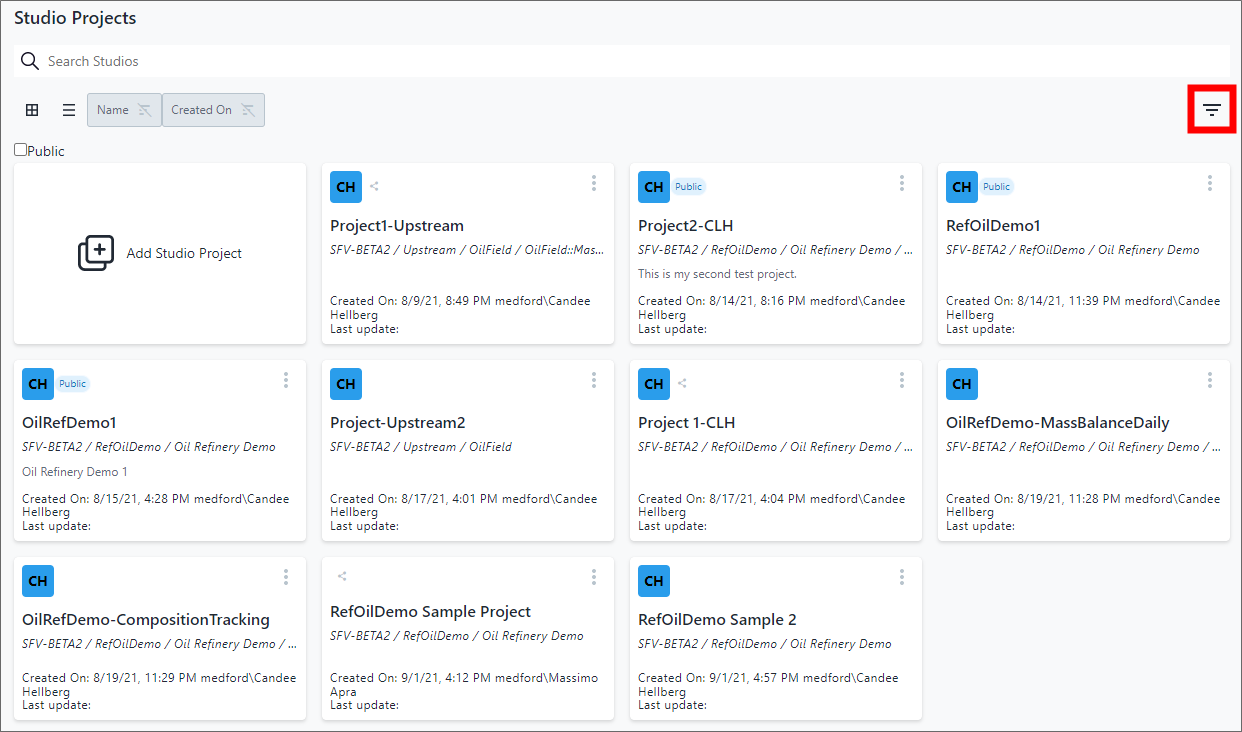
The Filter panel opens on the right side of the Studio Projects window.
Filter by Sigmafine context(s)

The first filter you can choose is the SF Server. Once the server is selected, you can narrow the scope even further by choosing a database, mode and finally, a specific analysis.
Do one of the following, depending on the context level(s) you want to use as your filter:
Click on a Server to filter at the server level.
When a specific SF Server is selected, only the SF Databases that reside on that server are included. Therefore, only those project that were created for model and analyses in the SF databases on the chosen server are included, so only project that refer to such are displayed.
Click on a Server and a Database to filter at the database level.
When a specific SF Server, and SF database are chosen, only the SF models and analyses that reside on that server, in that database, are included. This means that only those project that were create for models and analyses in that database, on that server, are displayed in the Studio Projects dashboard list.
Click on a Server, a Database and a Model to filter at the model level.
When a specific SF Server, SF database and SF Model are chosen, only the SF models and analyses that reside on that server, in that database and apply to the chose SF model, are included. This means that only those projects that were created for the chosen model, in the chosen database, on the chosen server, are displayed in the Studio projects dashboard list.
As you choose the filter(s), the Studio Project window refreshes to show only those projects that match the filter(s).
When finished filtering, click the filter panel x (Close) icon in the right top corner of the panel, to close it.