Delete a Project
When you no longer need a project or you have created it in error and want to remove it, you are able to do so using the Delete feature. When you delete a project, it removes all of the project's content (Analytics, Dashboards and Workflows). If a project happens to contain entities that are referred to by other projects or SFHub entities, the application does not allow you to delete the project. Should you need to delete such a project, you must first remove the entities referred by the other Projects or SFHub entities.
For example; if the project to be deleted contains at least one SFHub Studio Report that is referenced by a Visualizer setting, your attempt to delete the project is refused. In this scenario, you have to remove the referenced Report in all the Visualizer settings, before the Project can be deleted.
If the project to be deleted has at least an Analytic that is referenced by a Report in another Project, your attempt to delete the project is refused. In this scenario, you have to remove the referenced Analytic in all the reports using it.
To delete a project:
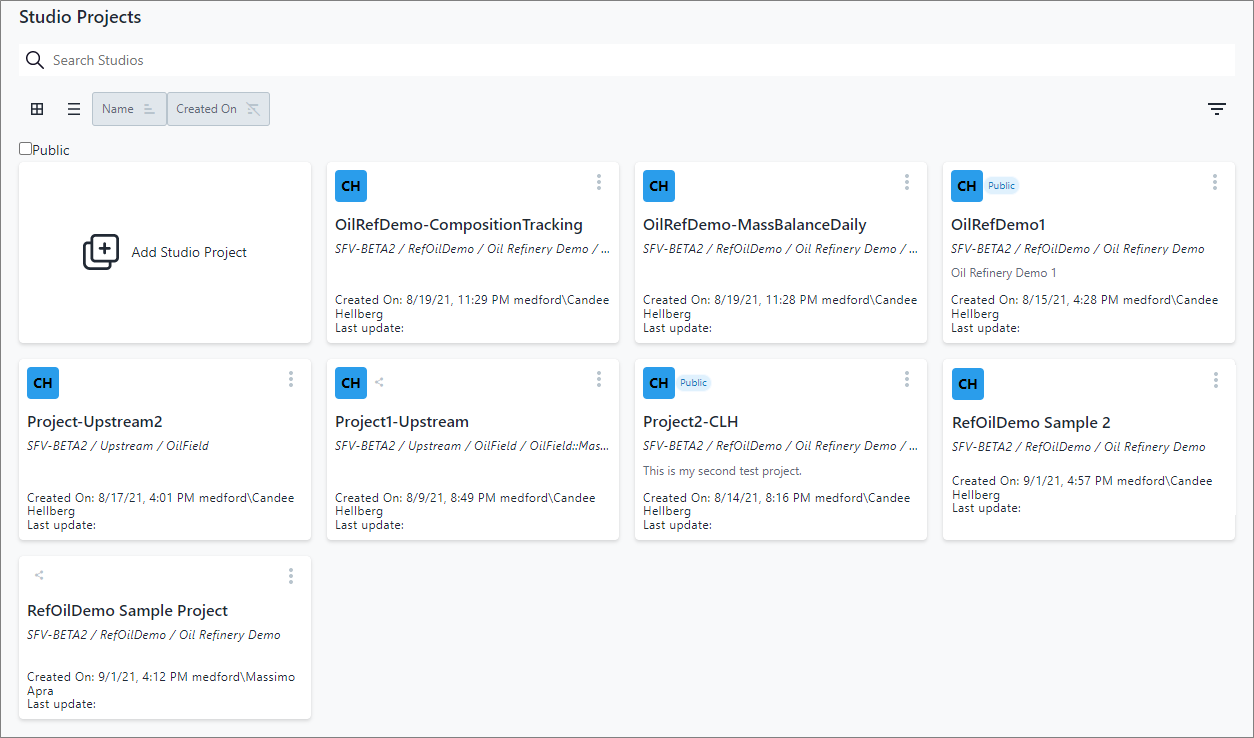
Open your Studio Projects dashboard, if you have not done so already.
To open, click
 Home in the command bar.
Studio Projects
Studio Projects
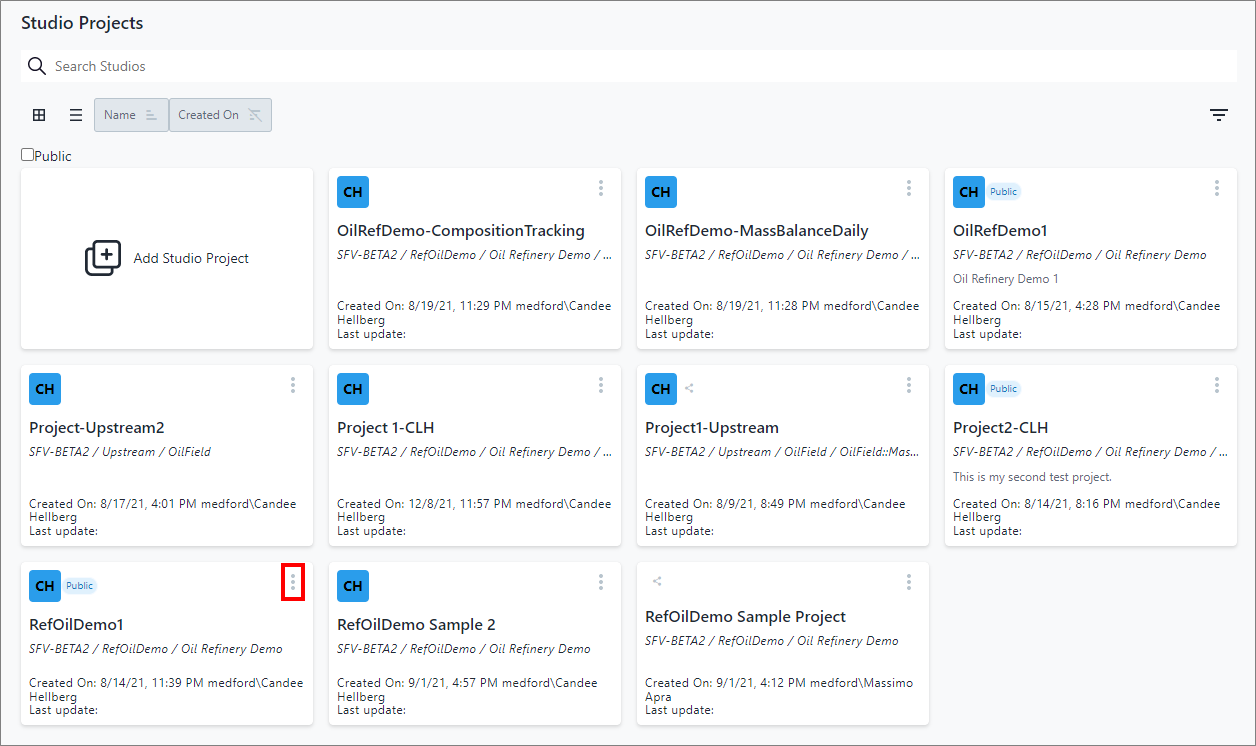
Click the
 vertical ellipsis in the top-right corner of the project block
(as shown in Figure 1) to display the Project quick menu (as shown
in Figure 2).
vertical ellipsis in the top-right corner of the project block
(as shown in Figure 1) to display the Project quick menu (as shown
in Figure 2).Project quick menu - select Edit
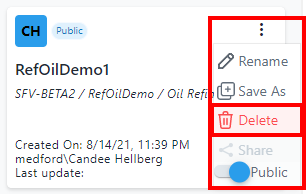
Click Delete on the quick menu.
You are asked to confirm the deletion.
Deletion confirmation message

Click Confirm to confirm the deletion.
The project and all its content is removed from SFHub Studio, providing there are no other projects or SFHub entities that refer to it. In the image below, notice how the Project 1-CLH project is no longer listed, because that is the project we had chosen to delete in our example.
Project is removed from the project list