Change Project List Layout
On the Studio Projects page, there are two ways in which you can display your list of available projects:
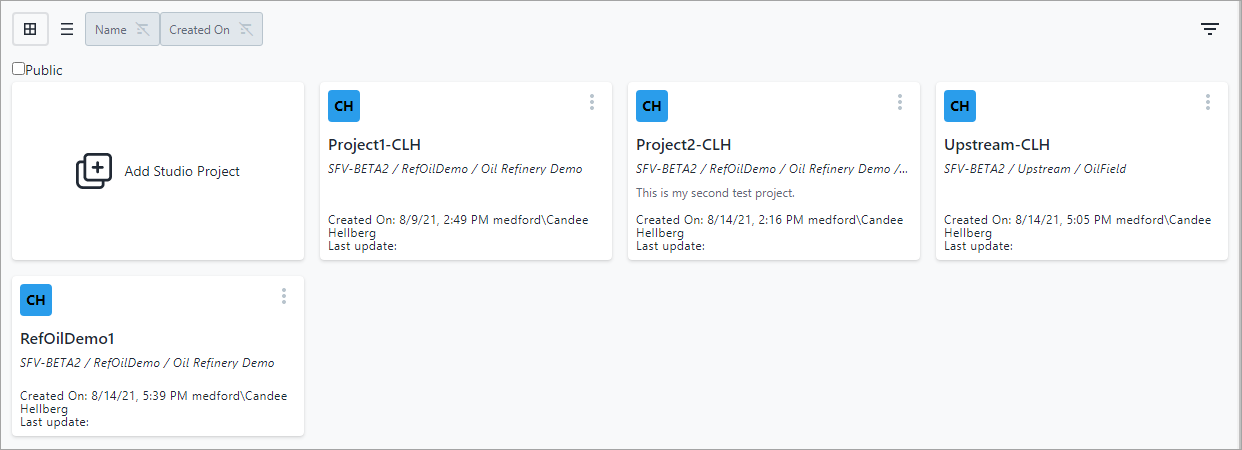
Cell Layout - this layout displays several projects in a single row, allowing you to see a shorter list of projects to choose from. This layout minimizes scrolling down, though some Sigmafine context strings may appear truncated.
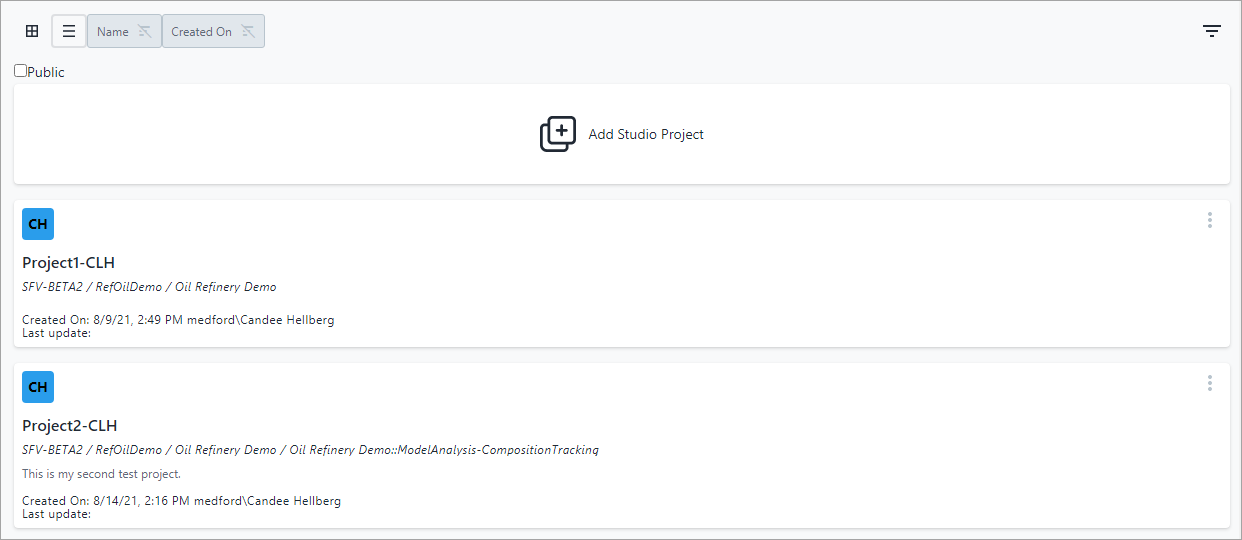
Row Layout - this layout displays one project per row, allowing you to see a whole Sigmafine context string, though you have to repetitively scroll down to view the whole list of projects.
You can use choose whichever layout works best for you, as your choice only affects your view of the Studio Projects page.
To change your Project list layout:
Open your Studio Projects dashboard, if not already opened.
To open, click
 Home in the command bar.
Studio Projects dashboard
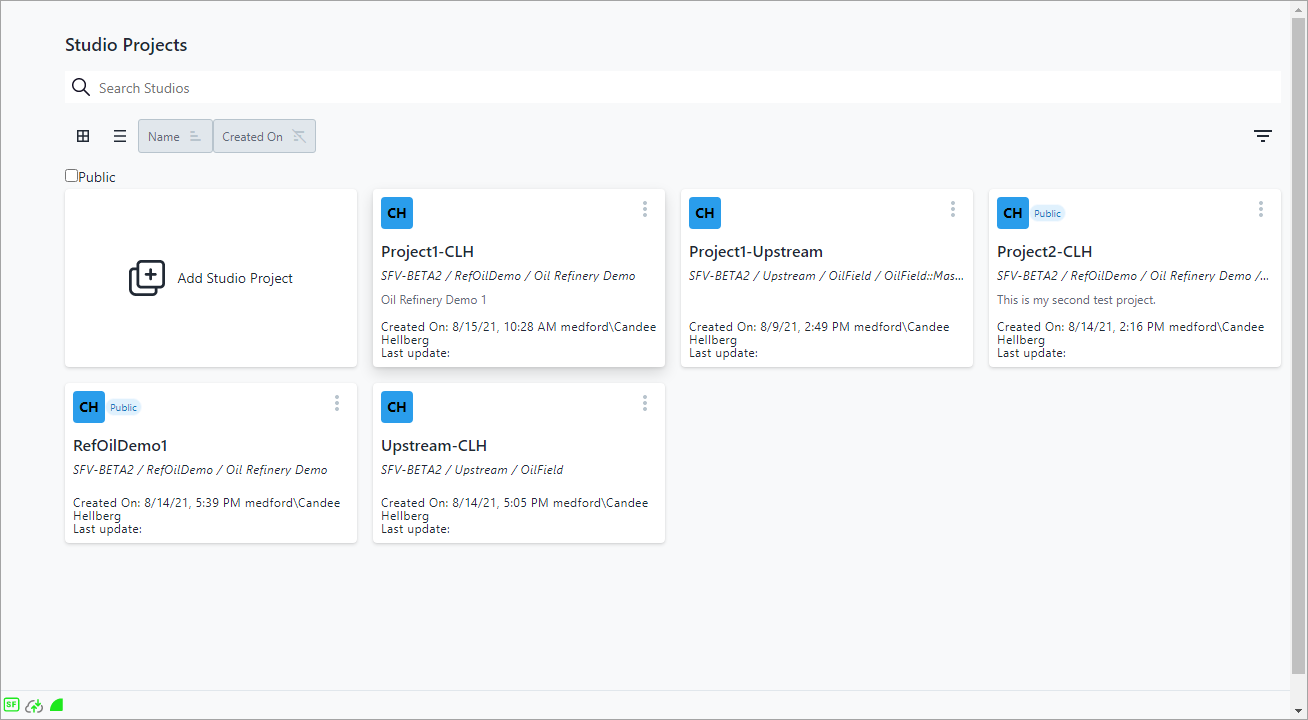
Choose the icon that represents the layout you want for the project list.
Click
 to choose
the cell layout.
to choose
the cell layout.EXAMPLE: Project - Cell Layout
Notice how there are several projects in a single row.
Click
 to choose the row layout.
EXAMPLE: Project - Row Layout
Notice how there is only one project per row.