Case Runner Properties - Run as Needed Tab
Use the Run as Needed tab to configure how the Case Runner interface looks and how the Case Runner and how it performs.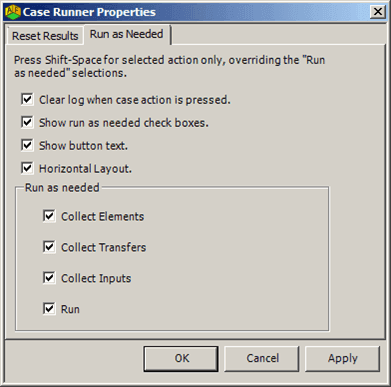
The following table provides the various settings and their descriptions.
| Checkbox | Selection | Description |
|---|---|---|
| Clear log when Case action is clicked. | Checked | |
| Not Checked | Case log is cleared when any Case action is pressed | |
| Show run as needed check boxes. | Checked | |
| Not Checked | The Run as needed check boxes are now shown in Case Runner toolbar | |
| Show button text. | Checked | |
| Not Checked | Text such as ‘Collect Elements’, ‘Collect Transfers’, ‘Collect Inputs’, ‘Run’ and ‘Publish’ are not shown on the button | |
| Horizontal Layout. | Checked | |
| Not Checked | Toolbar is shown in vertical layout | |
| Run as needed | Collect Elements/Collect Transfers/Connect Inputs/Run/Publish | Checked |
| Not Checked | Only the specific button that is clicked is performed |
The following are a few examples of how the Case Runner interface appears when various settings are chosen.
 EXAMPLE: 'Show button text' and 'Run as needed' - checked
The following example shows how the Case Runner appears when 'Show button text' and 'Run as needed' are both checked.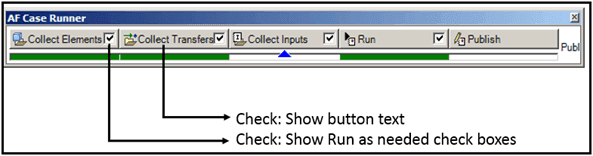
EXAMPLE: 'Show button text' - unchecked and 'Run as needed' - checked
The following example shows how the Case Runner appears when 'Show button text' is not checked and 'Run as needed' is checked.
EXAMPLE: 'Show button text' and 'Run as needed' - unchecked
The following example shows how the Case Runner appears when 'Show button text' and 'Run as needed' are both not checked.
EXAMPLE: 'Show button text' - checked and 'Run as needed' - unchecked
The following example shows how the Case Runner appears when 'Show button text' is checked and 'Run as needed' is not checked.
EXAMPLE: Horizontal Layout - checked
The following example shows how the Case Runner appears when 'Horizontal Layout' is checked.