Floating / Docking a Modeler AF Window
You can "float" any of the three Modeler AF windows so that you can move them anywhere within or outside of the PI ProcessBook window. This feature can be very useful if you have multiple monitors, as one monitor can be used to view the graphics display while the other can be used to view the Modeler windows. You also have the ability to "dock" a Modeler AF window to the top, bottom or side of the PI ProcessBook window. When docked, the AF window moves with the PI ProcessBook window, as you move the PI ProcessBook window around.
To float any of the three AF windows:
Double-click on the AF window title bar.
This action separates the AF window from the PI ProcessBook window, making the AF window free floating (as shown in Figure 793).
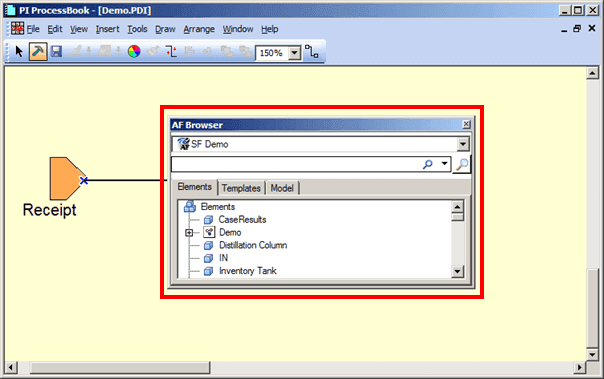
Drag the window to the location where you want to place it.
As you drag the AF window around inside of the ProcessBook window, a temporary shape is visible. This shape shows what form the window will take, making it easier for you to make a decision on it's placement.
(Optional) If you would like to Dock the AF window to the PI ProcessBook window, simply move the AF window close to any one of the four sides of the ProcessBook window.
As you approach the edge of the PI ProcessBook window with the AF window, you are provided the option of attaching (docking) the AF window to that side of the ProcessBook window.
If you drag the AF window to the center of the of the ProcessBook window, a temporary line appears across the whole PI ProcessBook window. This line indicates that the AF window will be docked to the bottom of the ProcessBook window.
 EXAMPLE: Docking the AF window to the bottom of the ProcessBook window.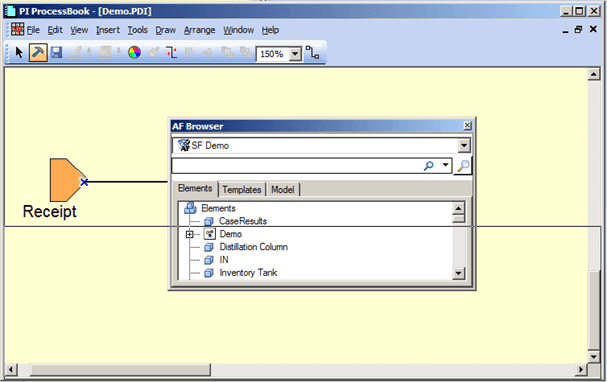
After you release the mouse button, the window gets docked to the bottom of the ProcessBook window, as shown in .
EXAMPLE: AF window docked to the bottom of the ProcessBook window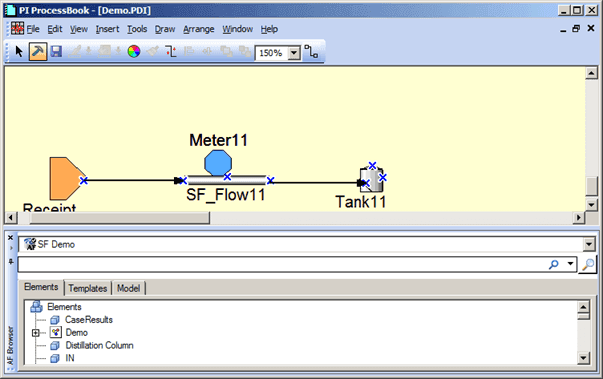
When finished dragging the AF window to where you want it, release your mouse button to drop the AF window at that location.