Template Properties - General Tab
Use the General tab to configure the basic settings for the template.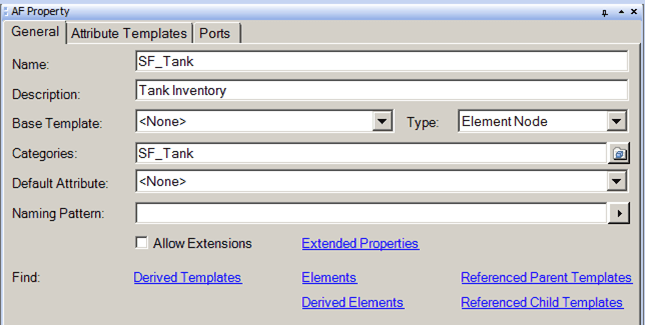
The following table provides descriptions for each of the inputs found under the General tab and what to do with each one.
AF Property Window – General Tab for a Template
| Input Box / Button / Checkbox | Description |
|---|---|
| Name | Assign a Name for the template. |
| Description | (Optional) Enter a Description for the template. |
| Base Template | Allows you to use an existing template as a basis on which to create a new template. Select the existing (base) template in 'Base Template' field. To create templates modeled on the currently selected one, click the Derived Templates tab. Right-click and select New Element Template. |
| Type | Select the AF object Type: node, measurement, flow, transfer, boundary, and other. |
| Categories | (Optional) Lets you organize Model objects by grouping them into categories. To browse the available categories, click the Browse button. |
| Default Attribute | Select an Attribute that is most representative of the element. For example, if you were to reference a tank, perhaps 'Level' would be the single best Attribute to use. |
| Naming Pattern | Select the pattern of names when new elements are created. For example, for a flow template, we can set it as “f_flow”, when flows are created, the naming convention is then automatically f_flow, f_flow1, f_flow2 etc., |
| Allow Extensions | (Optional) Check this checkbox to allow some Attributes to be defined in the Element itself, independent of the template. To do this you configure the template to 'Allow Extensions'.Attributes that are created as extensions do not change when the template changes.If you change the template to no longer allow extensions, the existing Attribute extensions remain, but no new ones can be added. |
| Derived Templates | Click to display the Element templates with definitions based on this Element template. |
| Extended Properties | Click to display the stored extended properties associated with the template, for example the default graphic symbol, size, color etc., |
| Elements | Click to display Lists all elements that have been created using this template |
| Derived Elements | Click to display the elements with definitions based on this Element template and Derived templates |
| Referenced Parent Templates | Opens the Find Referenced Parent Templates for \<Element Template> window, that displays Element templates that have specifically been linked to this Element template as a parent through a Reference type. The list of templates includes those that indirectly have been linked through template inheritance. |
| Referenced Child Templates | Opens the Find Referenced Child Templates for \<Element Template> window, that displays Element templates that have specifically been linked to this Element template as a child through a reference type. The list of templates includes those that indirectly have been linked through template inheritance. |