Configure File System Data Set (XML)
To configure a File System Data Set:
Run the Integration Framework - Configurator application.
The Integration Framework - Configurator window opens.

In the Configured Data Server pane, click on FILESYSTEM to expand the tree of File System Data Servers.
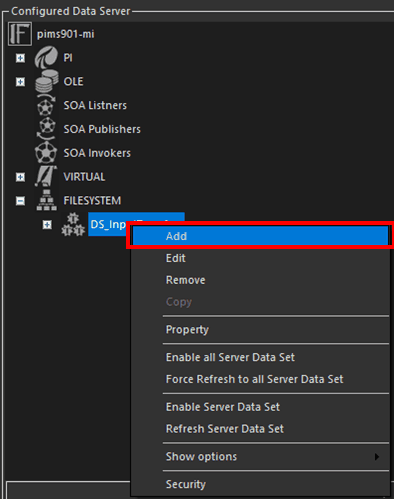
Click on a previously created FILESYSTEM Data Server (as shown in Figure 1419), to select it.
In the toolbar, click the
 Add icon.
Alternatively, you can right-click on selected Data Server and select the Add option as shown in the following figure.
The Configure File System DataServer window opens.

In the Name box, type a name for the file system data server.
In the File Pattern box, type the file pattern used to look for specific files (i.e., file types).
This should be the same file pattern as that which was configured on the parent IF Data Server.
In the File Type box, select the format type XML.
Currently available options are:
- Text/Delimited - Delimited text files like CSV (Comma Separated Values).
- XML - XML formatted text files.
- Other - Compatible with older version of IF FS datasets.
Click the
 Save and Exit icon.
Select the newly created dataset to configure the dataset parsing (only 'Text/Delimited' and 'XML' file types).
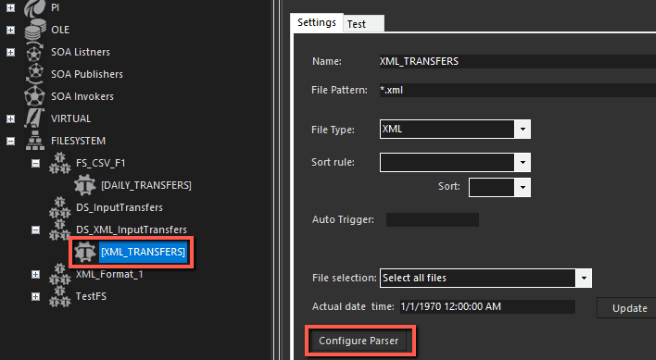
Click the Configure Parser button to open the parser configuration form.
The file Selection Dialog window opens.

Double-click on the file you want to parse and use as a source for the configuration.
Alternatively, you can select the file from the list and click the OK button.
The Configure File System Window opens.
Click the
 Parse XML button.
The file is parsed and the window refreshes, showing the configuration settings options.
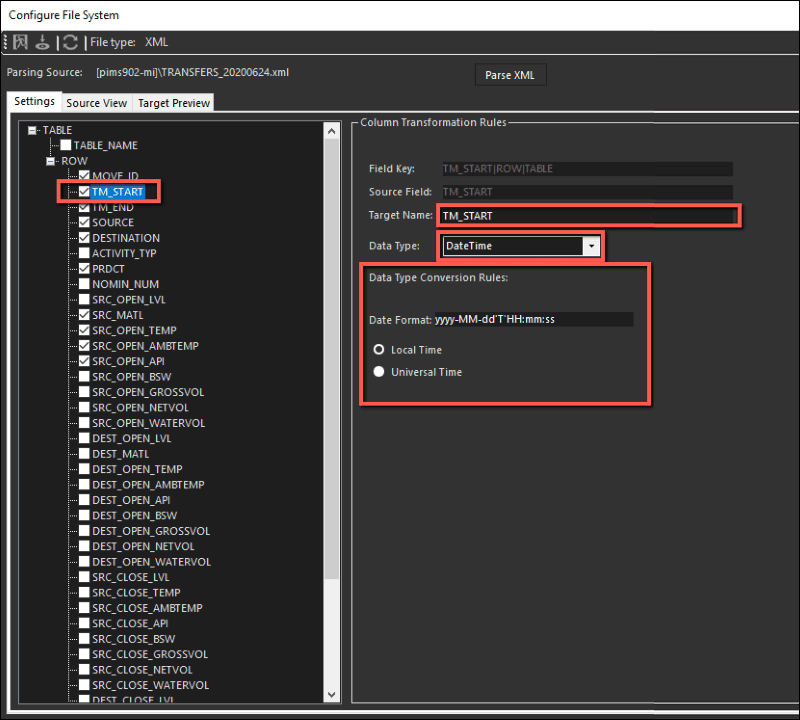
In the left pane, check the box for each column you want to have in the final dataset.
In the right pane, configure the parsing conversion rules for the selected columns.
Target Name - The name of the column in the final dataset.
Data Type - The values for the type of data columns in the final dataset. Each data type has specific conversion rules.
Data Type Conversion Rule - Each data type has its own specific conversion rules.
Repeat the steps for each column you selected in the left pane.
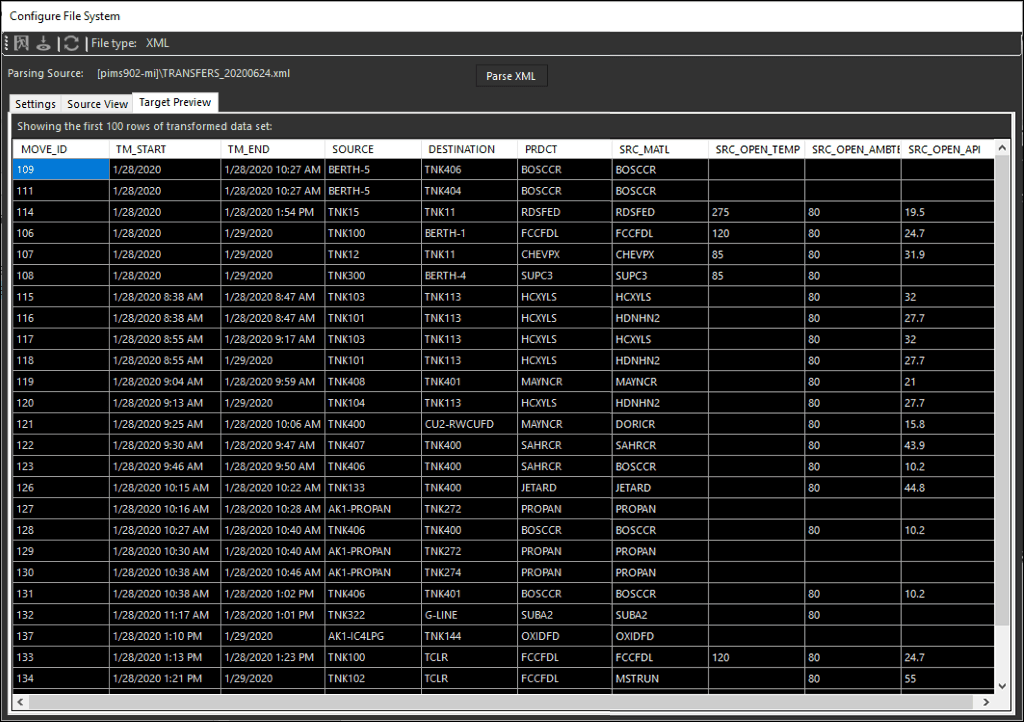
Click the Target Preview tab, to see the preview of the final dataset generated from the selected file. An example is shown in the following figure.
Click the
Save and Exit icon.You are returned to the Integration Framework - Configurator window.