Configure the IF Server Connection
To configure the IF Server connection:
Run the Integration Framework - Configurator application.
The Integration Framework - Configurator window opens.

From the menu bar select File > Connection.
The IF Server Connection window opens.
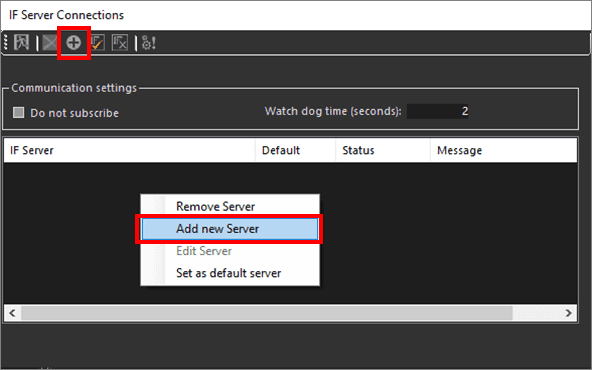
In the toolbar, click the
 Add new server icon to display a set of options.
Alternatively, you can right-click on the connection table in the bottom portion of the window and select the Add new Server option.
The IF Server connection setting window opens.
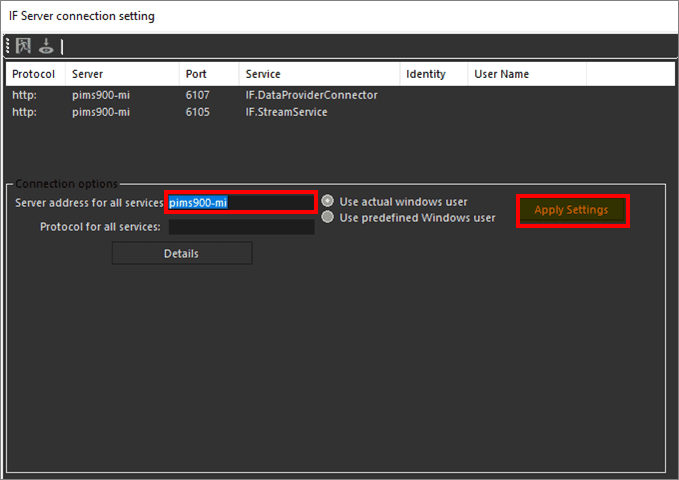
In the Server address for all services box, type the hostname of the IF Server.
Click the Apply Settings button.
Click the
 Save and Exit icon.
You are returned to the IF Server Connections window where the IF Server you just added displays in the table.

In the toolbar, click the
 Apply connections icon.
Ensure that the Status column is displaying 'Connected'.
Click the
 Exit icon to close the IF Server Connections window.