Reset SFHub Sql User
The Reset SFHubSql User tab in the SFHub Connection and Credentials Checks window allows you to reset the SQL Server user, that SFHub uses to connect, to its original configuration.
To reset the SFHubSql User to its original configuration:
Click the Check Credentials and Connection option in the main window.
SFHub Utility App - select Check Credentials and Connection
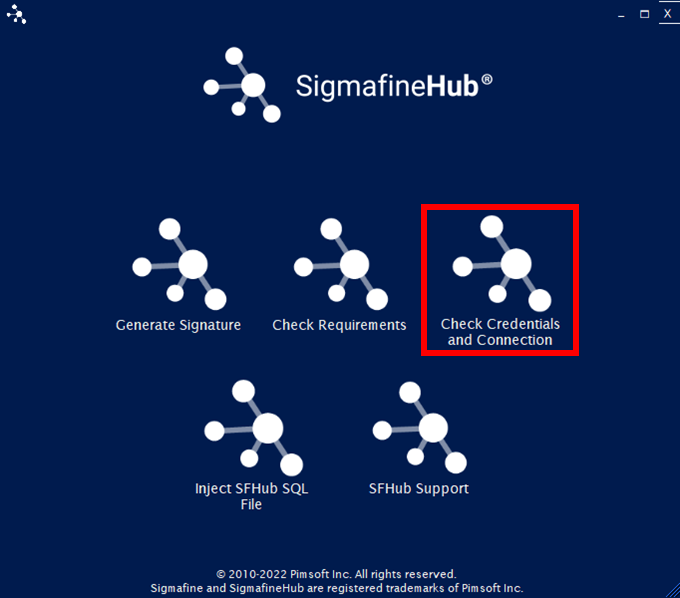
The SFHub Connection and Credentials Checks window opens to the Login tab.
SFHub Connection and Credentials Checks - select Reset SFHubSql User tab
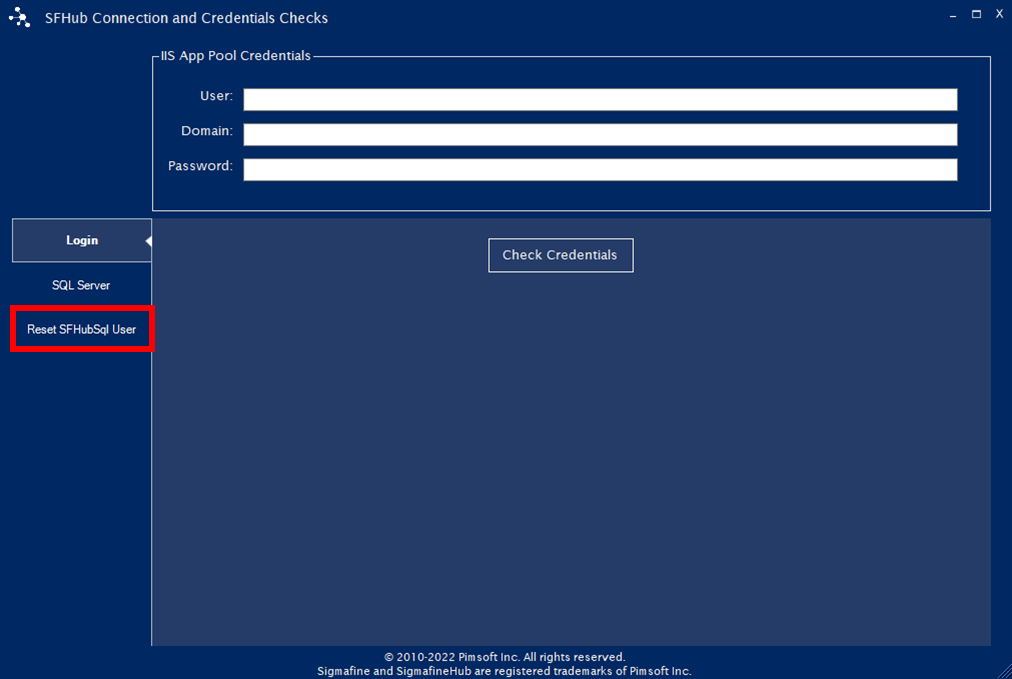
Click the Reset SFHubSql User tab.
The Reset SFHubSql User tab opens.
SFHub Connection and Credentials Checks - Reset SFHubSql User tab
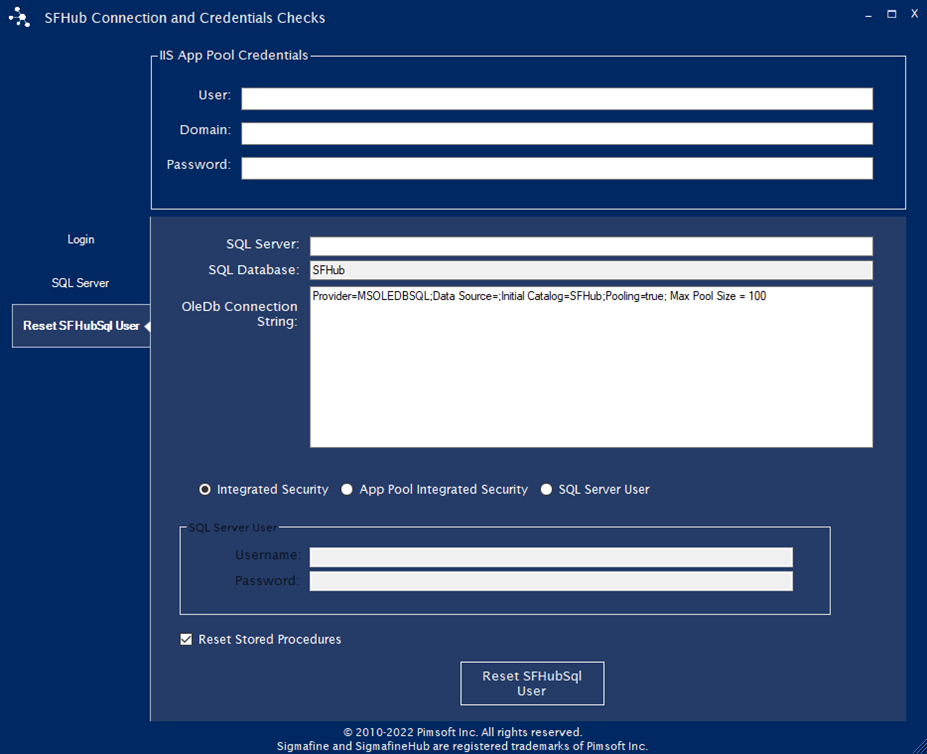
In the SQL Server box, type the instance name of theSQL Server where the SFHub database resides.
In the SQL Database box, type the name of the SFHub database (the default is SFHub).
(Optional) In the OleDb Connection String box, you change any of the additional OleDb connection string parameters used during the connection, if you need to.
Choose the authentication mode to use:
Integrated Security
App Pool Integrated Security (for this mode, you'll need to fill in the user information in the IIS App Pool Credentials area).
SQL Server User (for this mode, you'll need to fill in the user credentials in the SQL Server User area in the bottom portion of the window).
(Optional) Check the Reset Stored Procedures box, if you want to recreate the SFHub stored procedures and functions in the SFHub SQL database.
Click the Reset SFHubSql User button to connect to the database, reset the SFHubSql user to its initial configuration and if selected, reset all the SFHub stored procedures and functions.
noteThe SQL Server credentials used to reset the SFHubSql user must have permissions to CREATE or ALTER users on the SQL Server instance, and full permissions on the SFHub database.