SigmafineHub® Installation Troubleshooting
The aim of this section is to provide guidance for the most common issues you can encounter after the SigmafineHub installation.
Never edit the SFHub web.config file manually.
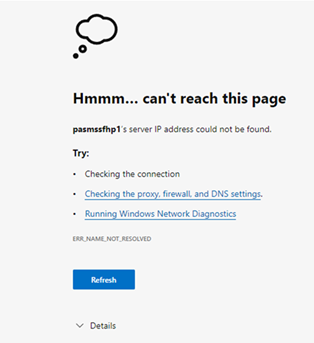
SFHub Login Page is unreachable
Symptom
The browser says that the login page is unreachable.
Corrective action
Check the firewall settings for the server where the SFHub Application server is hosted (please refer to SFHub Installation - Preparation paragraph about the IP Ports to be opened).
SFHub Tenant User cannot login
Symptom 1
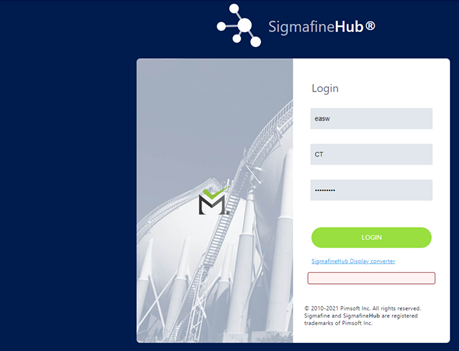
The SFHub tenant user is not able to login into SFHub without receiving any particular error.
Corrective action
In most of the cases this issue is originated by a problem with the SFHub License:
- Be sure that the SFHub License has been installed before the license activation expiration date. The license activation typically expires after three days from its issue date.
- If the SFHub license has been installed within the activation deadline, be sure that the first attempt to login has been requested before the license activation expiration date.
If you have the suspect that the license has not been installed within the activation deadline, please contact the Sigmafine.support@pimsoftinc.com to request a new license.
Symptom 2
The SFHub tenant user receives an error like ‘User not registered’.
Corrective action
There may be that the SFHub application server is not able to accept any login request and the SFHub trace file contains errors about Microsoft Data Access Components(MDAC) missing component.
[Init] Fatal error initializing the connection <The .Net Framework Data Providers require Microsoft
Data Access Components(MDAC). Please install Microsoft Data Access Components(MDAC) version 2.6 or later.>
Disable the related Windows User Profile Service feature. To do this, follow these steps:
Login to the Windows Server hosting the SFHub application server
Open the Group Policy editor (Gpedit.msc)
Open the UserProfiles folder in the following path:
Computer Configuration > Administrative Templates > System > UserProfiles
Locate the Do not forcefully unload the user registry at user logoff setting.
Change the setting to Enabled.
Restart IIS
SFHub User cannot login
Symptom
A non-tenant user is not able to login into SFHub via the SFHub Login page.
Corrective action
- Be sure that your domain credentials are correct (domain, username and password)
- Be sure that your domain account has been enabled by the SFHub tenant user to access into SFHub application
- Be sure that that your domain account has the SFHub Login claim enabled
SFHub Application Activation
Symptom
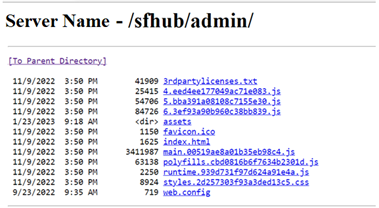
The browser shows the output of the directory browsing when a SFHub application is activated from the SFHub Login Page.
Corrective action
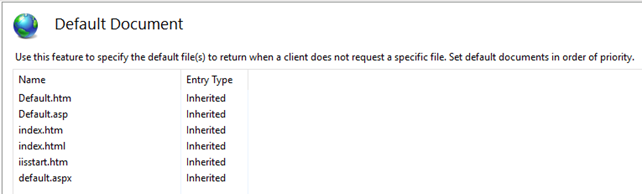
Open IIS Manager application and check the Default Document settings in the SFHub site configuration.
HTTP Error 404
Symptom
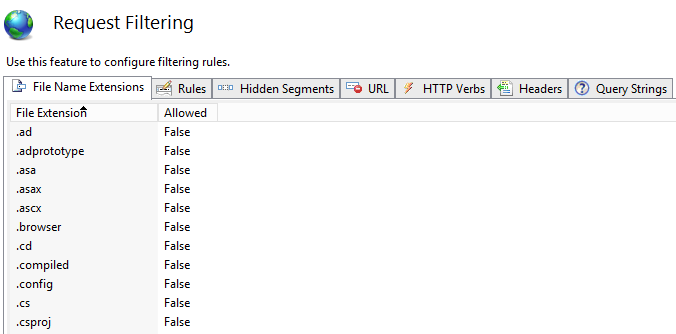
Unable to load .css files even if .ccs file paths are correct or you don't see the images even if the .svg file paths are correct.
Corrective action
Check if the file name extension .css or .svg are disabled on IIS Request Filtering page
HTTP Error 500
Symptom
If it doesn't understand the answers and always shows the HTTP error 500 to any call.
Corrective action
Add and enable *.json in the ISS Request Filtering page