Check SQL Server Connection
The SQL Server tab in the SFHub Connection and Credentials Checks window allows you to test the connection on the SFHub SQL Server database with three different configurations:
Run a SQL Server Connection Check
To open the SQL Server Connection window:
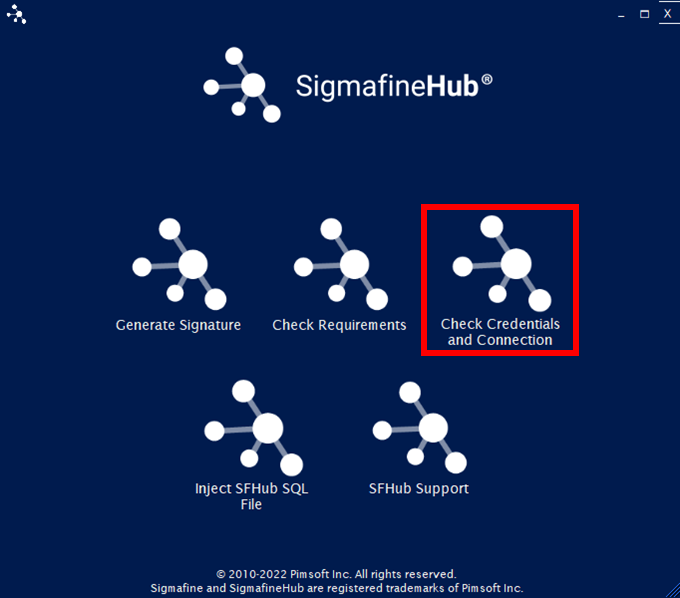
Click the Check Credentials and Connection option in the main window.
SFHub Utility App - select Check Credentials and Connection
The SFHub Connection and Credentials Checks window opens to the Login tab.
SFHub Connection and Credentials Checks - Login tab
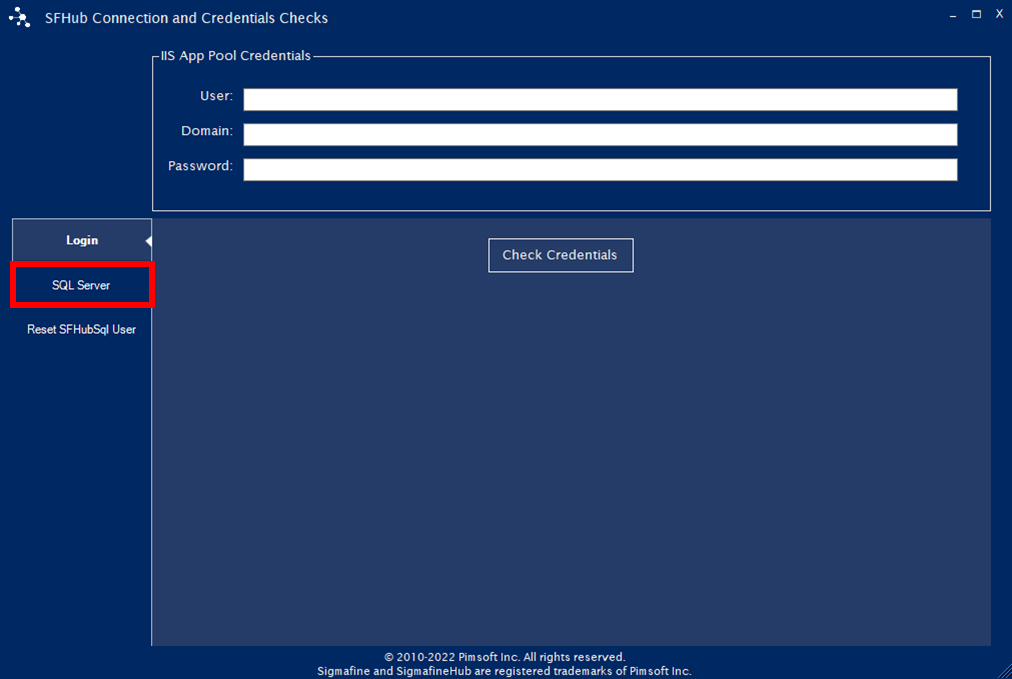
Click the SQL Server tab.
The SQL Server tab opens.
SFHub Connection and Credentials Checks - SQL Server tab
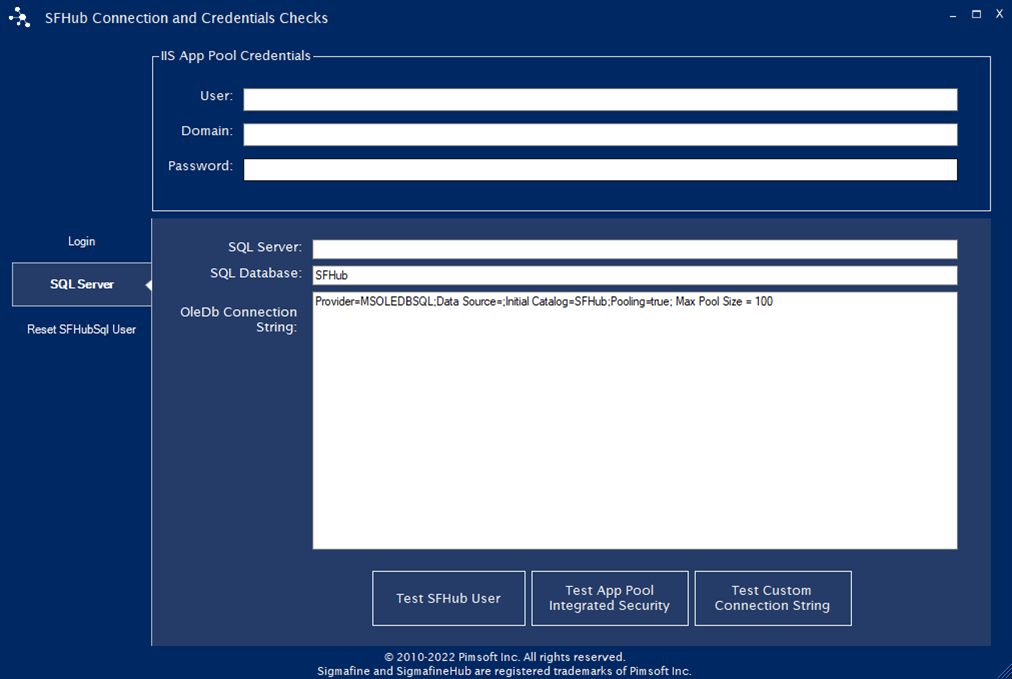
The SQL Server tab displays three test configuration buttons; Test SFHub User, Test App Pool Integrated Security and Test Custom Connection String.
Click on the button that coincides with the configuration you want to use, and then refer to the associated steps below.
Test SFHub User
To test the SQL Server connection using the Test SFHub User configuration:
In the IIS App Pool Credentials area, fill in the user information.
In the SQL Server box, type the instance name of theSQL Server where the SFHub database resides.
In the SQL Database box, type the name of the SFHub database (the default is SFHub).
(Optional) In the OleDb Connection String box, you change any of the additional OleDb connection string parameters used during the connection, if you need to.
Click the Test SFHub User to execute the test by:
Adding or replacing the User ID of the connection string to be SFHubSql.
Adding or replacing the Password of the connection string to be the expected SFHubSql password.
Test App Pool Integrated Security
To test the SQL Server connection using the Test App Pool Integrated Security configuration:
In the IIS App Pool Credentials area, fill in the user login information.
In the SQL Server box, type the instance name of theSQL Server where the SFHub database resides.
In the SQL Database box, type the name of the SFHub database (the default is SFHub).
(Optional) In the OleDb Connection String box, you change any of the additional OleDb connection string parameters used during the connection, if you need to.
Click the Test App Pool Integrated Security button to execute the test by:
Removing the User ID from the connection string.
Removing the Password from the connection string.
Adding an Integrated Security=SSPI parameter to the connection string.
Impersonating the user with credentials from the IIS App Pool Credentials area.
Test Custom Connection String
To test the SQL Server connection using the Test Custom Connection String configuration:
In the IIS App Pool Credentials area, fill in the user login information.
In the SQL Server box, type the instance name of theSQL Server where the SFHub database resides.
In the SQL Database box, type the name of the SFHub database (the default is SFHub).
In the OleDb Connection String box, type the connection string you want to use to test the connection.
Click the Test Custom Connection String to execute the test using only the connection string from the OleDb Connection String box.