Inject SFHub SQL File
The Inject SFHub SQL File option in the main window allows you to insert Pimsoft signed SQL files into the SFHub database. This is useful during troubleshooting processes, to avoid manual interventions on the SFHub database.
Injection files usually have ".inj" extension and must be provided only by Pimsoft agents with detailed instructions. An Inject file usually contains encrypted SQL code of stored procedures or functions that need to be created in the SFHub database for troubleshooting purposes.
To set or change the injection file settings:
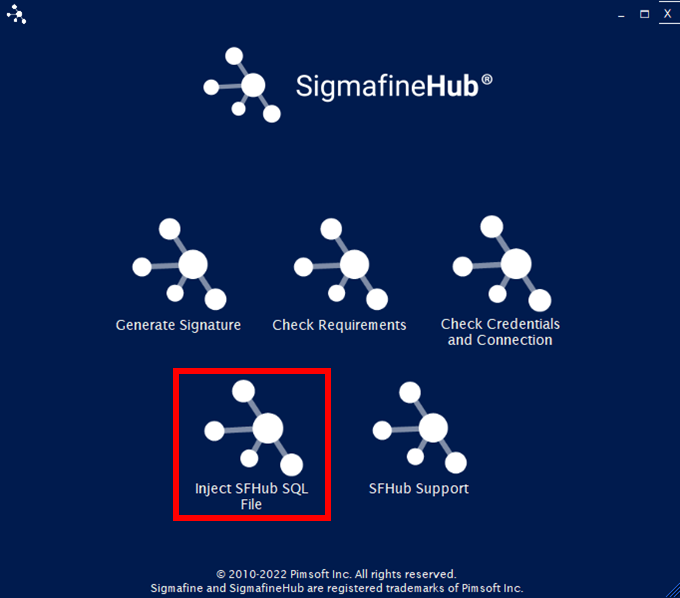
Click the Inject SFHub SQL File option in the main window.
SFHub Utility App - select Inject SFHub SQL File
The SFHub SQL File Injection window opens.
SFHub SQL File Injection window
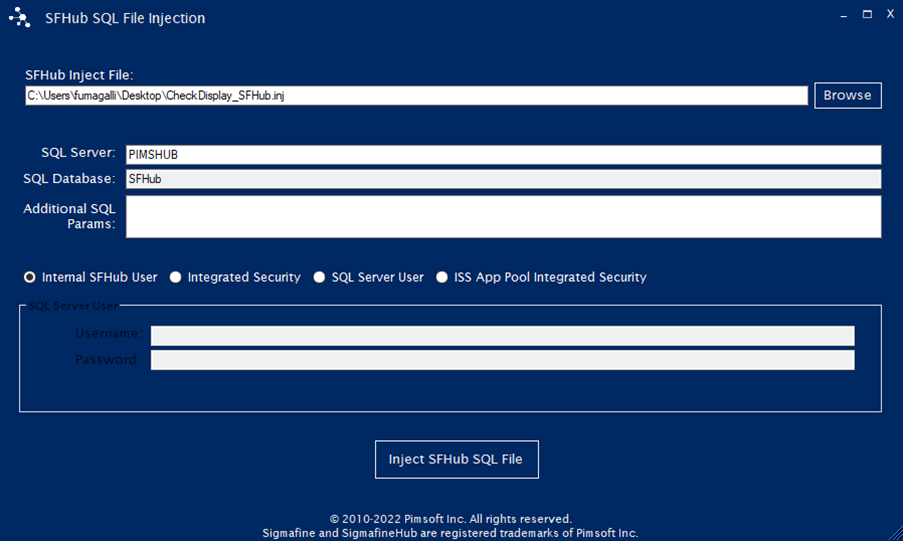
Click the 'SFHub Inject file' Browse button, to select a valid injection file.
In the SQL Server box, type the instance name of the SQL Server where the SFHub database is resides.
In the SQL Database box, type the name of the SFHub database (this is usually SFHub).
(Optional) In the Additional SQL Params box, add any additional connection options you may need.
Options you enter must follow the OLE Db connection string format and be entered WITHOUT the separator ";" at both the beginning and the end of the string.
Select the database connection mode.
Internal SFHub User: This mode uses the internal SFHubSql user to connect to the SFHub database and execute the injection file.
Integrated Security: This mode uses the Windows integrated security of the current user running the application to connect to the SFHub database and execute the injection file.
noteThe current user must have full permissions on the SFHub database.
SQL Server User: Selecting this mode will show and enable the SQL Server User panel below where to enter SQL Server User credentials to connect to the SFHub database and execute the injection file.
SFHub Utility App - select Inject SFHub SQL File
 note
noteThe SQL Server user must have full permissions on the SFHub database.
IIS App Pool Integrated Security: Selecting this mode will show and enable the IIS App Pool User panel below where to enter the SFHub IIS App Pool Windows credentials to use for connecting to the SFHub database and execute the injection file.
SFHub SQL file Injection - IIS App Pool User panel
 note
noteThe provided user must have full permissions on the SFHub database.
Click the Inject SFHub SQL File button to execute the injection of the file into the SFHub SQL database.
Follow Pimsoft guidelines to make use of the injected SQL file.