Open a Case's Report
When working with a SFHub Visualizer Display, you can open one or more Reports in the context of the selected Sigmafine Case.
The reports that are listed for a case, are those that are configured in the SFHub Visualizer Settings, referenced by your User Preferences (See Display Setting Preferences and Reports Settings for how to configure Reports, in your own Display Settings.)
To open a report for a Case you have selected:
Click the Reports icon in the command bar.
Open a Case's Report
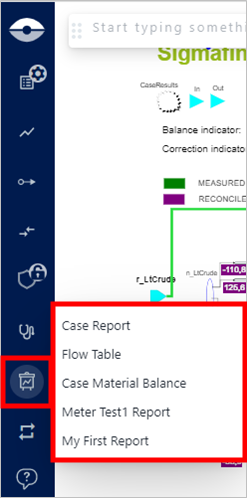
All reports that are assigned to the case, based on your User Preference settings, display in a list, as shown in the example in Figure 1.
NoteIf the Report icon does not appear in the command bar, it means that no reports are configured.
Click on the report you want to open.
The Report panel opens (if not already active) to show the report data. For more details about the Report Panel refer to Report Panel.
The Report Panel allows you to open multiple reports at the same time by selecting other reports from the report menu.
Note"Case Reports" opened from SFHub Visualizer don't allow or support switching to another Case. As soon as you change the Case selection from the Case Search, the Report Panel closes automatically.