How Report Panel Works
The Report panel is fully integrated with the SFHub environment, allowing full functionality, made available through SFHub Visualizer. It guarantees the consistency between an open report and the surrounding data recorded on a Sigmafine Case.
Concurrent Access on Case Data
Changes on Case data can be a consequence of actions performed by you or by other users working on the same Sigmafine Case data you are viewing on your report (e.g., adjustments, case runner actions, transfer manipulation), or a consequence of a change of the report layout. In such instances, the Report Panel detects the change and takes the necessary actions to guarantee consistency.
Report Panel actions are based on your select Refresh Mode, as described in the following table.
Refresh Modes
| Mode | Description |
|---|---|
| Ignore | With this mode, the Report Panel ignores the changes on the Case data, maintaining the original data shown by the report. In this mode, you are not made aware of the changes. |
| Notify | With this mode, the Report panel notifies you about the changes, and allows you to use the Refresh button on the toolbar. |
| Automatic Refresh | With this mode, the report data is updated automatically, as soon as a change is detected. |
| Ask me | With this mode, the Report Panel raises an alert, informing you that a change has been detected. : Report Panel Reload option  You have the option to decline or accept the data refresh. To accept, you click the Reload button. |
Changes on a Case are notified to the Report Panel based on the following rules:
All the changes you make on a Case are notified to all the Reports opened by you in the same user session.
All the changes you make on a Case are notified to all the Reports opened by other users, only when the Case CheckIn is done.
SFHub Command Bar
Even when you are working with SFHub Report, the SFHub Command bar is still available, allowing you to work with Sigmafine Cases.
Command bar available when working in the Report Panel
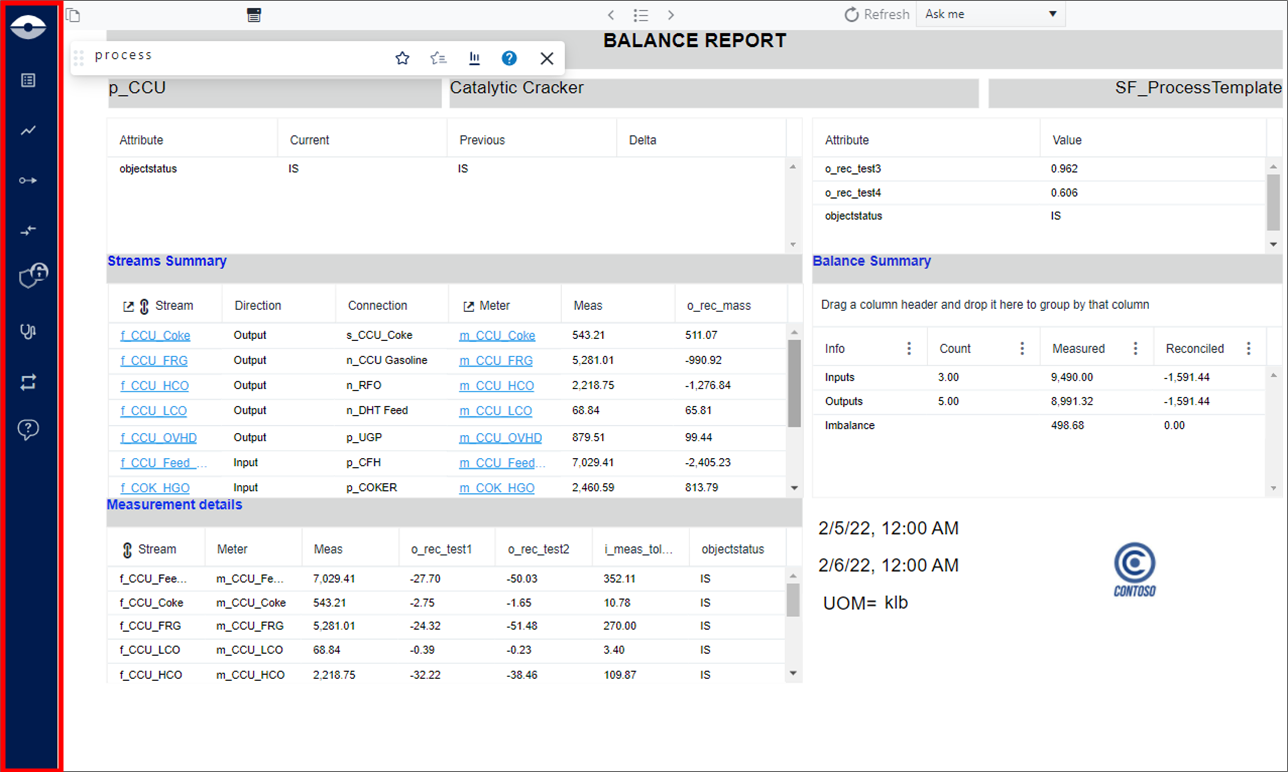
The Element Detail panel can be activated by a report whenever a 'Backward Lookup' has been configured on element names shown in the report data (see SigmafineHub Studio - Backward Lookup Option in Table configuration panel).
The presence of Backward Lookup could be easily recognized by the underlined blue texts.
The presence of Backward Lookup

If a lookup is configured, you can:
Click on the name (hyperlink style) to locate the element in the display and open the element detail panel to examine the element attributes.
Click on the lookup button to locate the element and the display, and reload the current report selecting the element (if the report type is" Case and Element").