Add a Scheduling Configuration
The Sigmafine Scheduler Configuration Tool provides an Add feature that allows you to create a new analysis scheduling configuration. This feature is accessible from the Scheduler Table area of the Scheduler Configuration Tool window.
To add an analysis scheduling configuration:
Under Scheduler Table, click the Add button to open the Analysis Scheduling Configuration Details window.
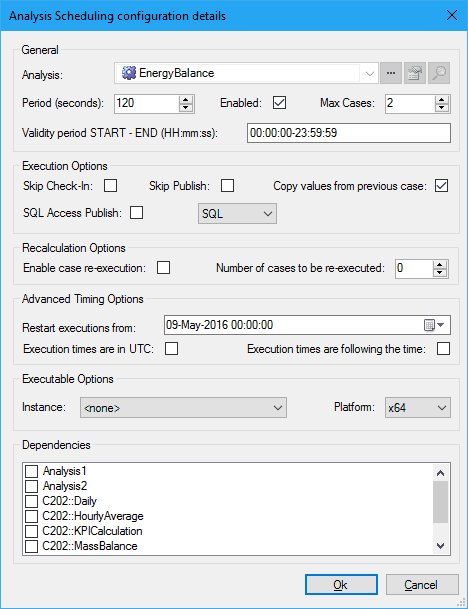
The Analysis Scheduling Configuration Details window is divided into six areas; General, Execution Options, Recalculation Options, Advanced Timing Options, Executable Options and Dependencies.
For more details and additional important information regarding the options found in this window, please see Configure SF_Scheduler Table.
For basic descriptions on each option, along with the corresponding names in the SF_Schedule Table, refer to the following table.
Analysis Scheduling Options
Option Description SF_Scheduler General Analysis The name of the analysis contained in the AF database. ANALYSIS Period (seconds) Identifies the number of seconds for trying to fire an execution for the analysis. PERIOD Enabled When checked, automatic execution is enabled for the target analysis.When not checked, automatic execution is disabled. ENABLED Max Cases Indicates the maximum number of newly created cases for each execution. MAXCASE Validity period START – END (HH:mm:ss) Indicates the validity time inside the day.The value format is: HH:mm:ss-HH:mm:ss. For example: 01:00:00-19:30:00. VALIDITY Execution Options Skip Check-In When checked, Scheduler skips the analysis Check-In step. SKIPCHECKIN Skip Publish When checked, Scheduler skips the analysis Publish step. SKIPPUBLISH Copy value from previous case When checked, it instructs Scheduler to replicate the same ADA (Sigmafine Advanced Diagnostic Add-In) feature for copying some values from the previous case. COPYVALUES SQL Access Publish When checked, Scheduler runs SQLAccess publication at the end of the execution. When checked, you must also select SQL Type; PI or SQL.PI - SQL Access publishes to PISQL - SQL Access publishes to SQL Server SQLPUBLISH Recalculation Options Enable case re-execution When Skip Check is enabled (checked), and this option is enabled (checked), it instructs Scheduler to “follow-the-time,” meaning, that every time the scheduler runs it should align the case times to the latest available case, skipping any intermediate execution. RERUN Number of cases to be re-executed Number of automatic case re-runs to be done. RERUNNUM Advanced Timing Options Restart executions from Indicates when the History Recover must start. INITIALCASE Execution times are in UTC When checked, Scheduler uses UTC scheduling. When not checked, it uses standard scheduling. UTC Execution times are following the time When checked, it instructs Scheduler to recover from the latest available case, skipping any previous cases to be recovered. FOLLOWTIME Executable Options Instance The name of the Scheduler instance that is supposed to run the analysis. INSTANCENAME Platform Indicates the run mode for Scheduler. By default, this is set to blank, meaning that Scheduler runs in x64 mode. PLATFORM Dependencies Dependencies When the checkbox next to an analysis is checked, it forces Scheduler to verify all the "depending" analyses. Depending simply means that the Last Execution Case End-Time indication is greater or equal to the actual analysis Last Executed Case End Time. DEPEDENCY Use the Analysis Scheduling Options table to select and fill in the options you want to use for this scheduling configuration.
When you are finished, click OK to save your configuration and close the window.