Analysis Backfill
The Analysis case backfill allows you to cover periods of time in the past where the Sigmafine Scheduler was not working. The scope is to create and run the missing cases.
To create and run the missing cases:
In the Sigmafine Scheduler Configuration Tool window, click the Backfill button (as shown in the following figure).
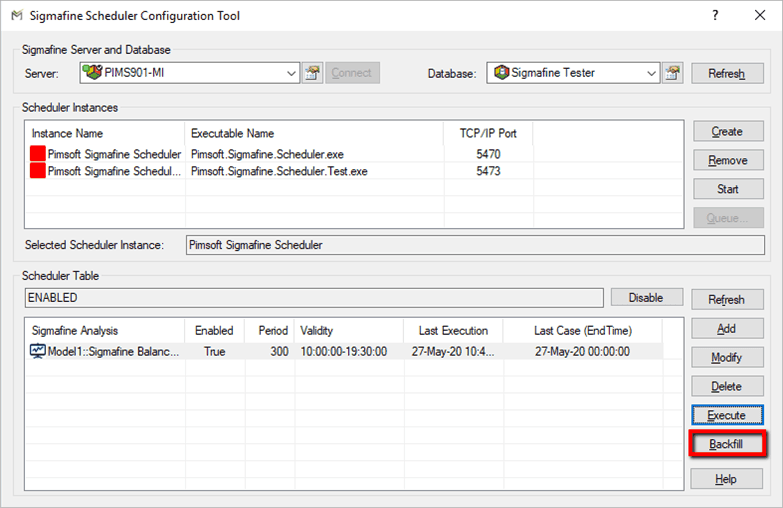
The Sigmafine Scheduler Execute Backfill window opens.

Click the Start Case down-arrow and select the case from which you want to start the backfill.
This is the last existing case before the backfill period.
Click the End Case down-arrow and select the case with which you want to end the backfill.
This is the first existing case after the backfill period.
In the Max Cases box, type (or use the arrows to select) the maximum number of cases that you want created and executed.
This parameter allows you to avoid overloading the system, when a large amount of cases need to be created for the selected period. It is good practice to set this parameter to 31 for daily cases, to be backfilled for a period spanning over several months or 144 for ten minute cases to be backfilled for a period spanning over several days. If the maximum number of cases is not sufficient to perform the backfill for the requested period, submit a new backfill request.
 EXAMPLE: Analysis backfill scenario
In the following example, we have a list of cases with a missing set of cases from 5/1/2020 to 5/10/2020.
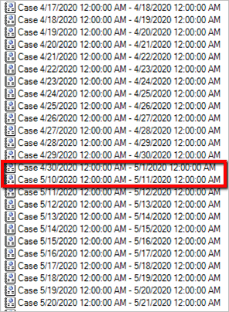
In the above scenario, the backfill should be:
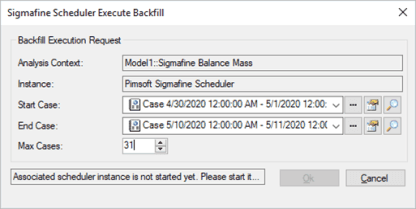
Once configured, click OK.
The request is submitted to the Sigmafine Scheduler service, which will create and execute the missing cases. The time rule of the new cases will be based on the time rule configured for the selected analysis.
In the case of our example, the Sigmafine Scheduler service will create and execute the missing cases starting on 05/01/2020.
Once the backfill request has been submitted, click the Queue button to monitor the progress status.
The Sigmafine Scheduler Execution Monitor window opens.

Note:
The Sigmafine Scheduler backfill option does not activate the SQL Access application, despite that the analysis is configured for SQL Access Publish. If you are using SQL Access 4.7, you can configure the analysis self-publish option, in order to enable the case publishing during the backfill execution.
The Sigmafine Scheduler backfill option does not perform the backfill for the dependent analyses, if any.