Install Scheduler
To install the Sigmafine Scheduler application:
Locate the new installer setup kit file (
Pimsoft Sigmafine v.exe.Right-click on the file and select to run it as an administrator.
In the Welcome window, click Next to open the License Agreement window.

Select the I accept the terms in the license agreement option.
Click Next to open the Customer Information window.

In the User Name box, type the name of the administrator or user who has full privileges on the machine.
In the Organization box, type your company's name.
Click Next to open the Destination Folder window.
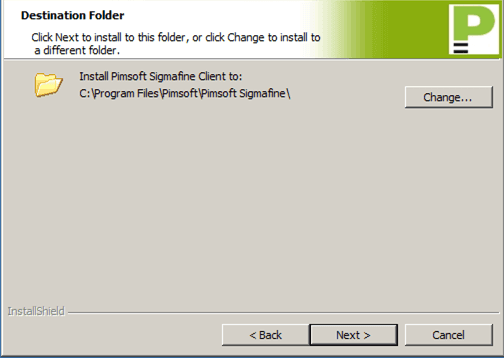
To accept the default installation folder, continue to the next step. To change the installation folder, click the Change... button and select a different path and folder.
Click Next to open the Ready to Install the Program window.
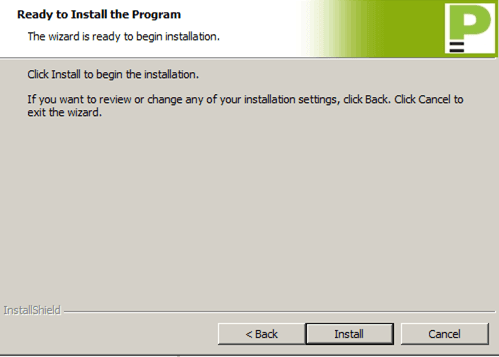
Click Install to start the actual installation.
To confirm the installation after it completes:
Open the Windows Control Panel.
Got to Programs and Features.
In the list of applications, locate Pimsoft Sigmafine.
To ensure that all the files were unpacked, go to the installation folder (
\<installation directory/path\>\Scheduler ® Main installation/product folder) and look for the following files:Pimsoft.Sigmafine.Scheduler.exe
Pimsoft.Sigmafine.Scheduler.exe.config
Pimsoft.Sigmafine.Scheduler.pdb
Pimsoft.Sigmafine.Scheduler.Executer_x86.exe
Pimsoft.Sigmafine.Scheduler.Executer_x86.pdb
Pimsoft.Sigmafine.Scheduler.Executer_x64.exe
Pimsoft.Sigmafine.Scheduler.Executer_x64.pdb
Pimsoft.Sigmafine.Scheduler.ConfigurationTool.exe
Pimsoft.Sigmafine.Scheduler.ConfigurationTool.pdb
Pimsoft.Sigmafine.Scheduler.Utility.exe
Pimsoft.Sigmafine.Scheduler.Utility.pdb
You can also go to the Windows Services Panel, where you should see a service called Pimsoft Sigmafine Scheduler, as shown in the following figure.

In the Windows Services Panel, set up the start-up parameters for the Pimsoft Sigmafine Scheduler service and logon account according to your installation and security needs.
Please note the following:
- In case of SQL Access Publication in the Pimsoft Sigmafine Scheduler service properties, please specify a valid account to run the SQL Access.
- The Sigmafine Scheduler can only be run with a local-system or a user with administrative privileges on the machine. Please do not use a Local Service or other lower privilege account.
- Modify the
Pimsoft.Sigmafine.Scheduler.exe.configfile according to your Sigmafine Server configuration, names and settings. Please see Scheduler XML Configuration File for further details.