Work with Scheduler Configuration Tool
The Sigmafine Scheduler Configuration Tool is a Windows based tool that provides a graphical format in which to create Sigmafine Scheduler configurations. The tool is installed only on the server side, therefore, only those users with access to the Server can use the tool. Standard Sigmafine clients have no rights for running the tool.
To open the Sigmafine Scheduler Configuration Tool:
Click on Windows Start button.
From the list of applications, select Sigmafine > Sigmafine Scheduler > Configuration Tool.
The Sigmafine Scheduler Configuration Tool window opens.
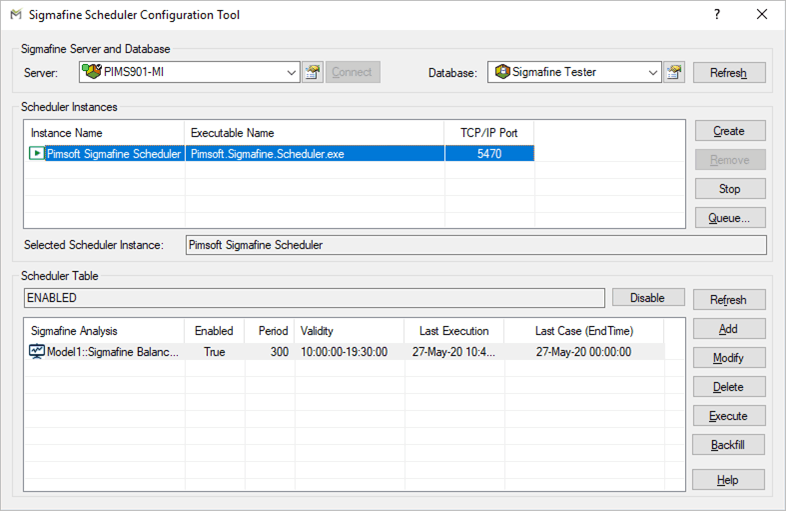
The window is divided into three main areas:
Sigmafine Server and Database - allows you to set up the connection to the Sigmafine server and database.
Scheduler Instances - allows you to manage Scheduler instances, which are multiple parallel processes for Scheduler executions.
Scheduler (Analyses) Table - allows you to select and review analyses for the target database.
The configuration of the Sigmafine Scheduler is done at the Sigmafine database level. Therefore, you must provide both the Sigmafine Server and Sigmafine Database.
Click on the Server down-arrow and select the Sigmafine Server to which you want to connect.
The tool starts a connection using the credentials you have logged in with. If your credentials have no access rights to the Sigmafine system on the server you have selected, the configuration tool does not allow you to make any configuration selections and settings.
Click on the Database down-arrow and select the database in which the analysis, that you want to configure, resides.
The tool guides you to the configuration of the Sigmafine Scheduler for the selected database.
Note: In the situation where a connection cannot be made or the database is not valid, the configuration tool does not allow you to select or modify the Sigmafine Scheduler options.
To create or work with instances in the Scheduler Instances area, use the information and steps found under Scheduler Instances.
To add or work with the Scheduler Table area, use the information and steps found under Scheduler (Analyses) Table.
When finished using the Configuration Tool, click the close button in the top right corner or the window, to save your selections/changes and close the window.