Create New Categories
Note: The hereafter steps are not required in Case the quality tracking library has been installed on the selected database (see paragraph Sigmafine Load Library Utility).
To create new categories:
Run System Explorer.
In the navigation pane, select Library.
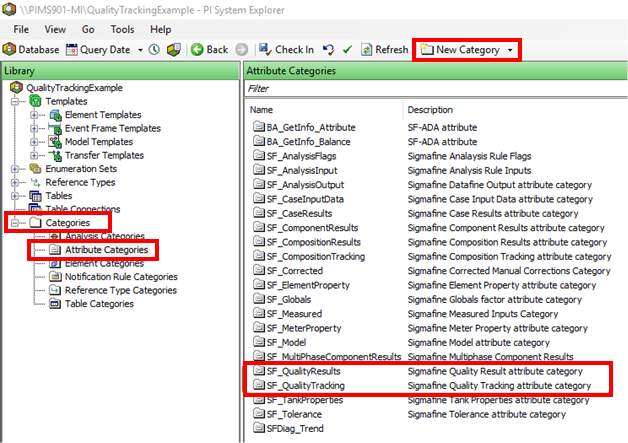
In the Library tree, expand the Categories tree.
Select Attribute Categories.
Click the New Category button and create the following categories if they do not already exist. If the categories already exist, go directly to step 7.
Name: SF_QualityResults Description: Sigmafine Quality Tracking Attribute category Name: SF_QualityTracking Description: Sigmafine Quality Tracking Attribute category Click the Check In button to check-in the changes.
In the Library tree, locate and expand Templates > Element Templates.
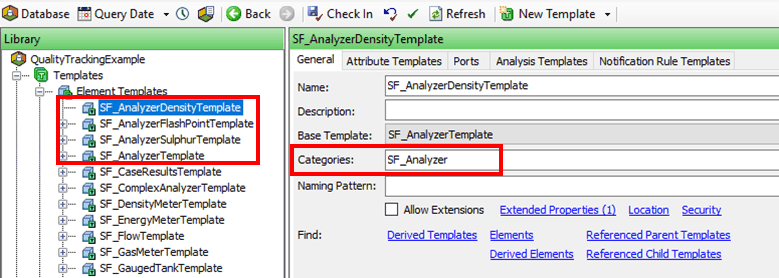
Verify that all of the analyzers templates have the 'SF_Analyzer' category listed.
Select one of the analyzer templates.
Under the General tab, ensure that SF_Analyzer is listed in the Categories box.
Repeat steps a and b for each analyzer template listed in the Elements Template tree.
 EXAMPLE: Analyzer Templates - 'SF_Analyzer' selected as Categories