Create Genealogy Tracking and Quality Tracking Files
Once the database structure is completed, values for the first Case of the analysis must be provided, both for the GenealogyTracking and the QualityTracking results.
The most effective way to initialize these data tables is:
- Prepare the data set in Microsoft Excel sheets
- Upload the sheets into the Sigmafine Case through the Sigmafine Data Import utility.
Genealogy Tracking Results
To prepare the data set for Genealogy Tracking Results:
Open a new Microsoft Excel spreadsheet file.
Select the PI AF Builder tab.
Click on the Element icon.
Select Find Elements.
The Element Search window opens.
Import all of the elements configured with GenealogyTrackingResults that have a (mass or volume) holdup.
Select the right Sigmafine model, (for example: the 'SF_Tank' category).
Click the Search button.
Click OK.
No Transposed Attributes are needed.
In a new spreadsheet, copy and paste the corresponding template stored in the 'DataImporter v 4.7.0 Set-Up Kit' folder, as shown in the following figure.
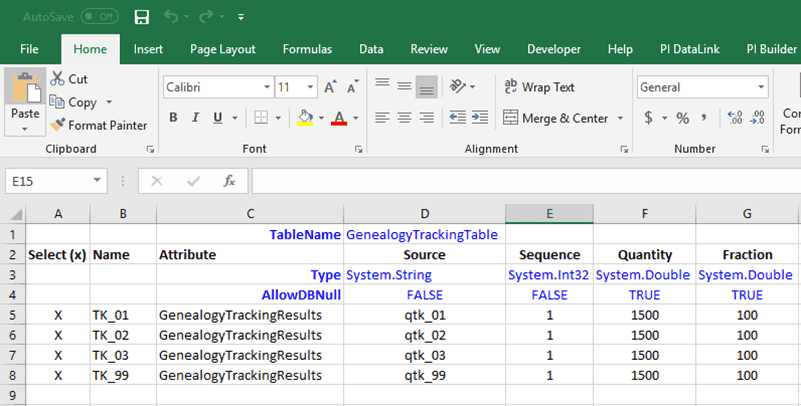
In the Name column, copy and paste the list of elements (for example: tanks).
Fill in the other columns as indicated in the following table.
Values for spreadsheet columns
Column Value to enter Attribute GenealogyTrackingResults Source q\<tankname> (This value indicates that the source asset for the initialization is the asset itself.) Sequence Enter the number of the sequence to which this genealogy will be assigned (1).In Case of a FIFO or LIFO inventory, more than one packet could be configured through a progress number, otherwise only one packet (with sequence number 1) should be configured. Quantity Enter the net volume in the initialization Case of this tank Fraction Enter the quantity percentage of the sequence in the total (100% in case of one packet only, otherwise it’s a proportion of the quantity of each packet). IMPORTANT: Usually one, single source of the genealogy table is initialized for each element.
Quality Tracking Results
To prepare the data set for QualityTracking Results:
Open a new Microsoft Excel spreadsheet file.
Select the PI AF Builder tab.
Click on the Element icon.
Select Find Elements.
The Element Search window opens.
Import all of the elements configured with QualityTrackingResults that have a determined volume.
Select the right Sigmafine model, (for example: the 'SF_Tank' category).
Click the Search button.
Click OK.
No Transposed Attributes are needed.
In a new spreadsheet, copy and paste the corresponding template stored in the 'DataImporter v 4.7.0 Set-Up Kit' folder, as shown in the following figure.
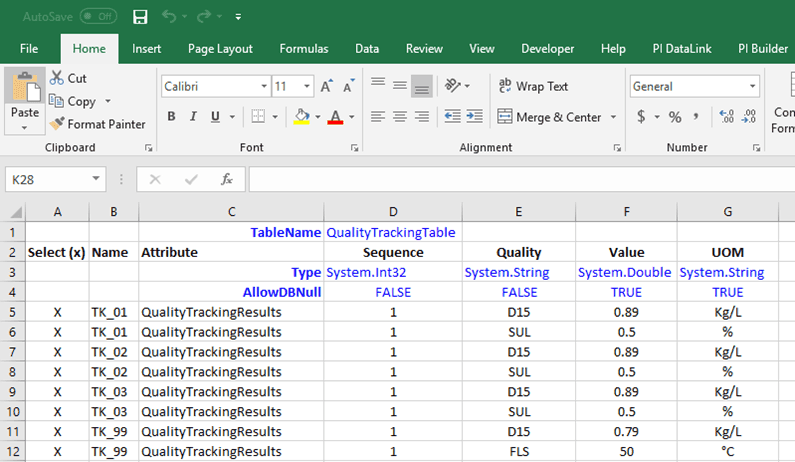
In the Name column, copy and paste the list of elements (for example: tanks).
Fill in the other columns as indicated in the following table.
Values for spreadsheet columns
Column Value to enter Attribute QualityTrackingResults Sequence Enter the sequence number of the interested material. Quality Enter the type of the quality analyzed in the interested material. Value Enter the net volume of the interested material in the initialization case. UOM Enter the units of measure of the initialized quality. IMPORTANT: The rows must be ordered by element, as shown in the screen shots. It means that all the qualities referred to the same Element must be in subsequent cells.
The GenealogyTrackingResults and QualityTrackingResults files are now ready to be imported with the 'Sigmafine Data Import' tool. See Importing Values into Sigmafine Analysis Cases for further instructions.