Viewing / Adjusting Results
To view or adjust results from a Case analysis:
Open the AF Output window.
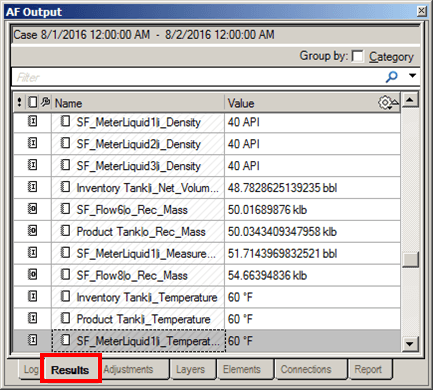
Click on the Results tab.
Results for the individual Element attributes, transfers, etc. are listed in the 'Value' column.
To make an adjustment to a value use one of the following methods:
Method 1
Click on a value in the 'Value' column.
Edit that value accordingly.
Press the Enter key on your keyboard.
A Comment window opens, where you can enter a reason for your adjustment.
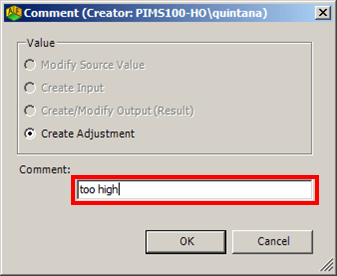
In the Comment box, type the reason for your adjustment.
Click OK to save your comment and close the Comment window.
Method 2
Right-click on a value and select New Adjustments.
A Comment window opens, where you can enter a reason for your adjustment and enter the adjustment value.
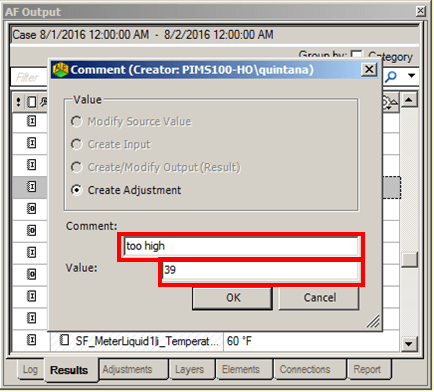
In the Comment box, type the reason for your adjustment.
In the Value box, type the new value (the adjustment).
Click OK to save your entries and close the Comment window.
The adjustment is made.
Repeat step 2 for each adjustment you need to make.
To examine all your adjustments once you are finished, click on the Adjustments tab.
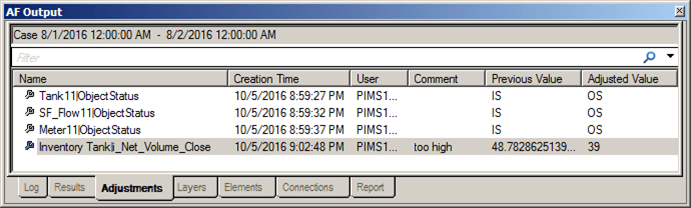
When satisfied with your adjustments, click the Run button in Case Runner, to rerun the case.