Search Transfer
The Search Transfer feature allows searching transfers with historical data (relative to now) as well as future transfers. Future transfers are done by using the 'Planned Search Interval' and allow up to 30 days in the future (relative to now) to be searched.
To prepare a transfer search:
On the Transfer dockable window toolbar, click the Search button.
The table list is re-sized to open a pane containing the search filter options.
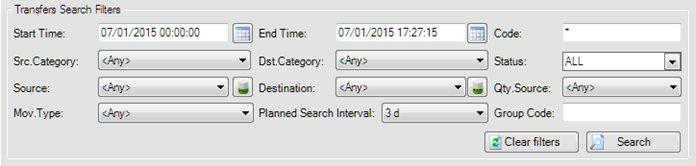
Use any of the following search filters to locate the transfer you want.
Use the Start Time and End Time date filters to search transfers with dates in the past (relative to now).
Start Time is the date and time associated with the start of the transfer, while End Time is the date and time associated with the end of the transfers.
 To select a start and/or end date and time do one of the following:
Type the date and time into the corresponding box using
mm/dd/yyyy 00:00:00 AM(orPM) format.Click the
 Calendar button to open a Date and Time Definition window.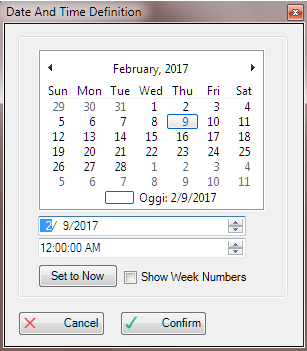
Based on the date and time by which you want to filter, use one of the following methods:
Click the Set to Now button.
This action sets the date and time to the current time-stamp.
Click the Confirm button to save your selections and close the Date and Time Definition window.
To select a date, use the arrows to the left and right of the month to move backward or forward a month at a time., and click on a day in the calendar to select it.
To select a day, click on it in the calendar.
Note: In lieu of steps 'a' and 'b', you can use the up and down arrows in the first box at the bottom of the window, to cycle through month, day and year values.
Once the date has been selected, you must also set a time.
To set a time do one of the following:
- Use the up and down arrows in the second box at the bottom of the window, to cycle through hours, minutes and seconds values.
Click the Confirm button to save your selections and close the Date and Time Definition window.
After selecting a date and time, you can use any of the remaining filters to further define your search.
Use the Code filter to search for a name that uniquely identifies the transfer you want. You can enter part of the name and use the wildcard character
*(an asterisk) to ensure that the search results show all transfers, either beginning or ending with the partial name you have entered.To find all transfers starting with a unique set of characters, place the wildcard character at the end of those characters (examples: TR123* or TR12345*).
To find all transfers ending with a unique set of characters, place the wildcard character at the beginning of those characters (examples: *1234567 or *R1234567).
Use the Src. Category and Source filters to search for a specific tank, node, process unit or receipt point source element.
Use the
 button next to 'Source', to load a list of compatible destination elements.
Use the Dst. Category and Destination filters to search for a specific tank, node, process unit or shipment point.
Use the
button next to 'Destination', to load a list of compatible source elements.Use the Status filter to search on any possible combination of transfer status. Sigmafine IMM offers a multiple selection feature, using check boxes. Selecting ALL as the status filter, resets all of the other sub statuses. Alternatively, if you select one or more of the other filters, the system automatically resets the 'ALL' filter.
Use the Qty. Source filter to search movement by the source quantity and the information about where the quantity of the movement comes from and/or its source formula. There is a multiple selection combination box that allows you to choose by Volume, Mass, Element and Calculation.
Use the Move. Type filter to search the transfer by movement type.
Use the Planned Search Internal filter to search by range (between 12 hours to 30 days). This filter allows for searching transfers with dates beyond the current time.
Use the Group Code filter to search for movement by the code used to group the movement.
- After you have set your search criteria, click the Search button in the Search Filter pane.
- (Optional) Click the Hide button on the Transfer dockable window toolbar to minimize the Search Filter pane while viewing the results. To reopen the pane, click the 'Search' button on Transfer dockable window toolbar again.
- (Optional) Click the Clear Filters button in the Transfer Search Filters pane, to remove all the search filters you have selected.