Using Parameters in Integration Rules
The following procedure shows how to set and use parameters within an Integration Rules.
In the Integration Rule graphical view, move your mouse over the PARAMETER graphical box until the mouse pointer shape changes to a cross.
Double click on the object to open the Setting input parameters window.
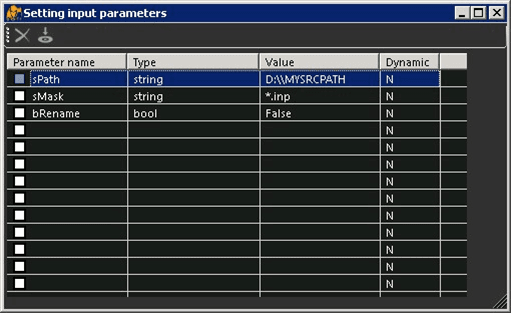
Perform the steps that coincide with the action you want to take:
In the Parameter name column, click on the first empty cell starting at the top left.
Type a name for the parameter.
Name Limitations:
 Add a Parameter
- It cannot be a keyword (e.g., SET, OR, AND, etc.).
- It cannot contain any special characters (e.g.,
* . , : ; @ # $ ! ” ‘ ? ( ) & % / \ ^ [ ] { } \< \>). - It cannot be a purely numeric value (e.g., 123). Though names such as "Prm_123" are permitted.
In the Type column of that same row, select the type of parameter.
In the Value column of that same row, type the parameter's value.
This column requires a specific format following the standard C# syntax. For example; the \ (backslash) has to be formatted as \\ (double-backslash). For further details, please refer to standard C# syntax.
Repeat steps 'a' through 'd' for each parameter you want to add.
Click on the cell you want to modify.
Edit the value accordingly.
Click on the checkbox at the beginning of the row you have modified.
A check indicates that you have modified a value in that row.
Locate the row for the parameter you want to remove.
Delete (using your keyboard Delete key) the value in every column of the row.
Ensure that all columns in that row are empty.
Repeat steps 'a' and 'b' for each parameter you want to remove.
Please note that an empty row at the top row or in between other rows is not permitted in Integration Rules. Therefore, an additional step must be taken in order to ensure that no empty rows exist at the top or in between, before re-saving the Integration Rule.
Cut the values from a remaining parameter row and place them into the empty row. Repeat this process for each empty row until none exist, except for those at the bottom of the table (as shown in the table in Figure 1544). Do not leave any empty rows between valid parameters.
When finished with your additions/modifications, click the
 Save icon.