Configure PI Data Server
To configure the PI Data Server:
Run the Integration Framework - Configurator application.
The Integration Framework - Configurator window opens.
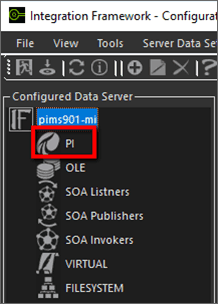
In the Configured Data Server pane, click on PI.
In the toolbar, click the
 Add icon.
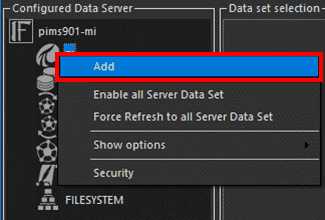
Alternatively, you can right-click on PI and select the Add option as shown in the following figure.
The Configure PI window opens.

Click on the PI server name down-arrow and select the PI Server.
Click on the AF type down-arrow and select AF2.x.
Click the Test connection button to test the connection.
A dialog box opens displaying that the server is connected.
Click OK to close the dialog box.
Click the
 Save and Exit icon.
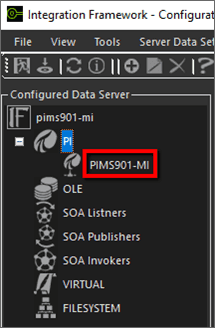
You are returned to the Integration Framework - Configurator window where the server you selected now displays under PI, in the Configured Data Server pane, as shown in the following figure.