Configure File System Data Server
To configure a File system Data Server:
Run the Integration Framework - Configurator application.
The Integration Framework - Configurator window opens.
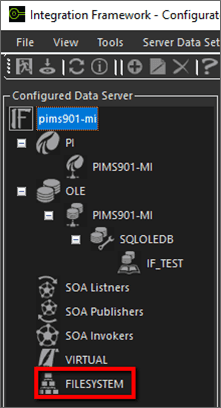
In the Configured Data Server pane, click on FILESYSTEM.
In the toolbar, click the
 Add icon.
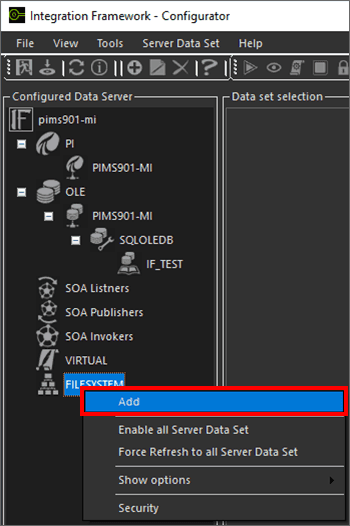
Alternatively, you can right-click on FILESYSTEM and select the Add option as shown in the following figure.
The Configure File System window opens.

In the Name box, type a name for the file system data server.
In the Directory box, type (or Browse to select) the path of the directory where IF should look or the files.
In the File Pattern box, type the file pattern used to look for specific files (i.e., file types).
Click the
 Save and Exit icon.
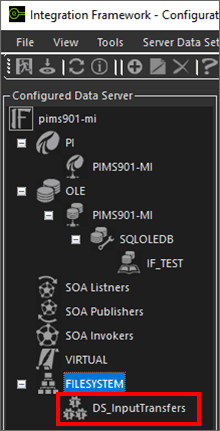
You are returned to the Integration Framework - Configurator window where the file system you selected now displays under FILESYSTEM, in the Configured Data Server pane, as shown in the following figure.