Modify Display Setting
While SFHub Administrators have the ability to modify any Default Display Setting, even those created by other administrator users, SFHub Visualizer users can only modify their own Display Settings.
To modify a Display Setting:
Click Create or Edit Display Settings to open the panel.
Create Modify Existing Setting section
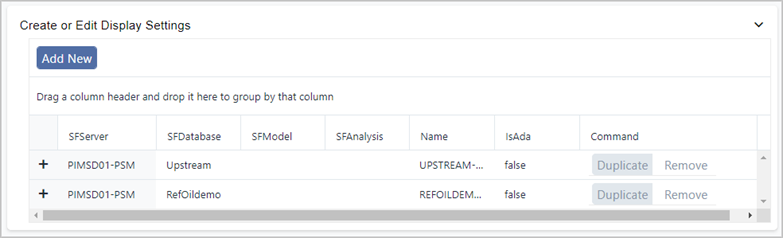
This section shows Display Settings that have already been created.
Find the Display Setting you want to modify and click on it.
A list of available Templates displays.
Create or Edit Display Settings - List of Templates
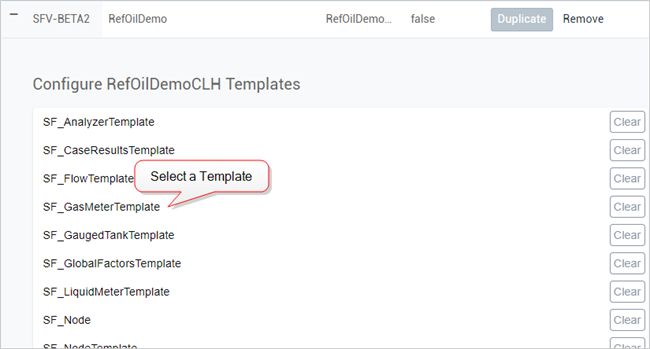
Click on the name of the Template that you want to modify.
A panel opens displaying the current settings for the selected Template.
Current Template Settings
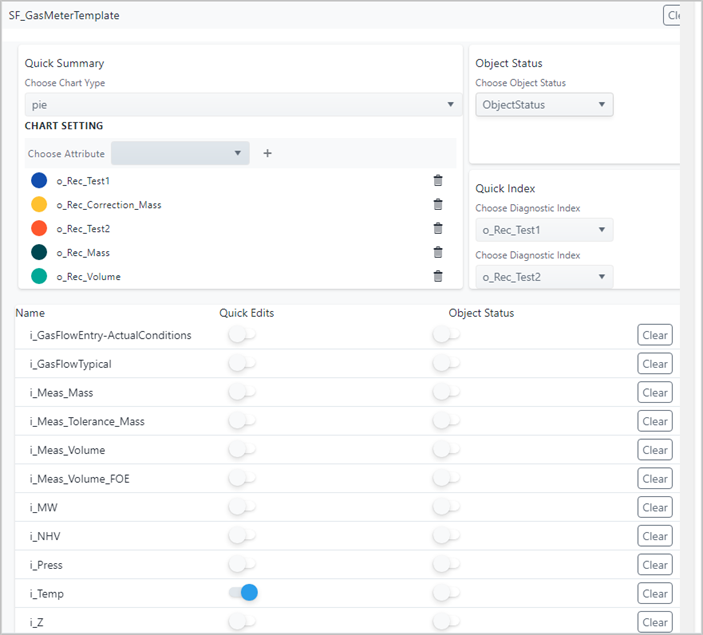
Modify the settings as needed, following the steps found under the following topics.
Select the topics below that coincide with the settings you want to define:
When finished, click on the Template's name, to collapse the view.
Your display settings are automatically saved.
Repeat steps 3 through 6 for each Template you want to modify in the selected Display Setting.
If you are finished configuring settings:
- SFHub Admin: Close the SigmafineVisualizer Settings panel.
- SFHub Visualizer: Click on the SFHub Visualizer link at the top of the Settings panel.
Your settings are automatically saved. (SFHub Visualizer only: In some instance, you may need to refresh the Display to see your changes.)